Why Is My Inventory Not Syncing?
A step-by-step troubleshooting guide to diagnose and fix inventory sync issues in OneCart. Covers Item Master setup, listing matching, auto-update toggles, platform connections, and force pushing.
A step-by-step troubleshooting guide to diagnose and fix inventory sync issues in OneCart. Covers Item Master setup, listing matching, auto-update toggles, platform connections, and force pushing.
Inventory sync in OneCart requires several pieces to be in place. If any one of them is missing, your quantities won’t push to your platforms. This guide walks you through each check, from most common to least common cause.
If the SKU isn’t in your OneCart Item Master, there’s nothing to sync. The Item Master is your central list of SKUs — it’s the source of truth that all platform listings connect back to.
How to check:
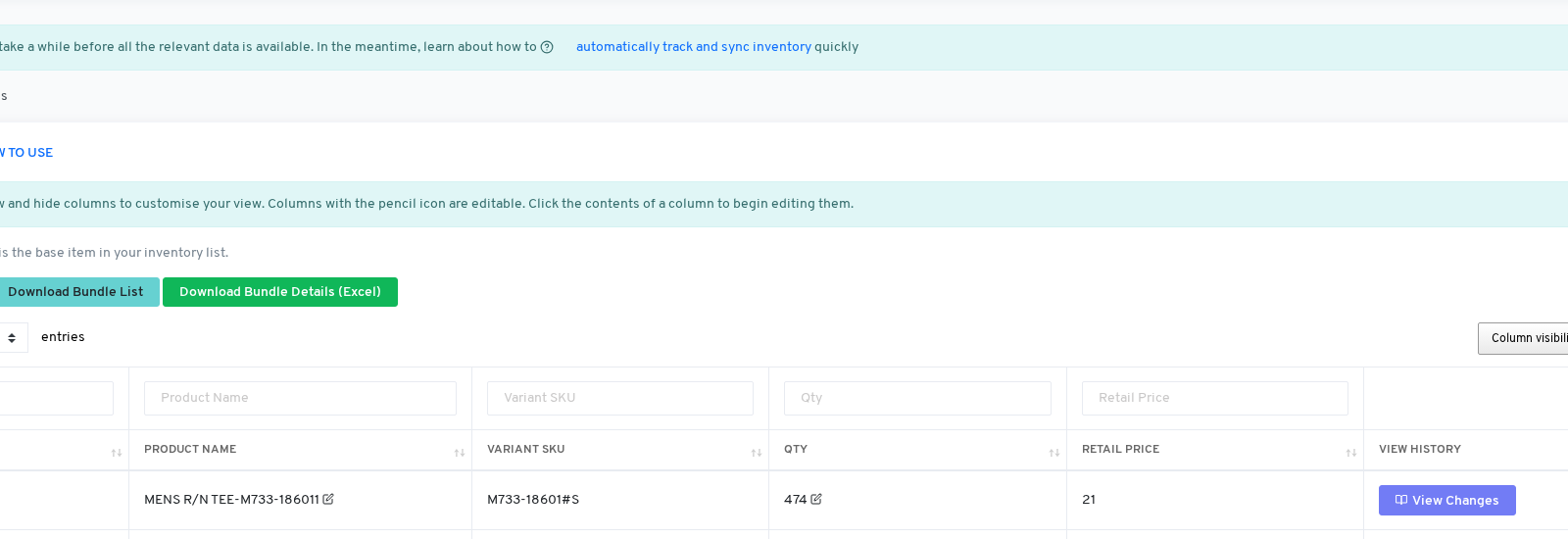
If the SKU doesn’t appear, you need to add it first. You can:
→ Learn more about the Item Master
OneCart needs to know what products exist on your platforms before it can sync inventory to them. Your platform listings must be imported into OneCart.
How to check:
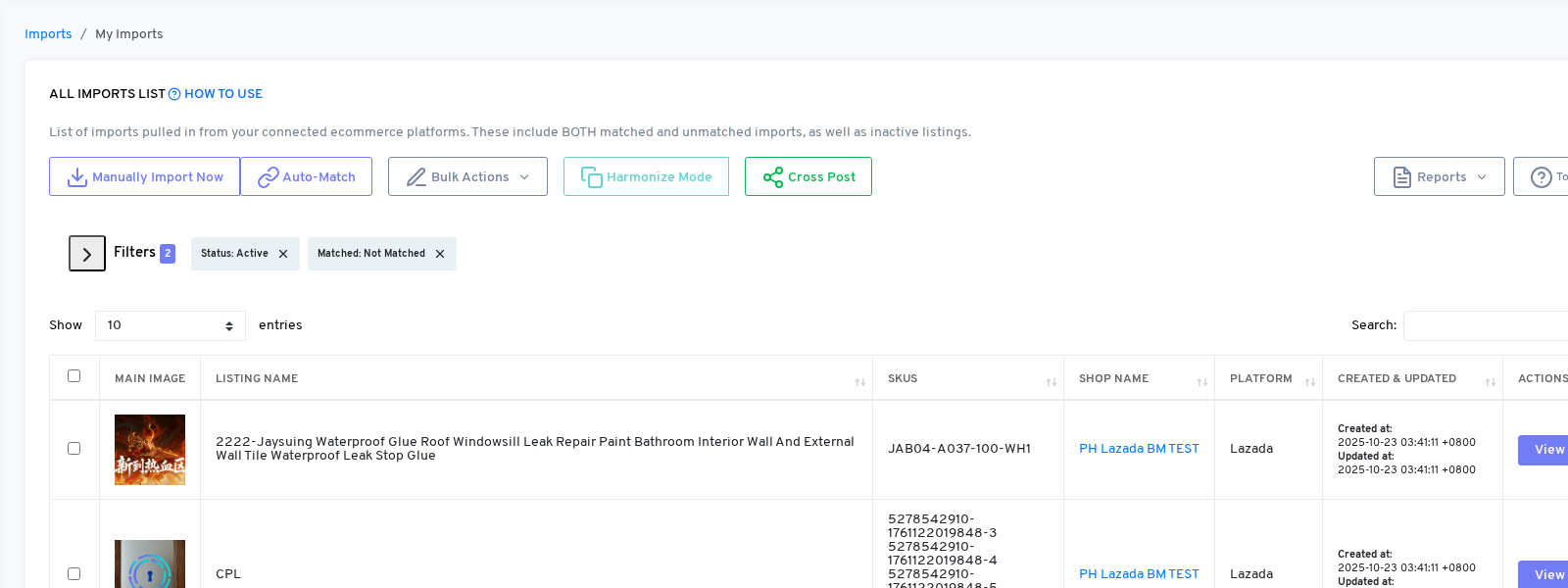
If your listing isn’t there, it may not have been imported yet. You can:
→ Learn about importing listings
Matching tells OneCart which platform listing belongs to which Item Master SKU. Unmatched listings will not sync.
How to check:
If your platform SKUs and OneCart SKUs are identical, you can click “Auto-Match” to let OneCart match them automatically.
→ Learn about matching platform listings → Bulk refresh and match listings
This is the most common cause of inventory not syncing. Even when everything is matched, sync won’t happen unless the auto-update toggle is switched On for each SKU.
How to check for a single SKU:
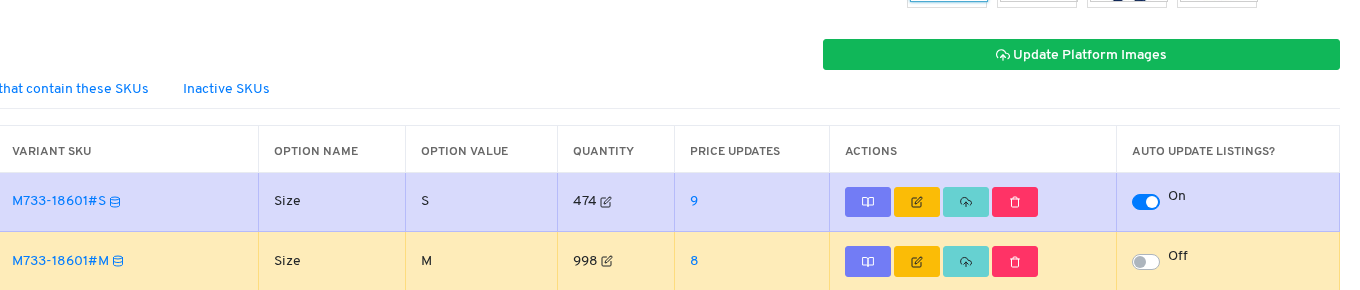
If the toggle shows Off (grey), click it to switch it to On (blue).
How to find ALL SKUs with the toggle off:
→ Detailed guide: Finding SKUs with toggle set to OFF
How to turn on sync for ALL SKUs at once:
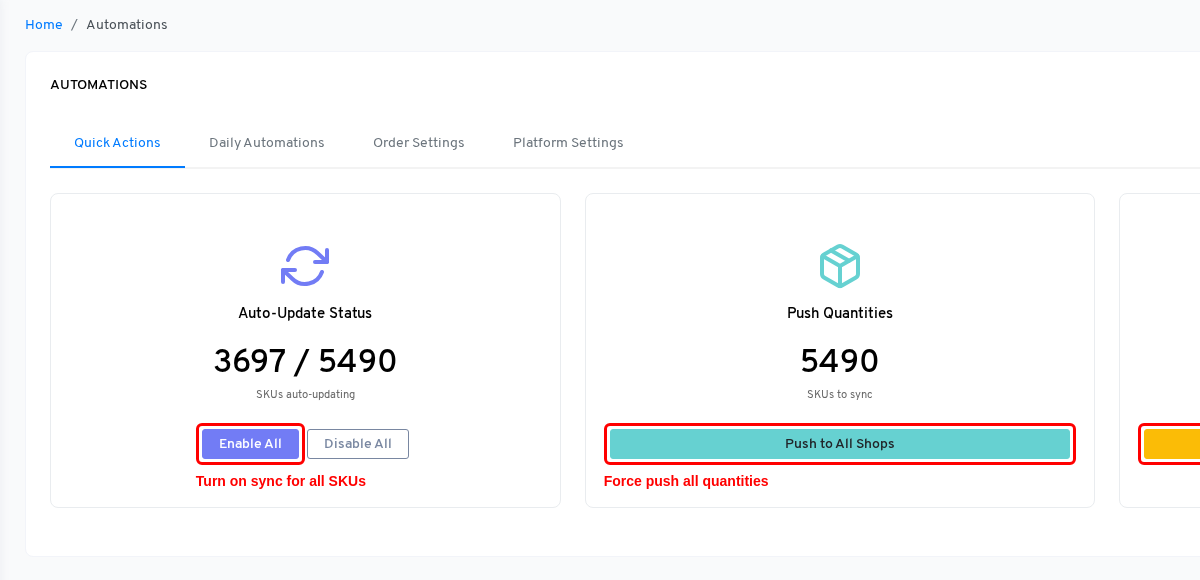
→ Full guide: Toggling on inventory sync
Platform tokens (Shopee, Lazada, TikTok, etc.) expire periodically and need to be refreshed. If a connection has expired, OneCart cannot push inventory updates to that platform.
How to check:
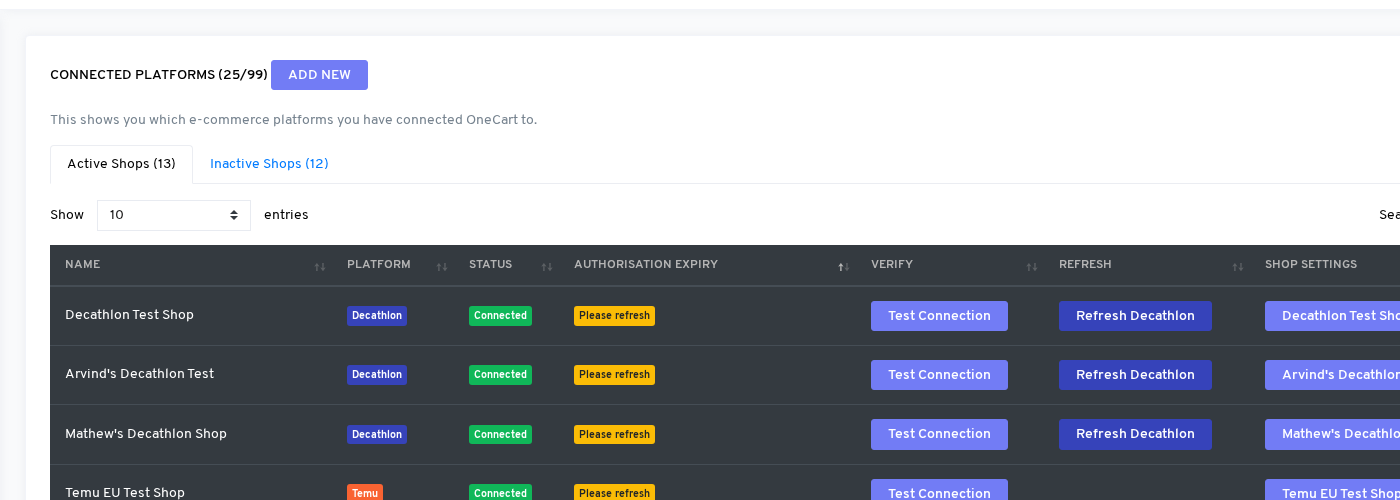
If a connection is expired or disconnected, re-authorise it by following the platform-specific guide for your marketplace.
→ Managing expiring shop connections
If someone changed the SKU code, deleted the product, or unlisted it directly on the platform (outside of OneCart), the link between OneCart and that listing may be broken.
Changes that break the connection:
Changes that usually don’t break the connection:
How to fix: Re-import the listing and re-match it to your OneCart SKU. Always try to make edits from OneCart rather than directly on the platform.
→ What causes a listing to break → How to update listings if changes were made in seller centre
Once you’ve identified and fixed the issue, remember that turning on the auto-update toggle only affects future changes. To immediately push your current OneCart quantities to all platforms, you need to force push.
Force push a single SKU:
Force push ALL SKUs:
Warning: Force push will overwrite ALL platform quantities with your OneCart numbers. Double-check your OneCart quantities are correct before pushing.
→ Force push quantity to all platforms
If you’ve checked all of the above and inventory still isn’t syncing: