
Where Can I Find My Finance Data in OneCart?
OneCart can help you to calculate your net earnings, read below to find out how.

OneCart can help you to calculate your net earnings, read below to find out how.
OneCart displays Finance Data for each order: the breakdown of marketplace fees, coins, vouchers, shipping fees and more, so you and your team can see your net earnings on a single order and export them across many orders at once.
There are two places to work with Finance Data:
The per-order breakdown is on the Manage Orders page, on every OneCart order page.
The image below shows the full breakdown of costs for a Lazada order from the OneCart order page.
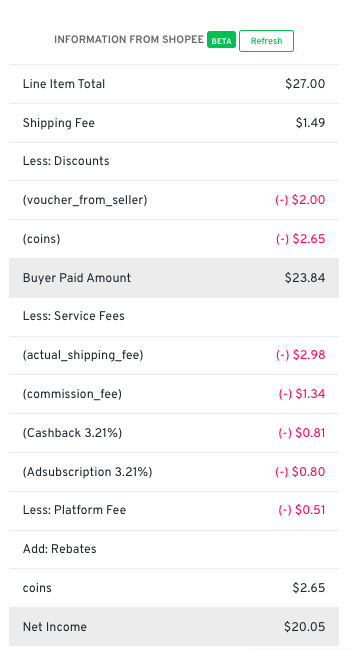
OneCart automatically checks and updates the Finance Data for each order once its status has settled, for orders placed within the last 30 days. If an order is settled but the finalised Finance Data does not appear yet, click the Refresh button to fetch it manually, as illustrated below.


A marketplace only shares the full, finalised Finance Data once an order has settled. Each platform settles at a different order status:
While an order is still in transit, and not yet settled, its final Finance Data is not available. This is normal, not an error. You can review every order that is still waiting for Finance Data on the Orders Without Finance page.
To pull Finance Data across many orders at once, use the Finance Data export under Reports. Pick a start date, an end date and a platform, then generate a CSV.
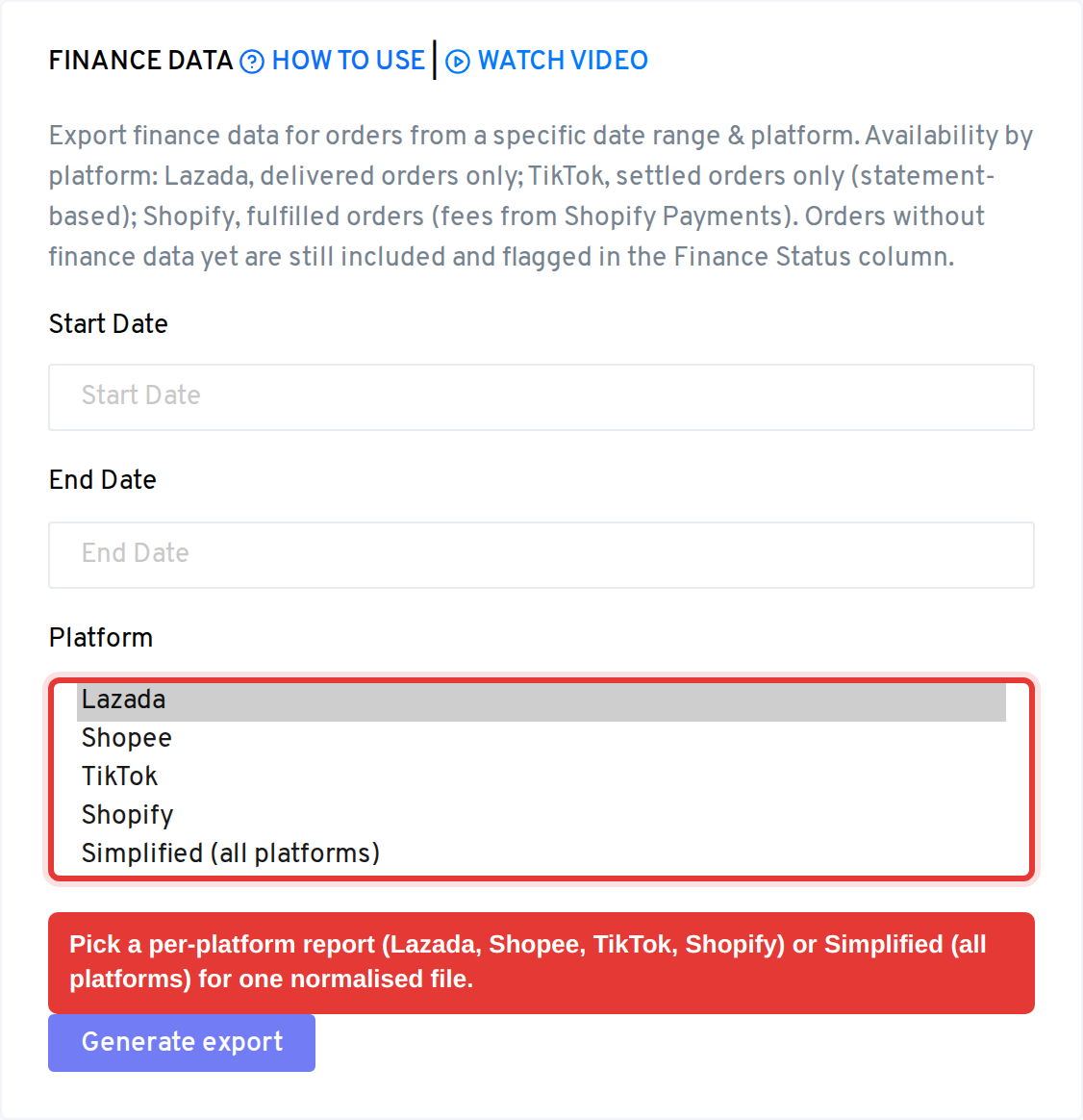
You have two kinds of report:
Every order in your date range appears in the file, including orders whose finance data has not settled yet. Nothing is silently dropped.
The Simplified report uses one consistent set of columns for every platform. Here is a short example export covering four orders:
| Order No | Date | Platform | Shop | Gross Amount | Platform Fees | Shipping Fees | Rebates | Net Amount | Profit | Margin % | Finance Status |
|---|---|---|---|---|---|---|---|---|---|---|---|
| SP26091801 | 2026-09-18 | Shopee | Acme Shopee Store | 128.0 | 14.08 | 4.5 | 2.5 | 108.5 | 41.2 | 37.97% | available |
| TT26091801 | 2026-09-18 | TikTok | Acme TikTok Store | 110.0 | 12.1 | 5.2 | 7.0 | 92.3 | 33.5 | 36.29% | available |
| SHOP26091801 | 2026-09-18 | Shopify | Acme Shopify Store | 151.0 | 4.49 | 0 | 0 | 141.0 | 52.0 | 36.88% | available |
| LZ26091801 | 2026-09-18 | Lazada | Acme Lazada Store | 64.9 | 58.9 | 0.0 | N/A | not yet available |
What each column means:
The last column, Finance Status, tells you whether each order’s fees are final:
Because every order in the date range is included and flagged this way, you always have a complete picture: settled orders come with their full breakdown, and unsettled ones are clearly marked rather than dropped.