Understanding Your Inventory Tracking History
The Inventory Tracking History provides a comprehensive view of all quantity movements for a product. This feature helps businesses monitor inventory adjustments, track order fulfillment, and conduct audits with ease.
Help Article
Last updated Nov 20, 2024
1 min read
Understanding your transaction history is crucial for maintaining accurate inventory levels and ensuring operational efficiency.
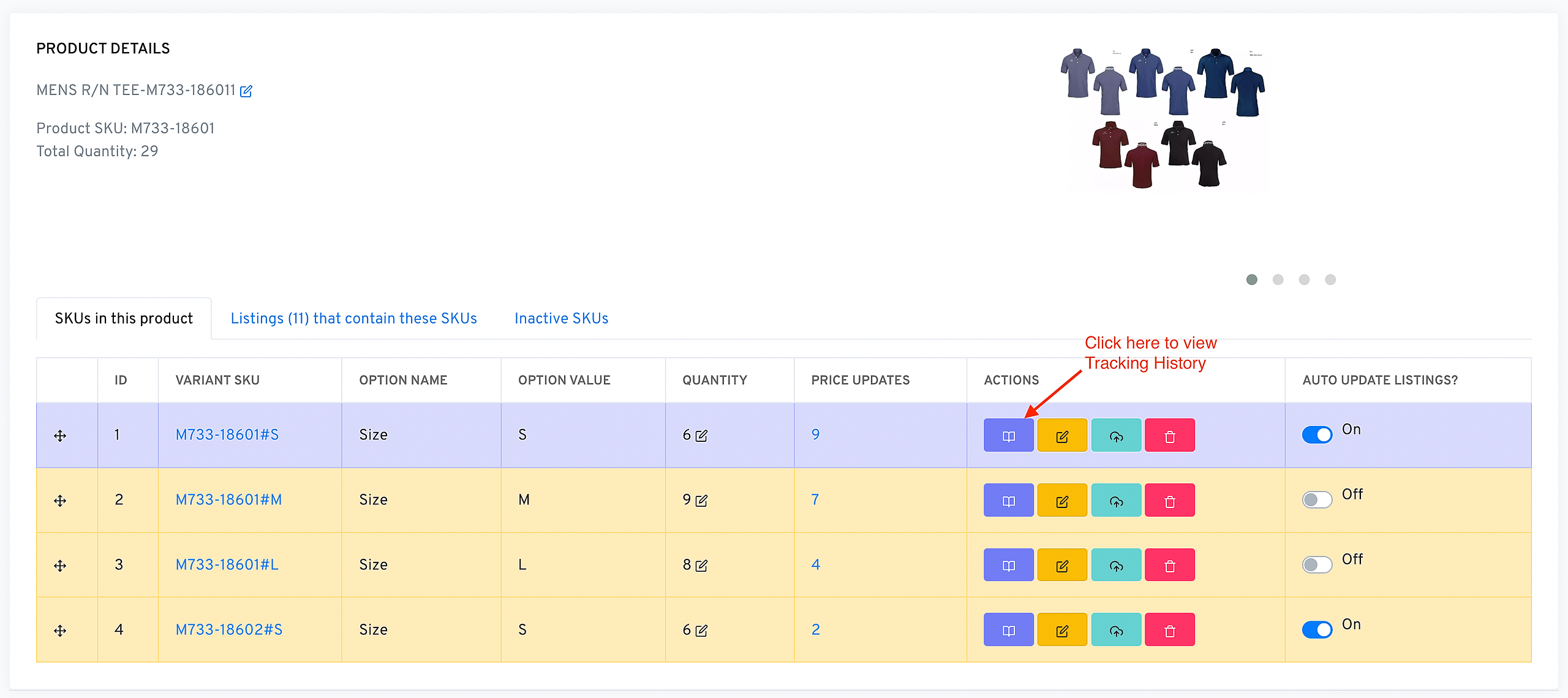
OneCart allows you to view the history of inventory changes for a sku. To view your Tracking History, open a product page by clicking on the ‘View/Edit Single skus’ and searching for your desired product. Click the ‘Tracking History’ purple button located within the same row (see image below)
The Tracking History provides a record of all finalized orders for a product, along with any manual or automated inventory adjustments. This feature is particularly useful for conducting inventory audits or verifying changes made by you or your team members.
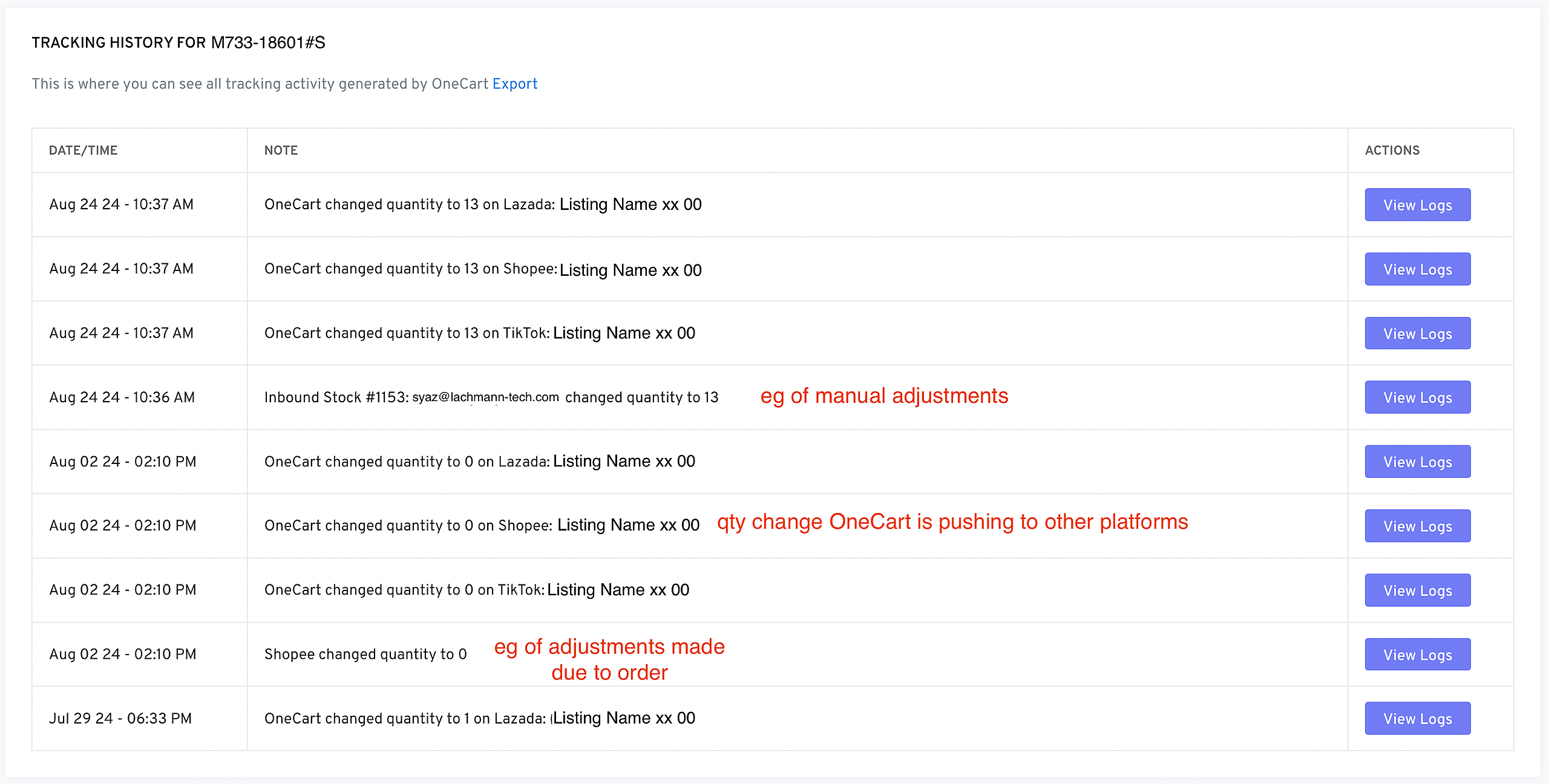
For orders, the Tracking History includes:
- The date the order was shipped (not the date it was placed).
- The sales channel where the order originated.
- The order number.
- The quantity deducted from inventory.
For manual adjustments, the Tracking History shows:
- The individual who made the adjustment.
- The date the adjustment occurred.
- The quantity added or removed.
You are also able to see the tracking history for all your inventory in one place here - OneCart Inventory > View Inventory > Tracking Hisory - https://app.getonecart.com/tracking_history