Splitting an Order into Multiple Parcels in OneCart
Ship a single order across several parcels — each with its own tracking number and air waybill — when items are bulky, fragile, or simply won't fit one box. Works with your SPX and SingPost logistics providers.
Help Article
Last updated Jun 8, 2026
3 min read
Sometimes a single order can’t go out as one parcel — the items are bulky, heavy, fragile, or just won’t fit in one box. OneCart lets you split one order across multiple parcels, each booked separately with its own tracking number and air waybill.
This works with the logistics providers you’ve connected (SPX and SingPost). If you haven’t added one yet, set it up first: How to Add a Logistics Provider and Shipping Address in OneCart.
Good to know: Splitting is available when you’re shipping one order at a time. If you select several orders together, OneCart ships each as a single whole-order parcel (the usual bulk flow).
Step 1: Select a single order and open Send to Logistics
- Go to Order Processing.
- Tick the checkbox for the one order you want to split.
- Click Send to Logistics, then choose your logistics provider and your pickup or dropoff details as usual.
Step 2: Build your parcels
Below the pickup details you’ll see a new Parcels section. It starts with one parcel containing every item in the order.
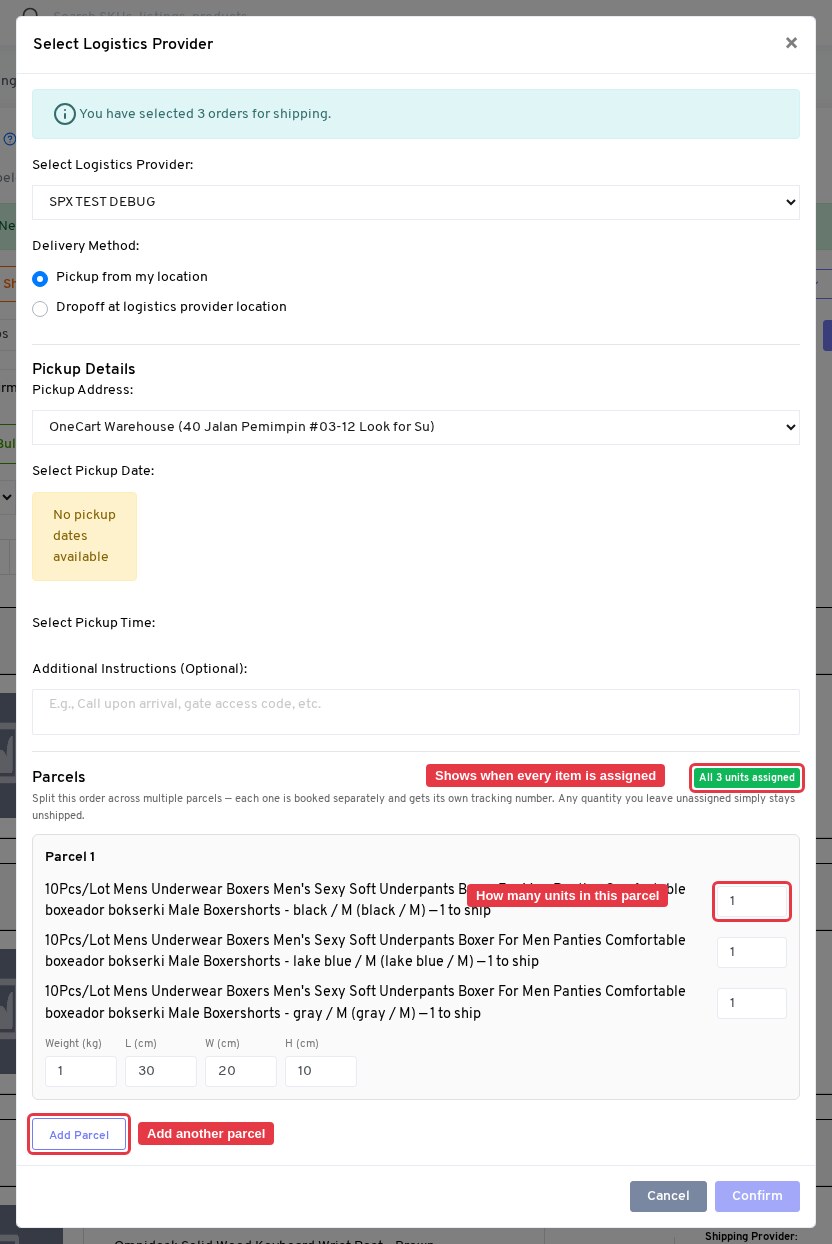
- Click + Add Parcel to create another parcel.
- For each item, type how many units go into each parcel. (For items with a quantity of one, just put
1 in the parcel it belongs to and 0 in the others.) - You can set a weight and dimensions for each parcel.
- Use the Remove link to delete a parcel you don’t need.
Step 3: Watch the indicator
The badge at the top of the Parcels section tells you whether your split is ready:
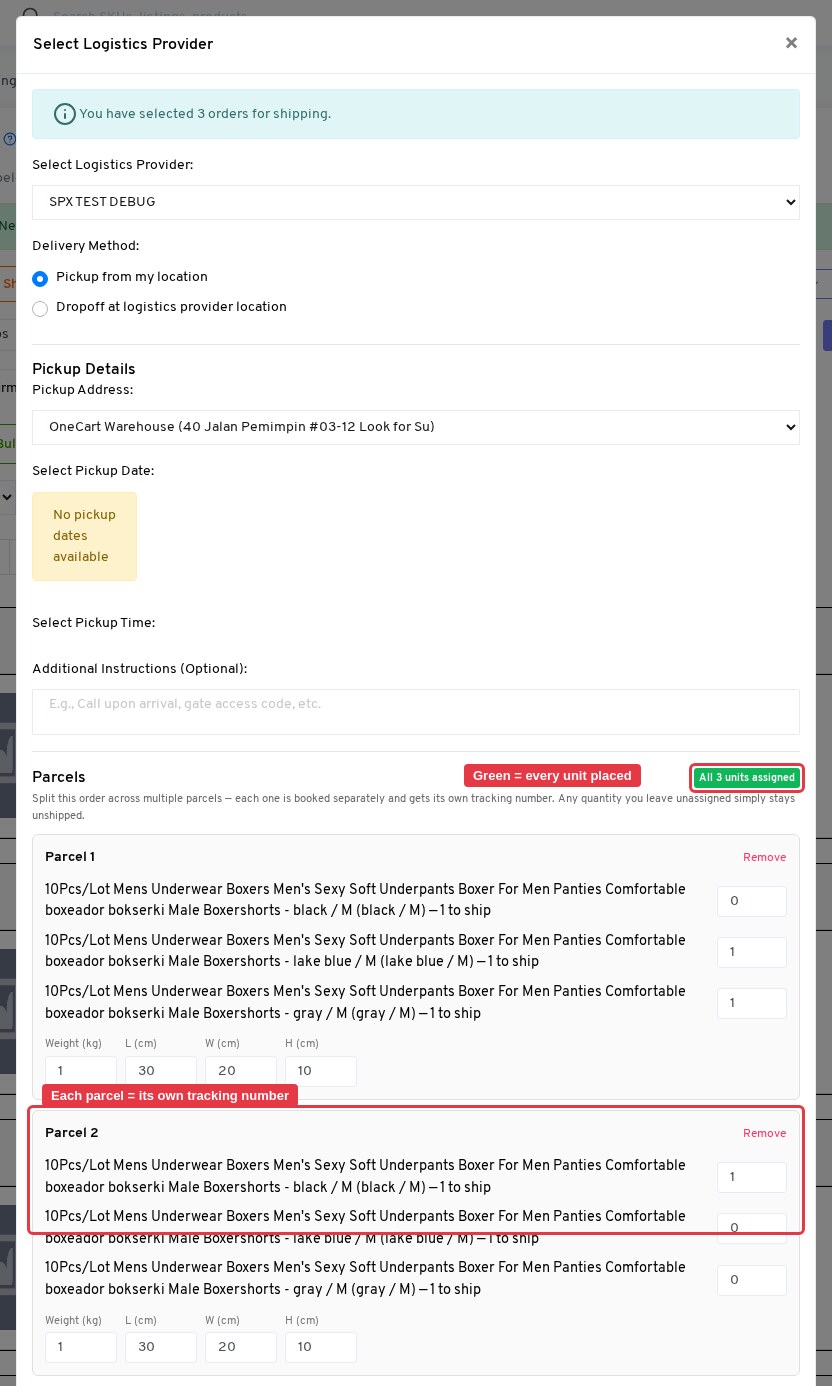
- 🟢 All units assigned — every item is accounted for. You’re ready to confirm.
- ⚪ X of Y units unassigned — some units haven’t been placed in a parcel. That’s allowed — those items simply stay unshipped (a partial shipment), and you can ship them later.
- 🔴 Over-assigned — you’ve put more of an item into parcels than were ordered. The Confirm button stays disabled until you fix it.
The Confirm button is also disabled while any parcel is empty — every parcel needs at least one item.
Step 4: Confirm and print
Click Confirm. OneCart books each parcel separately, so you’ll get one tracking number per parcel. The success screen lists every tracking number, and Print Airway Bill generates a single PDF containing all of them.
For Shopify orders, OneCart also marks each parcel as a separate fulfillment on Shopify, with the correct items and tracking number — so your store stays accurate, and the order only shows as fully fulfilled once every item has shipped.
Frequently asked questions
Can I split orders from more than one platform at once?
Splitting works one order at a time. To split, select a single order. Selecting multiple orders together uses the standard whole-order shipping flow.
What if I only ship some of the items?
That’s fine — leave the rest unassigned and confirm. The shipped items get their parcel and tracking number; the remaining items stay unshipped and can be shipped in a later batch.
I cancelled a parcel — can I re-ship those items?
Yes. Cancelling a parcel’s shipment frees up its quantity, so those units become available to ship again.
The Parcels section didn’t appear — why?
The Parcels section shows when you’ve selected a single order that has itemised line items. If you’ve selected multiple orders, OneCart uses the whole-order flow instead.