
Send an SPX Order to a Collection Point or Locker
Book an SPX parcel to an SPX collection point or locker instead of the buyer's address, and follow it until the buyer collects it.

Book an SPX parcel to an SPX collection point or locker instead of the buyer's address, and follow it until the buyer collects it.
Some buyers would rather pick up their parcel than wait at home. With SPX Buyer Self-Collection, you can send an order to an SPX collection point or an SPX locker. The buyer collects it there.
You choose the point in OneCart when you book the parcel. Nothing changes in your store’s checkout.
OneCart support turns this feature on for you. You need:
To turn it on, email hello@getonecart.com. Tell us your company name and whether SPX has enabled Self-Collection, Locker, or both.
New feature: before you use it for buyers, book one test order and check it in your SPX account.
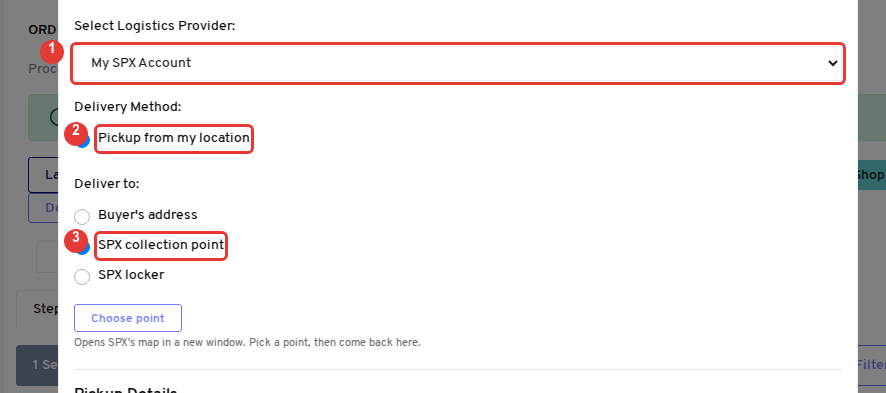
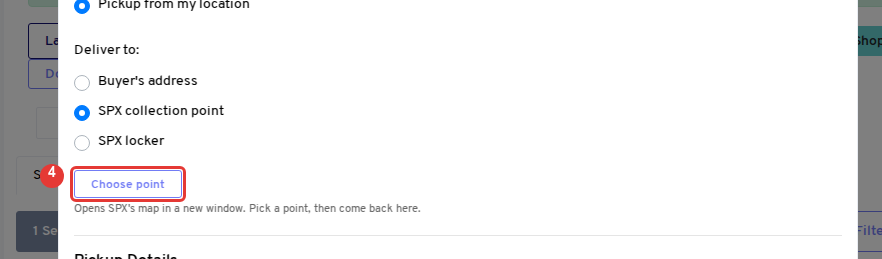
On SPX’s map, search for an area or postcode, click a collection point or locker in the list, and confirm. SPX sends you back to OneCart and the window closes.
Back in OneCart, the point’s name and address now show in the modal. Check them. If you picked a locker on SPX’s map, OneCart books it as a locker, even if you chose collection point.
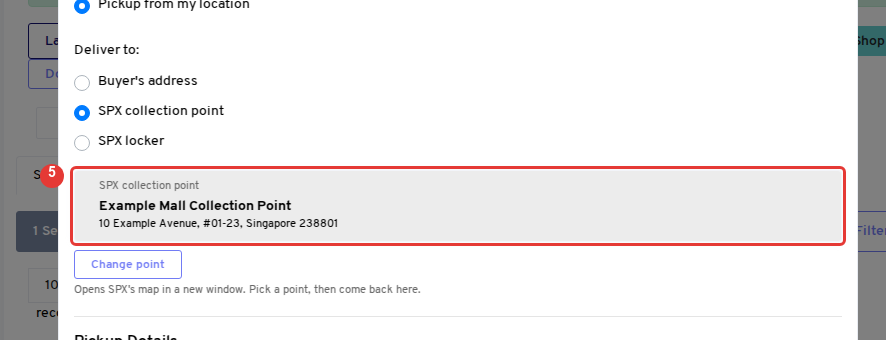
OneCart books the parcel with SPX to that point. You get the tracking number and the label as usual.
One order at a time: if you select more than one order, OneCart asks you to book them one at a time. Each order goes to its own point.
If your browser blocks the new window, SPX’s map opens in the same tab. After you pick a point, OneCart takes you to the order. Go back to Order Processing to book it.
When the parcel arrives at the point, SPX sends the buyer a message with a collection PIN. The buyer shows the PIN to collect the parcel. OneCart does not send the PIN.
Tell the buyer which point you chose. For example, reply on chat with the point’s name and address.
Open the order. Where the buyer’s address usually shows, you see the point’s name and address, the tracking number and the latest SPX status.
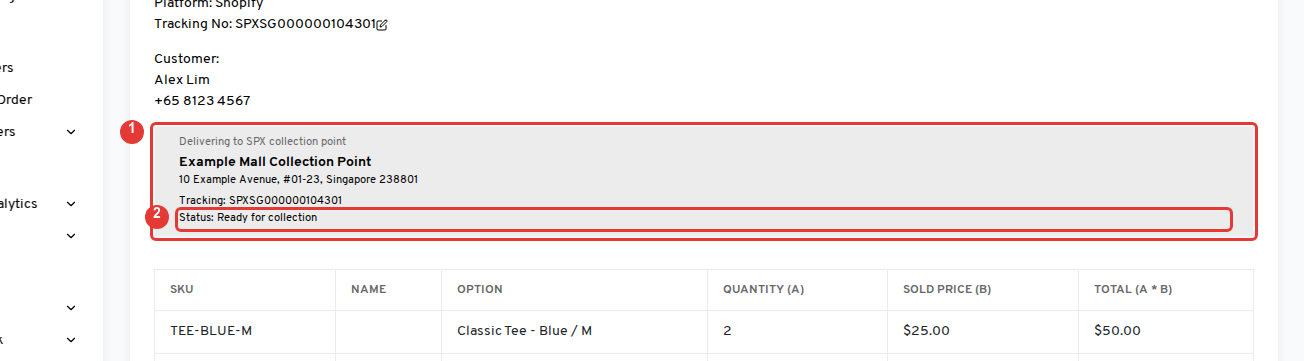
The statuses you may see:
| Status | What it means |
|---|---|
| Waiting for pickup | SPX has the booking and will collect the parcel from you. |
| In transit | SPX has the parcel. |
| On the way to the pickup point | The parcel is going to the point. |
| Arrived at the pickup point | The parcel is at the point. |
| Ready for collection | The buyer can collect it. SPX has sent the PIN. |
| Collection reminder sent | SPX reminded the buyer to collect it. |
| Collected | The buyer has collected the parcel. |
| Not collected | The buyer did not collect it in time. Check with SPX what happens to the parcel. |
| Returning to you / Returned to you | The parcel is coming back, or is back with you. |
You can also see every parcel and its status on the Shipments page.
Before you book: click Change point in the modal and pick another point. The newest choice is the one OneCart uses.
After you book: you cannot change the point in OneCart. Cancel the shipment on the Shipments page, then book the order again with the new point. You can only cancel before SPX collects the parcel from you.
OneCart shows what to do next and SPX’s own error code and message, for example “SPX cannot deliver to this point. Choose another point.” Fix the issue and click Confirm again.
Need help? Email hello@getonecart.com.