Scan to Pack: Check Every Parcel Before It Ships
Use the OneCart pack bench with any USB or Bluetooth barcode scanner: scan the shipping label, scan every item into the parcel, and OneCart catches a wrong, missing or extra item before the courier collects it.
Help Article
Last updated Oct 23, 2026
6 min read
A wrong item in a parcel costs you a refund, a return shipping fee and, on Shopee and Lazada, a penalty point. Scan to pack catches it at the packing table. The packer scans the shipping label to bring up the order, then scans each item as it goes into the box. OneCart checks every scan against the order and only marks the order packed when everything is in.
You need a barcode scanner that works like a keyboard, which most USB and Bluetooth scanners do: it types the code and presses Enter. No app or driver is needed. You can also type a code and press Enter.
Turn it on
Scan to pack is off until you turn it on.
- Open My Company → Settings.
- Under Dispatch controls, tick Scan to pack and click Save.
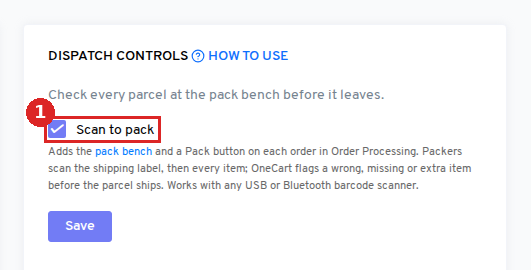
This adds the pack bench and a Pack button on every order in Order Processing.
Pack an order
- Open the pack bench. The cursor is already in the scan box, and it goes back there after every click, so you can keep scanning without touching the mouse.
- Scan the shipping label (its tracking number or package number), the order number on your OneCart picking list, or type the order number. You can also click Pack next to an order in Order Processing.
- The order appears with one line per item: SKU, name, variation, bin location and 0 of 2, the number of units still to pack.
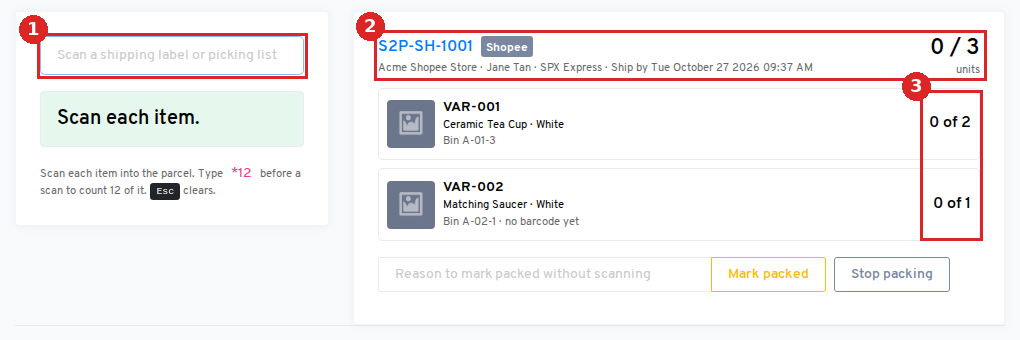
- (1) The scan box. Scan here.
- (2) The order: number, shop, buyer, courier and ship-by date, with the units packed so far.
- (3) Units scanned out of units ordered, for each line.
- Scan each item as you put it in the box. Each matching scan adds one to its line, and the line turns green when it is complete.
OneCart recognises an item by its barcode (the EAN or UPC on the product, or a code you saved on the SKU) or by its SKU. A bundle is shown as its components, so a “Tea for Two Set” made of one teapot and two cups asks for one teapot and two cups. If you keep the set ready-packed, scan the set’s own SKU or barcode instead: one scan counts the whole set.
When something is wrong
The scan box turns red and the bench beeps when:
- The item is not on this order: the code belongs to another of your SKUs.
- There are too many: that line already has all its units.
- The code is unknown: no SKU has that barcode or SKU code.
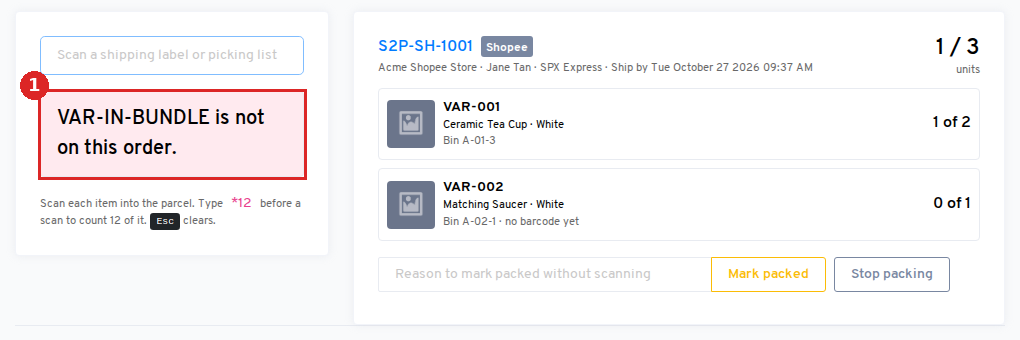
Nothing is counted for a red scan. Take the item out and carry on.
If you scan an item before the shipping label, the bench tells you that it is a product code and asks for the label or order number first.
Packing many of the same item
Type *12 and press Enter, then scan the item once to count 12 units, which is handy for cartons. If the order has fewer units left of that item, nothing is counted and the bench shows how many are still needed.
Teach OneCart a barcode as you pack
Many products have no barcode saved in OneCart yet. When you scan a code OneCart does not know, and the order has exactly one item left without a barcode, the bench offers to save the code on that SKU:
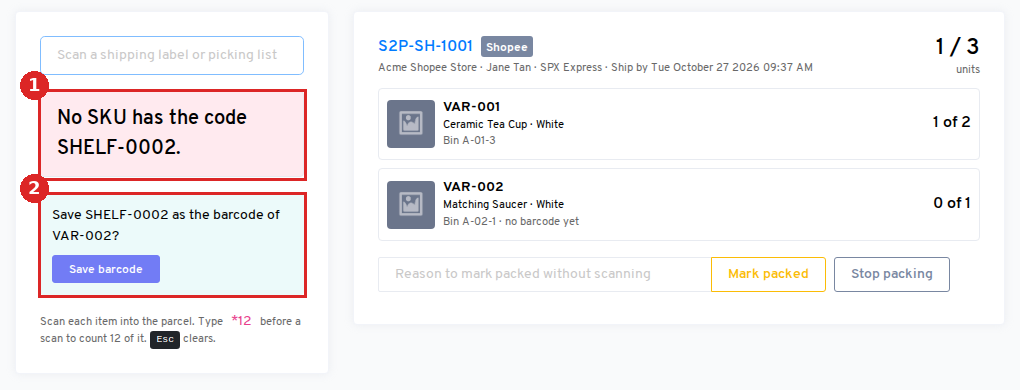
- (1) The code is not known yet.
- (2) Click Save barcode to save it on the SKU and count the unit.
From then on that code finds the SKU everywhere in OneCart. If you saved it by mistake, click Undo saved barcode straight away. Every saved barcode is recorded with who saved it and when.
You can also add barcodes yourself on each SKU (the Barcode / GTIN field) or in bulk with the variants spreadsheet import.
When the order is packed
When the last unit is scanned, the order card turns green and shows Packed with the time and the packer’s name.
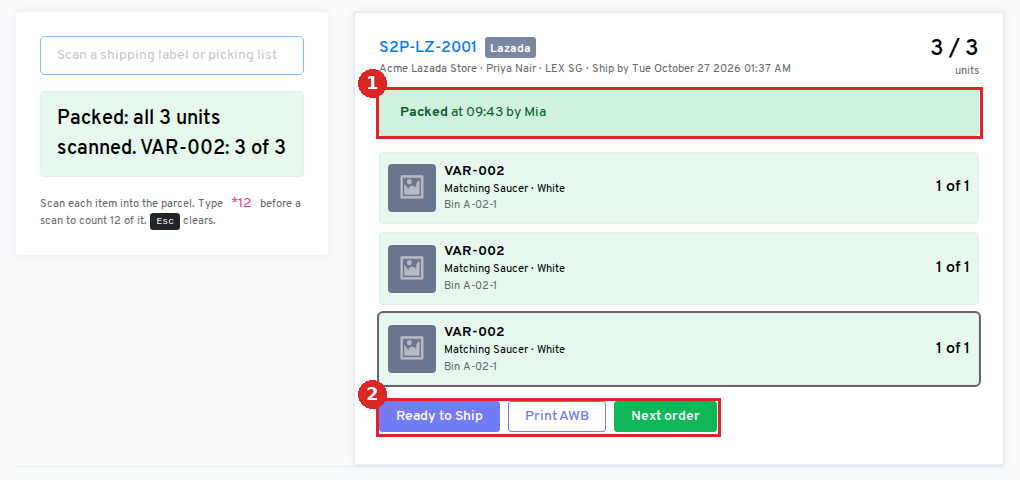
- (1) Packed, with the time and who packed it.
- (2) Ready to Ship (or Fulfil for Shopify and WooCommerce) sends the order to the marketplace the same way the Order Processing buttons do. Print AWB opens the shipping label. Next order clears the bench for the next parcel.
Ready to Ship from the bench is available for Shopee, Lazada, TikTok Shop, Zalora, Shopify and WooCommerce. For Shopee, the bench books the pickup slot OneCart would choose for you, or a dropoff if pickup is not offered. If neither is available, arrange the shipment in Order Processing.
In Order Processing, packed orders have their own row colour and a Packed badge with the time and the packer:

- (1) The packed badge.
- (2) The Pack button opens this order on the pack bench.
Only ship orders that were scan-packed
To make sure no parcel leaves without being checked, turn on Only ship scan-packed orders under Dispatch controls. You can also turn on Ship automatically when packed.
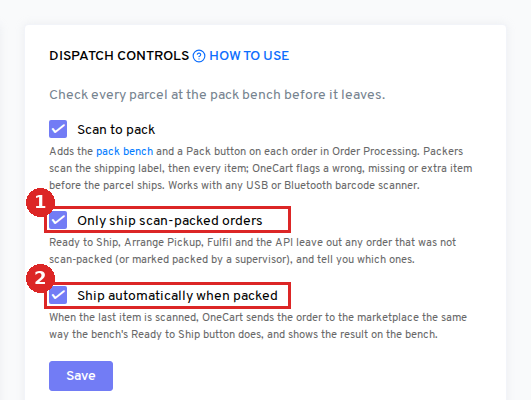
- (1) Only ship scan-packed orders.
- (2) Ship automatically when packed.
With Only ship scan-packed orders on, OneCart leaves out any order that has not been scan-packed (or marked packed by a supervisor) when you ship from Order Processing. This covers Ready to Ship, Arrange Pickup and Dropoff, Fulfil, Buy Shipping, booking your own courier, the bulk mark-shipped upload and the OneCart API. Create Package and marking an order delivered are not affected. The orders that were packed go as usual, and the page lists the ones that did not:

Pack those at the pack bench, then ship them again.
Lazada and Zalora: Create Package is not held back, so you can still create packages and print shipping labels before packing. Ready to Ship is the step that waits until the order is scan-packed.
Ship automatically when packed
With Ship automatically when packed on, the scan that completes an order also sends it to the marketplace, exactly like the bench’s Ready to Ship button, and the result shows on the order card. If the marketplace refuses, the card says why in red and the order stays packed, so you can ship it from Order Processing. For platforms the bench does not ship (such as Temu), the bench simply reminds you to ship the order from Order Processing.
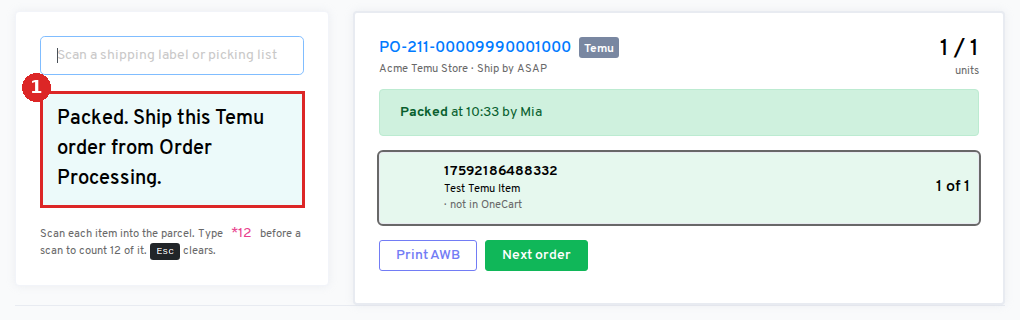
- (1) A Temu order is packed; the bench reminds you to ship it from Order Processing.
Marking an order packed without scanning
Sometimes a parcel cannot be scanned, for example when the scanner is broken or a label is torn. A user with full access can type a reason and click Mark packed. The order shows as Packed (override) and the reason is kept with the order. Warehouse users cannot use this.
Stop packing leaves the order unpacked. Scan its label again to start over.
Print SKU barcodes on your picking list
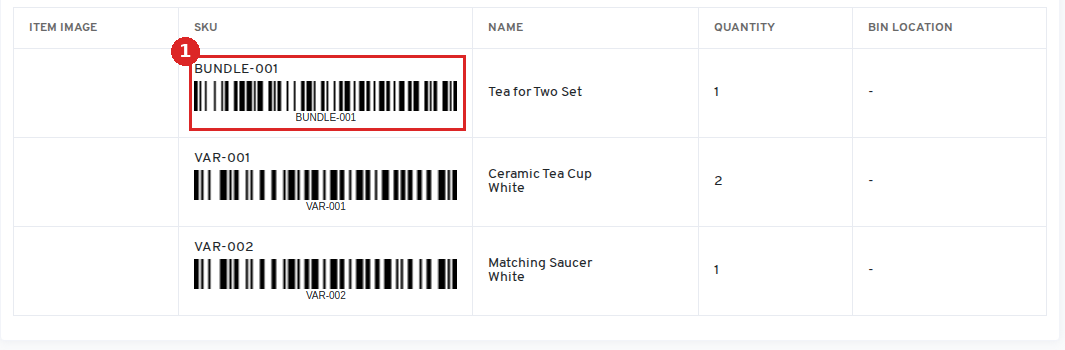
If your products have no barcodes, print your own. When Scan to pack is on, the picking list options in Order Processing have a Barcode under each SKU box. Tick it, and each SKU on the picking list gets a barcode your packers can scan at the bench.
Related articles