Prepare Account Data: Brands, Categories & Order History
Fill in your brands, buyer categories and past order links in one place so your SKU, brand, category and sales reports are complete. Run it after connecting a channel or before auditing your account. Every action is safe to re-run, it only fills blanks.
Help Article
Last updated Sep 20, 2026
4 min read
When you connect a new channel, OneCart imports your listings, but some of the data your reports rely on is not filled in automatically. Brand names and buyer categories from the marketplace are not yet applied to your SKUs, and past orders are not yet linked to the products in your Item Master. Until that data is filled in, reports that group by brand or category, or that count historical sales, will quietly leave those items out.
Prepare account data fills all of that in from your connected channels, in the background, with a few clicks. Every action is safe to re-run: it only fills in blanks and never overwrites anything you have already set, and nothing is pushed to any marketplace.
Where to find it
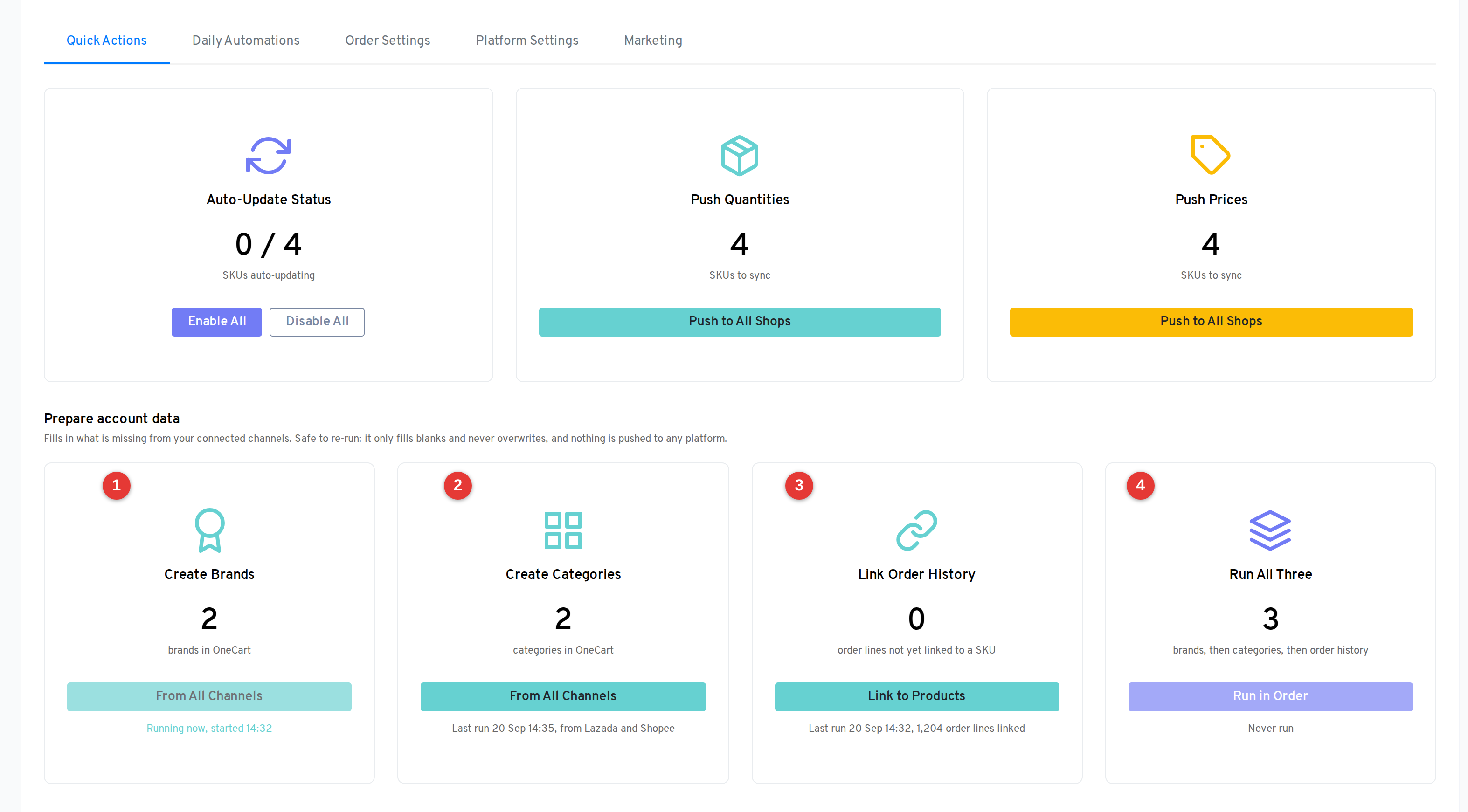
The main place is Automations, on the Quick Actions tab. The Prepare account data row sits directly below the Auto-Update Status, Push Quantities and Push Prices cards.
The same four actions are also available as a compact panel at the top of your Brands list and your Categories list, so you can fix the data from wherever you notice a gap. They run the same jobs.
The four cards
Each card shows a count, one button, and a state line. Every action runs in the background.
1. Create Brands. The count is how many brands you have in OneCart today. From All Channels reads the brand names on your imported listings across every connected channel that carries brand data (such as Shopee and Lazada), creates any brands you do not have yet, and tags your SKUs with them. It never renames or removes a brand you already have.
2. Create Categories. The count is how many buyer categories you have. From All Channels does the same for buyer categories: it reads the categories on your imported listings, creates the ones you are missing, and applies them to your SKUs.
3. Link Order History. The count is how many past order lines are not yet linked to a SKU in your Item Master. Link to Products matches those order lines to your SKUs by SKU code. Once linked, those historical orders show up in your sales, brand and category reports.
4. Run All Three. Run in Order runs brands, then categories, then order-history linking, as a single background job. This is the one to use before auditing an account, so every report path is complete in one step. It asks you to confirm first.
On the Brands and Categories pages the same actions carry longer labels: Create brands from all channels, Create categories from all channels, Link order history to products and Run all three in order.
The state line
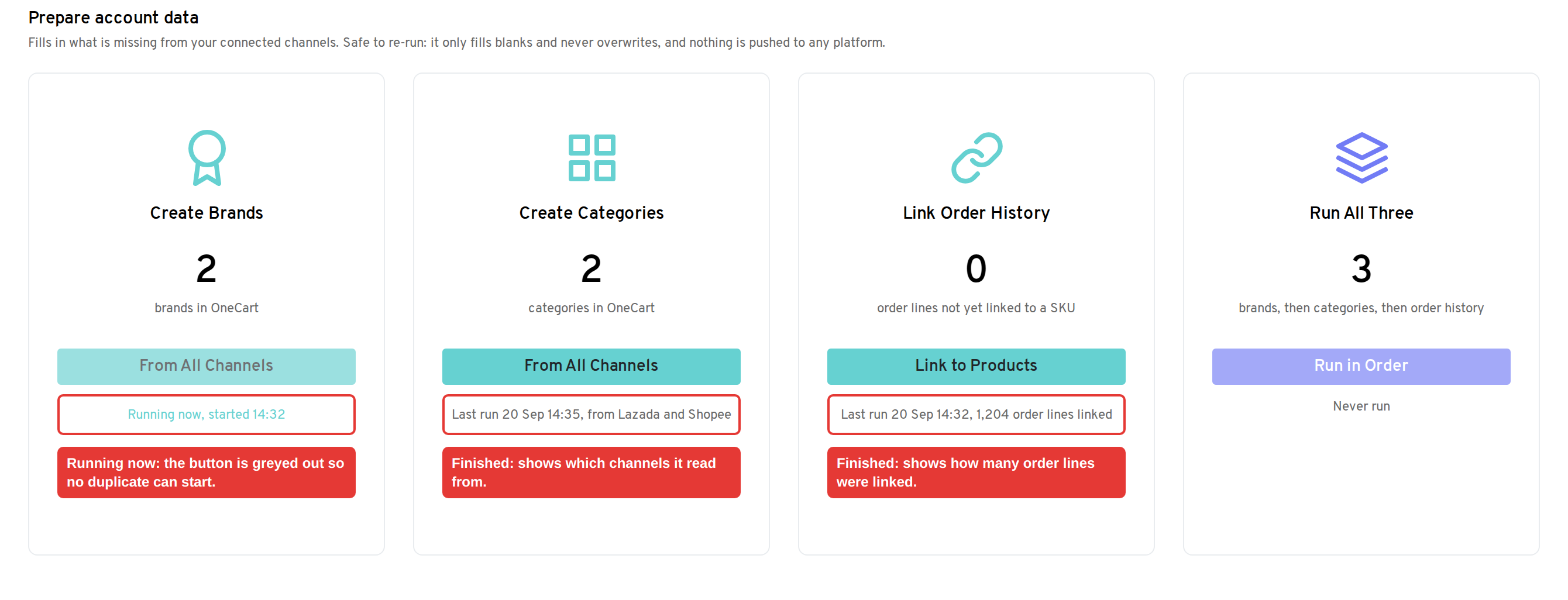
Under each button is a short status so you always know where things stand:
- Never run: this action has not been run for your account yet.
- Running now, started 14:32: the job is in progress. The button is greyed out while it runs so you cannot start a duplicate.
- Last run 20 Sep 14:32, 1,204 order lines linked: the most recent run finished, with a short summary of what it did.
If you click a button while that action is already running, OneCart will not start a second one, it will simply tell you it is already running. Results usually land within a few minutes, depending on how many listings and orders you have.
When to run it
- After connecting a new channel, once its listings have imported, so its brands and categories flow through to your SKUs and reports.
- Before auditing your account or reviewing reports, so your brand, category and sales figures include everything. Run All Three is the quickest way to do this.
- Any time your reports look like they are missing items you would expect to see grouped by brand or category, or historical orders that are not showing up.
Because every action only fills in blanks, there is no harm in running these again later, for example after your next channel connection. Nothing you have set by hand will be changed.
Related articles