
Offboarding OneCart
Stopping OneCart? Disconnect OneCart from each seller center, then turn off inventory sync for all your SKUs under Automations.

Stopping OneCart? Disconnect OneCart from each seller center, then turn off inventory sync for all your SKUs under Automations.
If you are stopping OneCart, two steps make sure OneCart no longer has access to your stores and no longer changes your stock.
Remove OneCart’s access in each seller center you connected. Follow the guide for each platform:
For any other platform, email us at hello@getonecart.com and we will walk you through it.
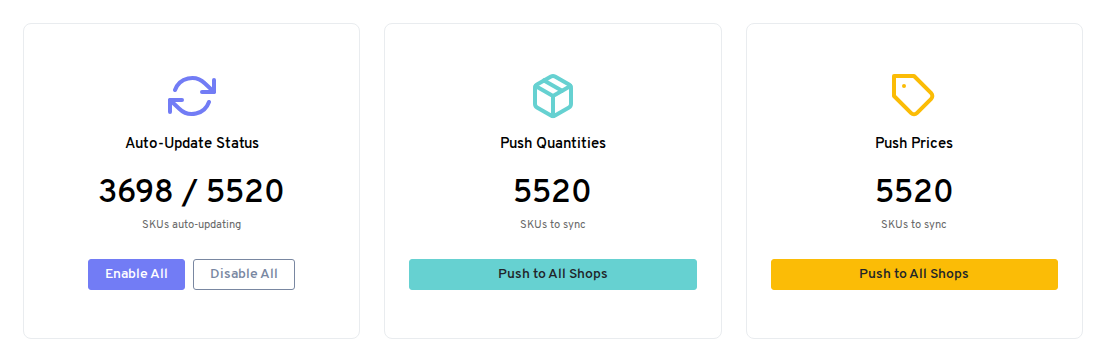
This switches off auto-update on every SKU in your OneCart account, so OneCart stops updating stock on your platforms.
If you have questions about offboarding, email us at hello@getonecart.com.