Matching your Platform Listings in OneCart
Matching means telling OneCart which platform SKUs should be connected to your base SKUs in OneCart. This is instrumental for inventory sync and other functions.
Matching means telling OneCart which platform SKUs should be connected to your base SKUs in OneCart. This is instrumental for inventory sync and other functions.
**Note: This is part of our Getting Started Series. Before you can match listings, you need to have a) setup some SKUs in your OneCart inventory, and b) imported your existing platform listings into OneCart. If you used our guided onboarding flow, both of this will have already happened. Read more here: https://www.getonecart.com/help/welcome-to-onecart
In this step, we will tell OneCart which OneCart SKU should be matched to your platform SKUs.
If you use the same SKU for the same item across all your selling channels (recommended), then this process will be very quick. However if you use different SKUs, you can still manually link the different SKUs together.
Listings > Import Listings
This is where the listings you already have on your e-commerce platforms will show up in OneCart. The default view is to show you “Active” listings which are “Unmatched” in OneCart.
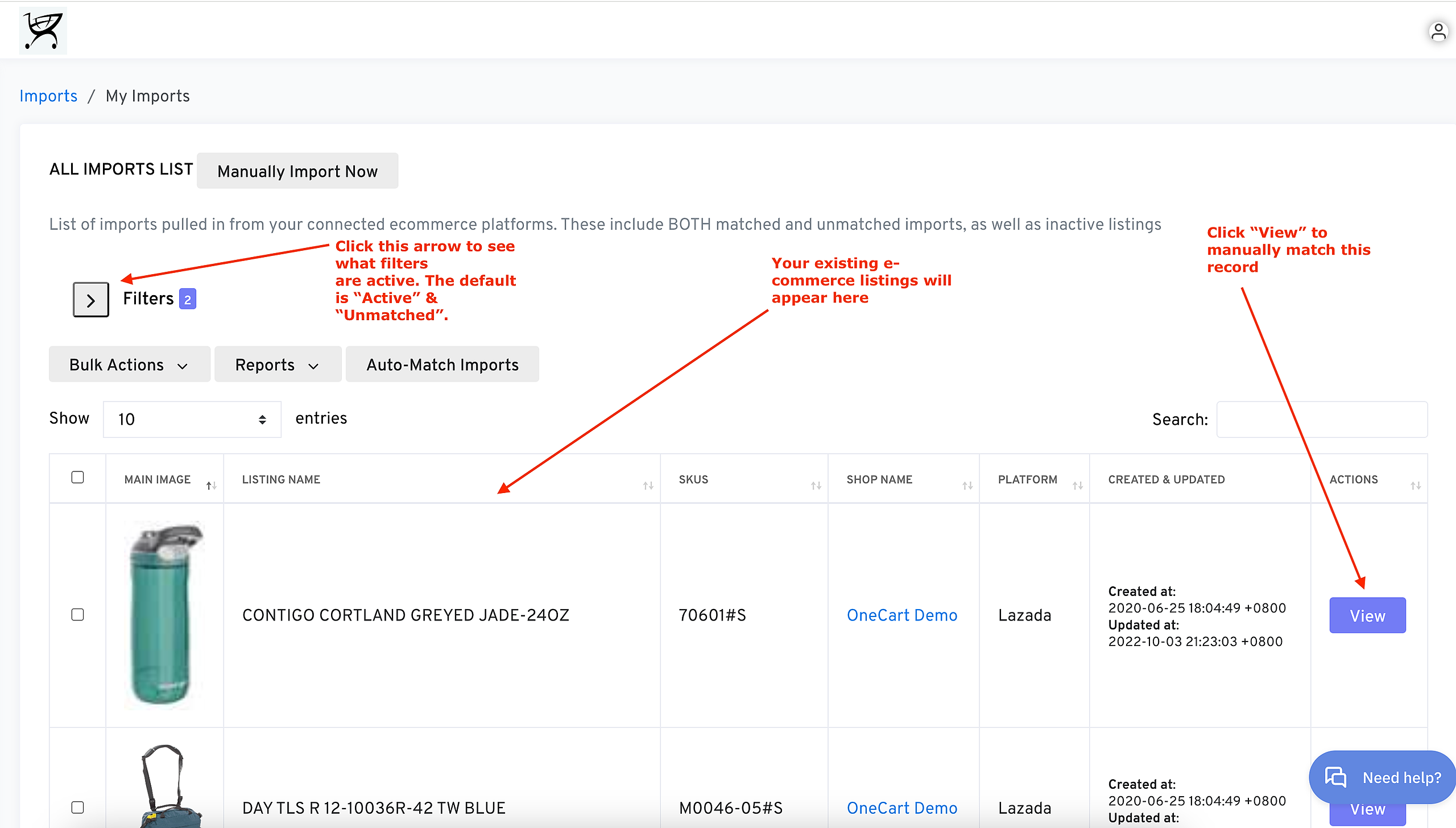
Click on “View” to start matching your platform listings into OneCart.
*Do take note of the “Created At” & “Updated At” for each listing. This indicates when the listing was first imported into OneCart, and when it was last imported. If you have made changes on the seller centre since the last indicated import date, you need to refresh the listing.*
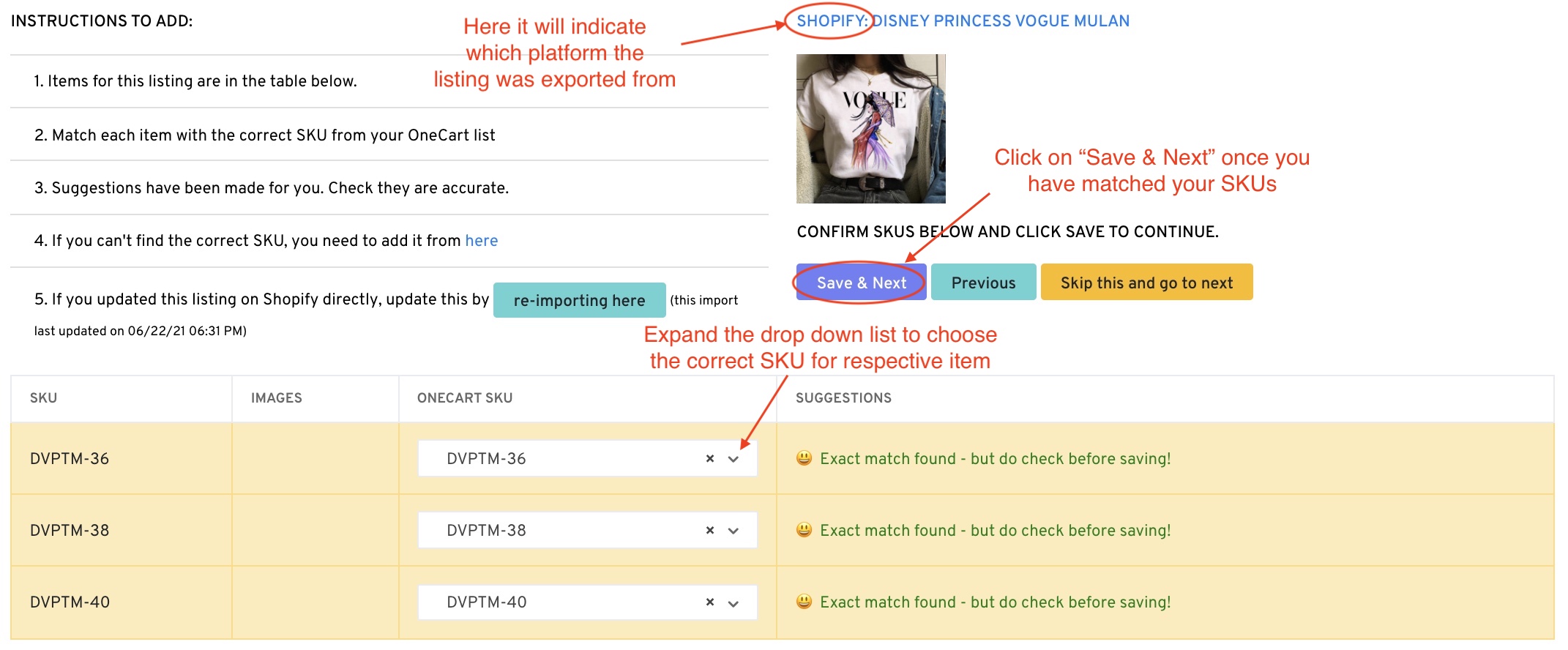
i) You will need to match each item with the correct SKU from your OneCart list
ii) Suggestions have been made for you. If you use the same SKU in both OneCart and on the platform, the AI Helper will auto-suggest the best result.
iii) If you don’t use the same SKU, you can manually select the SKU you want to map the item to by searching in the dropdown.
iv) If the required SKU doesn’t appear in the OneCart SKU dropdown, you’ll need to add it into OneCart. Learn more here: https://www.getonecart.com/help/create-inventory-manually
It is recommended that you have all your listings matched to avoid from any unlinked listings. Unlinked listings cannot be used for inventory sync, and often analytics reports will not show the full data without the relevant listings being matched.