Map OneCart SKUs to Shopify Locations in OneCart
This guide explains how to map your OneCart skus to Shopify locations. By setting up this integration, you can ensure accurate inventory synchronization and streamline order fulfillment across your Shopify stores.
Help Article
Last updated Nov 8, 2024
1 min read
To sync inventory with Shopify in OneCart, you need to ensure that your skus in OneCart is mapped to a Shopify location.
First, make sure you have at least one location set up in your Shopify store.
Go to Shopify > Settings > Locations , and click ‘Add location’ to create a new one.
Add a location (In Shopify)
You can add a location. After you create a location, it’s added to the bottom of your fulfillment priority list.
Steps:
#Desktop
From your Shopify admin, go to Settings > Locations.
In the All locations section, click Add location.
In the Location details section, add your location name:
In the Location details section, add your location address:
Optional: To make your inventory available for online purchases at this location, in the Fulfillment details section, select Fulfill online orders from this location.
Click Save.
Map your OneCart skus to Shopify Location
During the import listings and matching under the column “Shopify Location” select the desired shopify location you would like to map to.
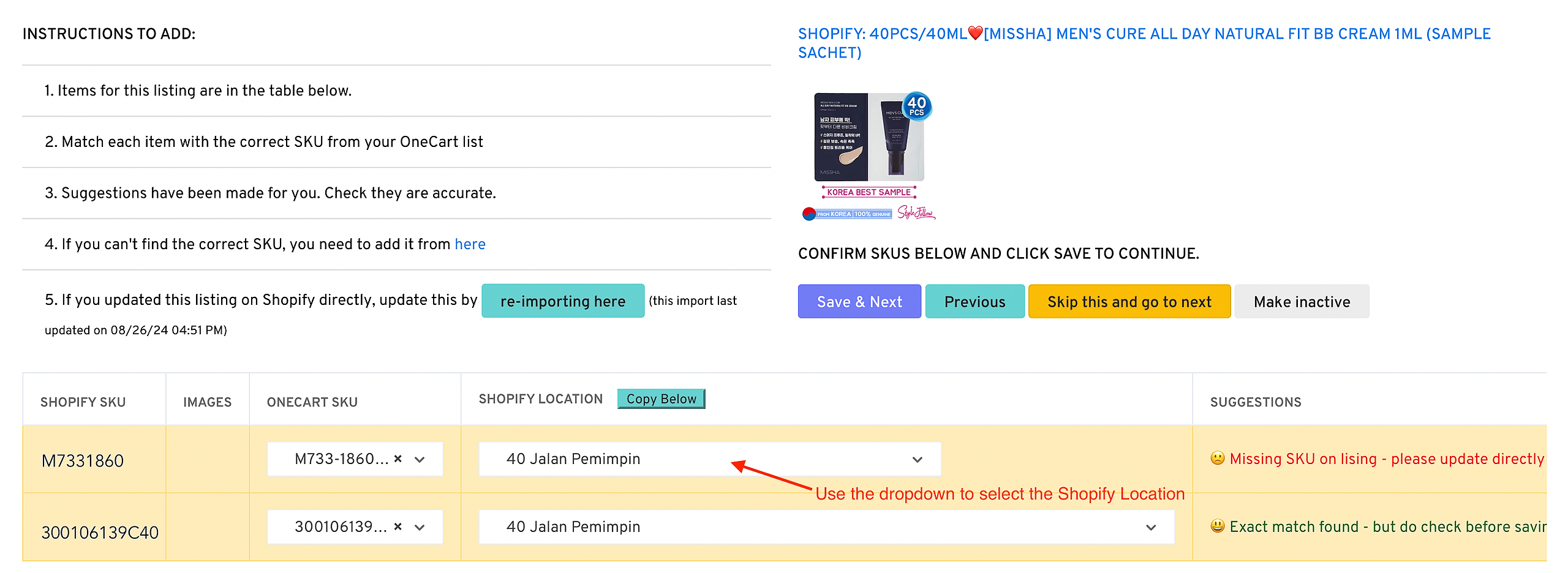
You can learn more here - https://www.getonecart.com/help/matching-your-platform-listings-in-onecart