
Managing User Accounts (Add, Remove, & Permissions)
This guide explains how to add users, remove users, and manage permissions in OneCart.

This guide explains how to add users, remove users, and manage permissions in OneCart.
Go to Settings (top-right menu).
Click My Account > My Company
Here you can view all users, their roles, and permission levels.
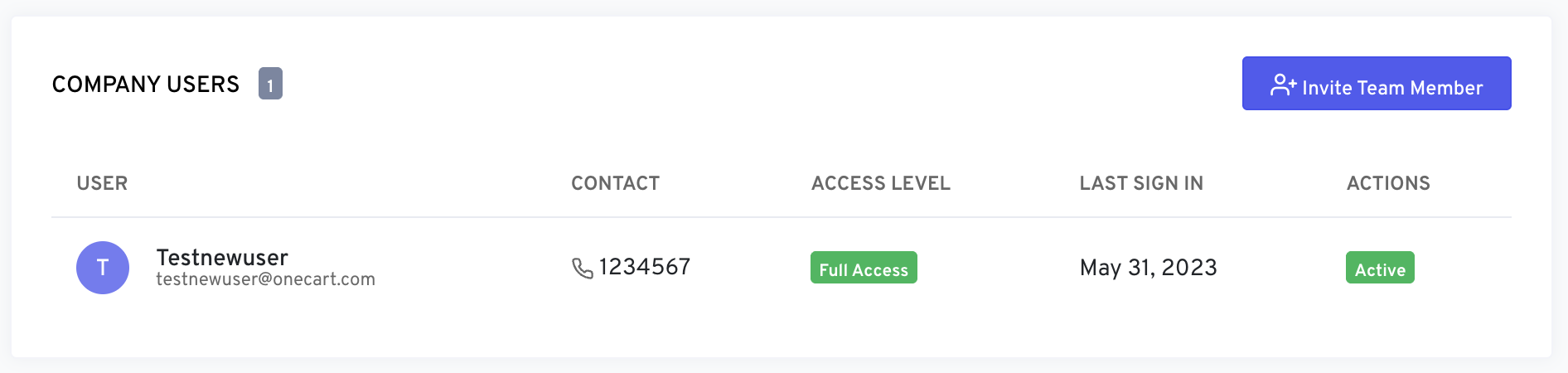
Enter:
Click Send Invitation.
The user will receive an email to activate their account.
Full Access – Can manage all aspects of the company
Warehouse – Limited to warehouse operations only
User removal cannot be done inside OneCart.
To remove a user, please contact:
📩 hello@getonecart.com
Include:
The email address of the user to be removed
Your shop name / company name
Confirmation that you are the authorised account owner/admin
Our support team will process the removal and update you once completed.
If you have Full Access, you can update a teammate’s role directly from the My Company page, no email needed.
Go to My Company (Settings > My Account > My Company) and find the teammate in the Company Users table.
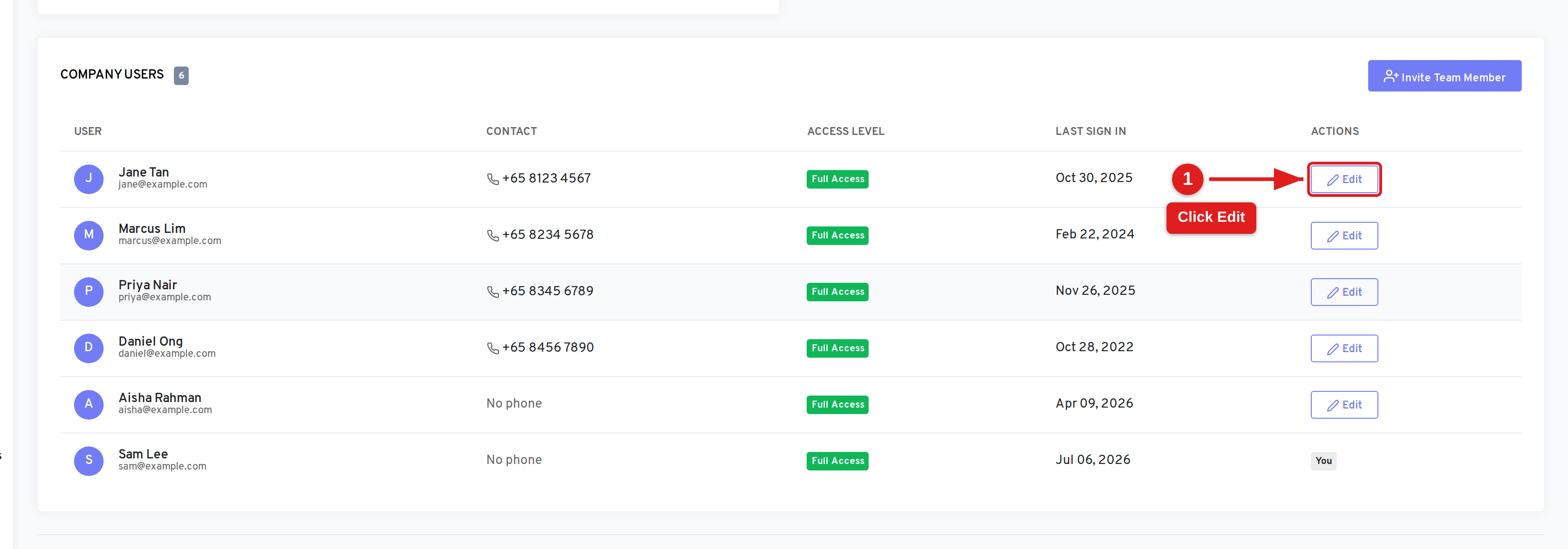
Access Level: choose Full Access (can manage all aspects of the company) or Warehouse (limited to warehouse operations only).
Multi-Company Access: choose Yes or No. This option only appears when your account spans more than one company.
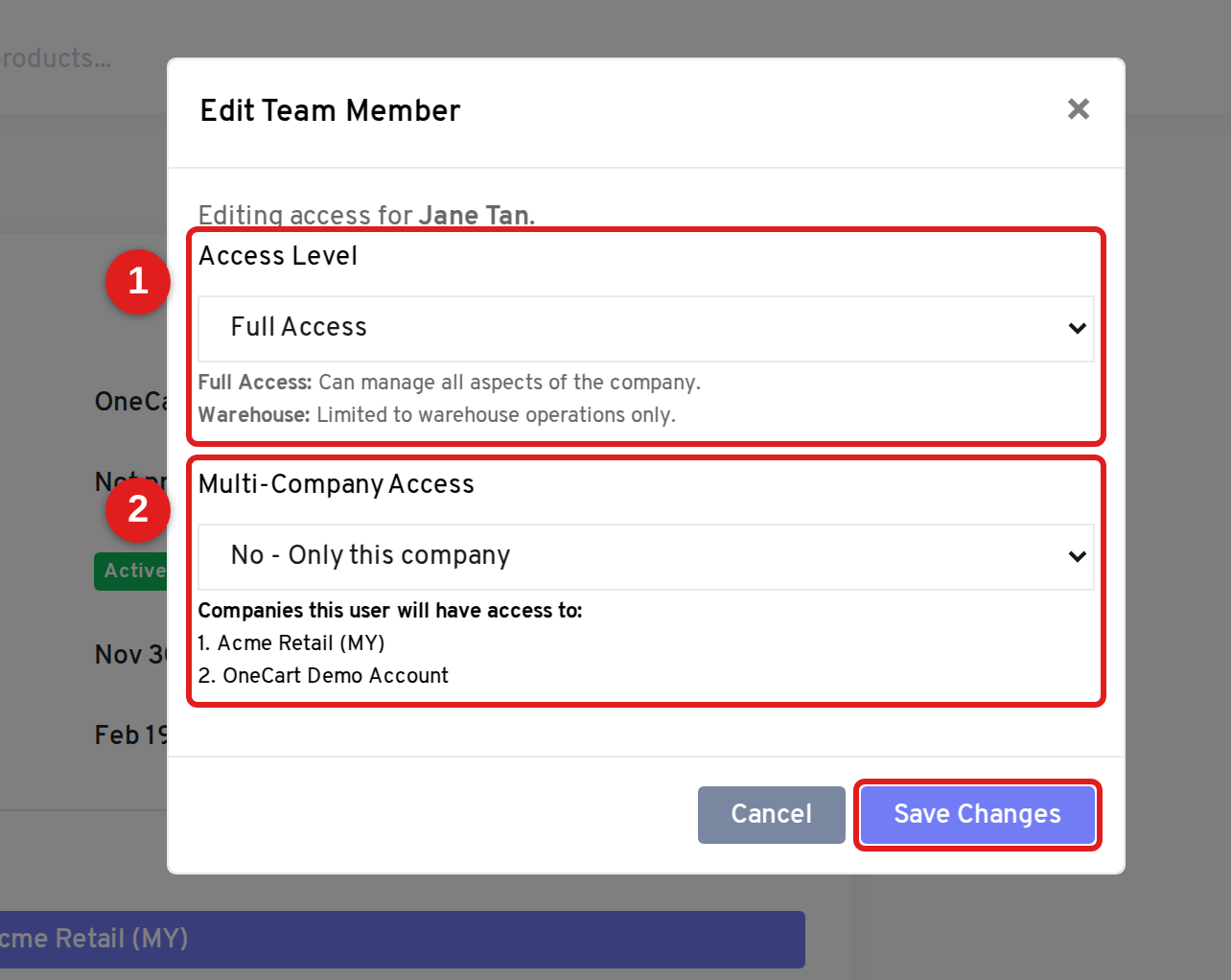
The change takes effect immediately.
Only Full Access users can edit teammates. Warehouse users do not see the Edit button.
You cannot change your own role. Your row shows a You badge instead of an Edit button, a safeguard so you can’t accidentally lock yourself out.
OneCart staff rows are not editable.
Note: Editing applies to a teammate’s role and access only. Removing a user is not self-serve, that is still handled by our support team. See Removing a User above, or email 📩 hello@getonecart.com.