Managing User Accounts (Add, Remove, & Permissions)
This guide explains how to add users, remove users, and manage permissions in OneCart.
This guide explains how to add users, remove users, and manage permissions in OneCart.
Go to Settings (top-right menu).
Click My Account > My Company
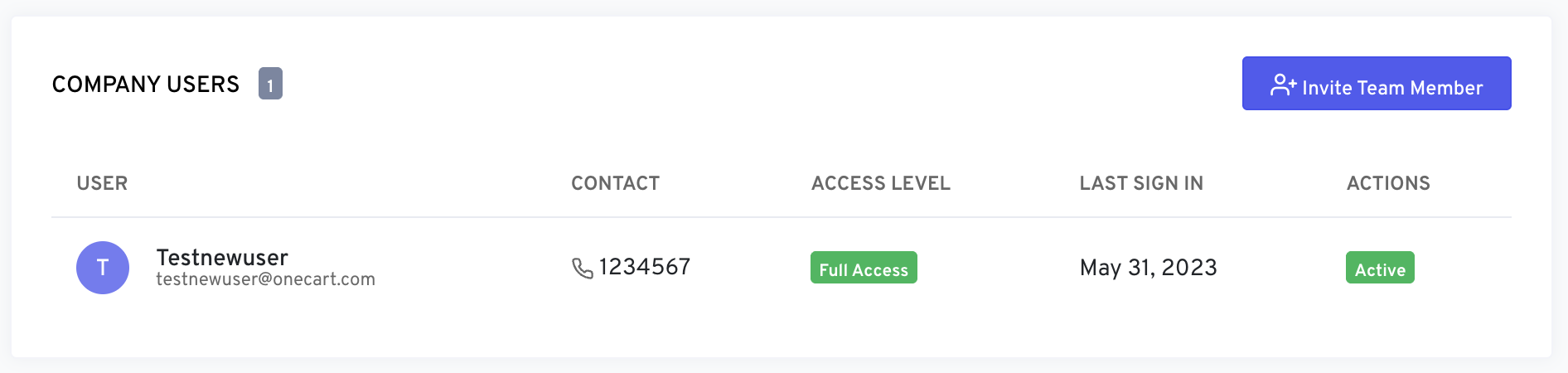
Here you can view all users, their roles, and permission levels.
Enter:
Click Send Invitation.
The user will receive an email to activate their account.
Full Access – Can manage all aspects of the company
Warehouse – Limited to warehouse operations only
User removal cannot be done inside OneCart.
To remove a user, please contact:
📩 hello@lachmann-tech.com
Include:
The email address of the user to be removed
Your shop name / company name
Confirmation that you are the authorised account owner/admin
Our support team will process the removal and update you once completed.
Permissions cannot be edited inside OneCart.
To update a user’s role, access level, or restrictions, email:
Provide:
User email
Required role/permission changes
Reason for the update
Our team will adjust the permissions accordingly.