Managing Multiple Companies in OneCart
Create additional companies under your OneCart account, invite team members to each one, and switch between companies. Ideal for running a separate region, brand, or marketplace from the same login.
Create additional companies under your OneCart account, invite team members to each one, and switch between companies. Ideal for running a separate region, brand, or marketplace from the same login.
If your business operates across more than one entity, for example a separate region, brand, or marketplace, you can run each as its own company inside the same OneCart account. Each company keeps its own inventory, listings, orders, and team, while you manage them all from a single login.
This guide explains how to create a new company under your account, invite users to a specific company, and switch between your companies.
Creating and managing companies is restricted to Full Access users (your account owners). Users with Warehouse access cannot create companies or invite team members.
If you do not see the options described below, check that your account has Full Access. See Managing User Accounts (Add, Remove, & Permissions) for how access levels work.
You can add another company under your account at any time.
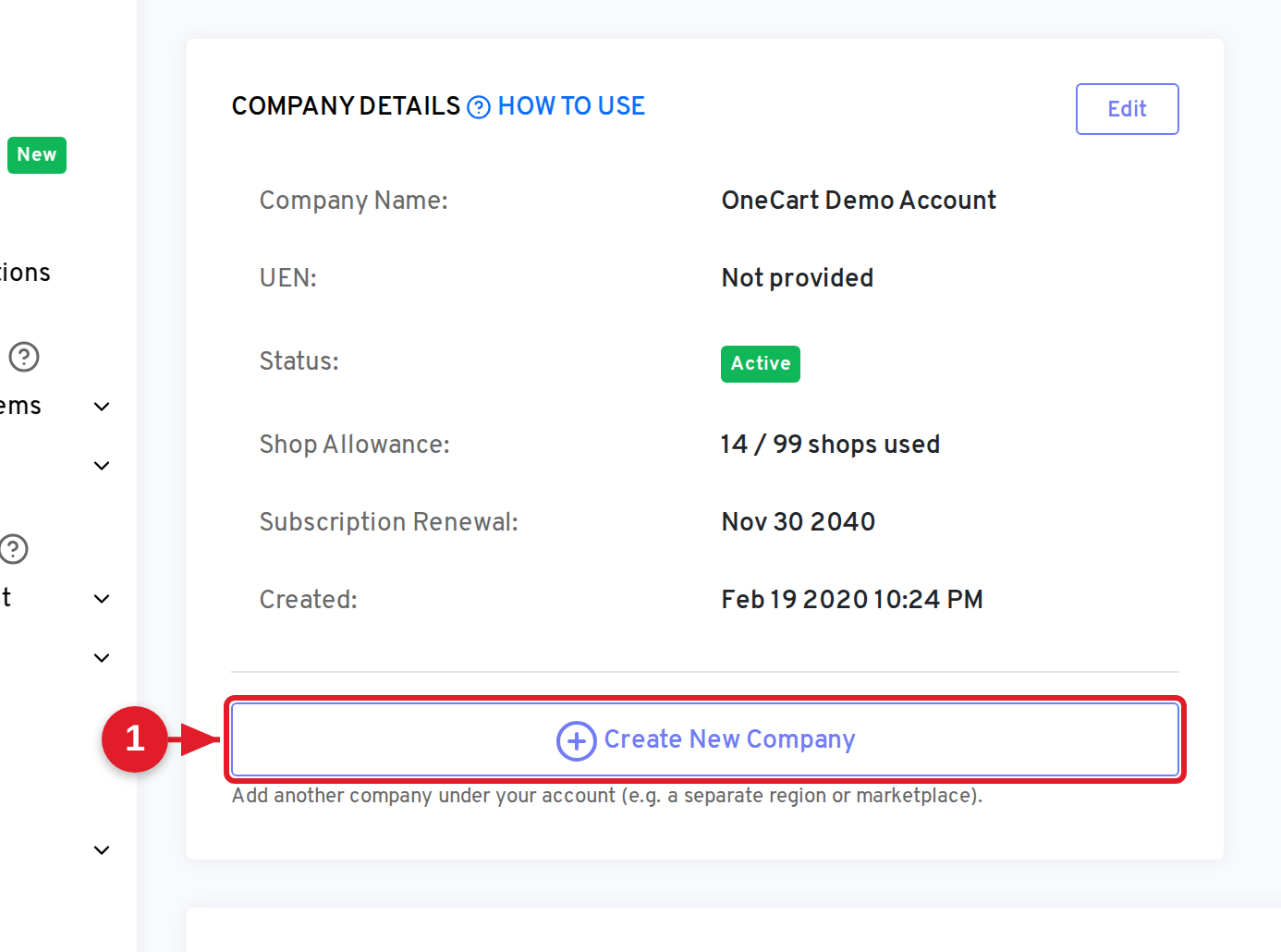
Go to Settings > My Account > My Company (app.getonecart.com/my_company).
Click Create New Company.
Fill in the new company’s details:
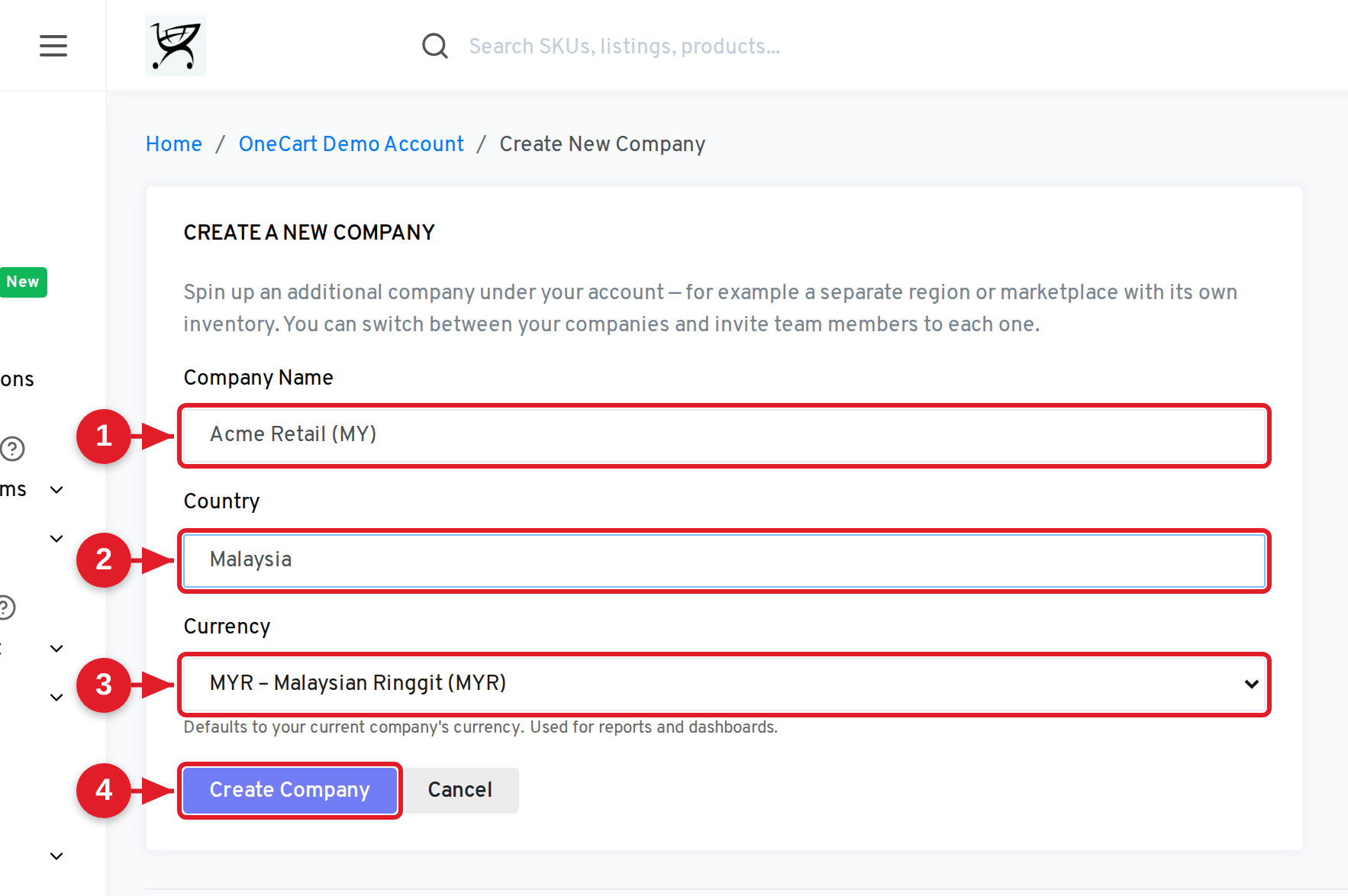
Your new company is created under your account and you are returned to the My Company page. From here you can invite users to it and switch into it.
Note: Currency and country are inherited from your current company unless you change them. This keeps reports consistent when your companies share a market, while still letting you set up a company in a new region.
When you have more than one company, the invite form lets you choose which company the new user joins, and whether they can access all of your companies or just one.
On the My Company page (app.getonecart.com/my_company), click Invite Team Member.
Enter the user’s Email Address.
If you have more than one company, choose the Company this user should be invited to. (This selector only appears when your account has multiple companies.)
Choose the Access Level:
Set Multi-Company Access:
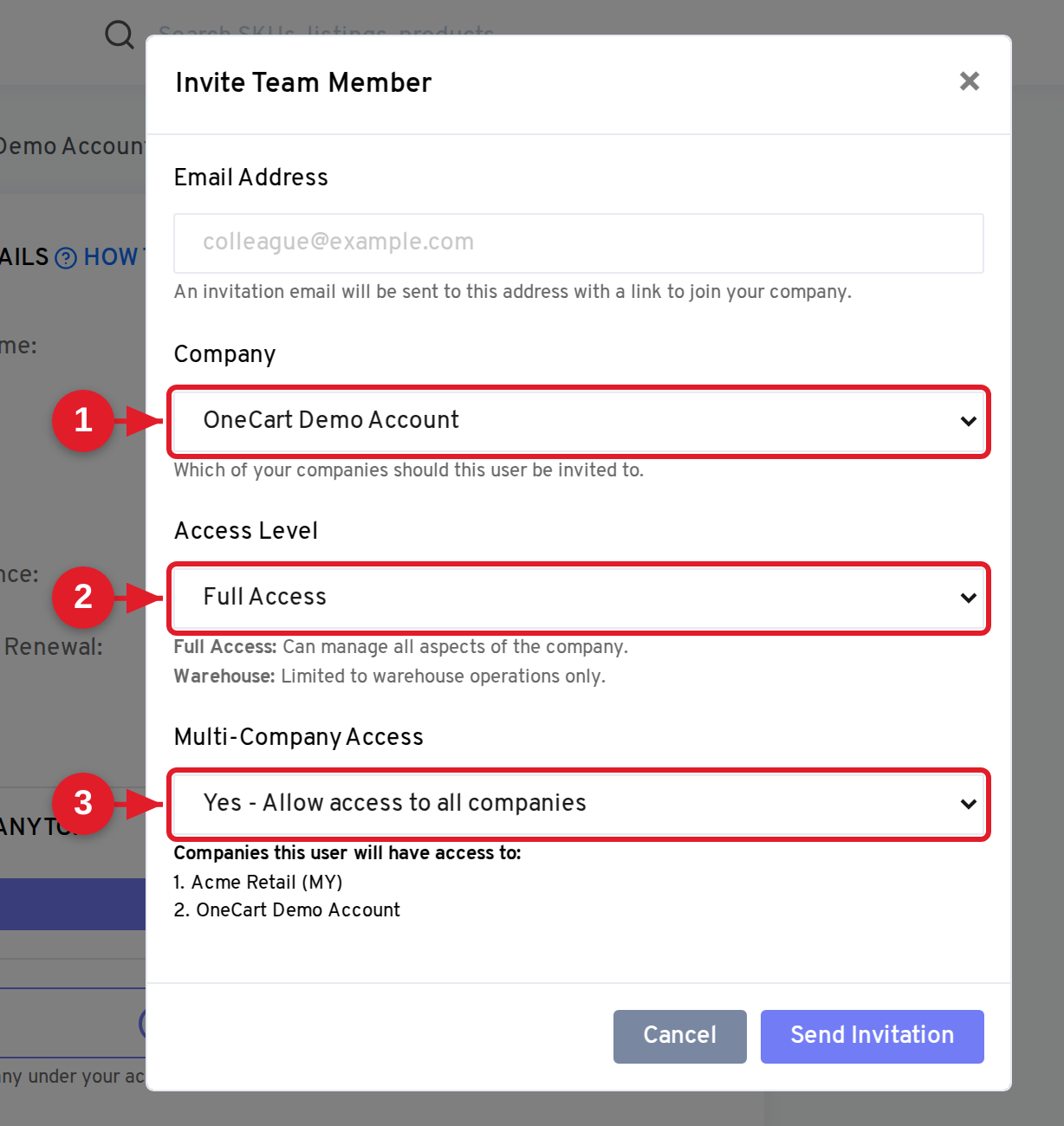
The user receives an email with a link to join. Their access is set by the choices above: Multi-Company Access controls whether they stay inside one company or can move between all of them.
Tip: Use No - Only this company for staff who should only ever work in one entity (for example a warehouse team for your Malaysia company). Use Yes for managers who oversee the whole group.
Once your account has more than one company, a company switcher appears so you can move between them.
Go to Settings > My Account > My Company (app.getonecart.com/my_company).
Under Switch Company To:, click the button for the company you want to work in.
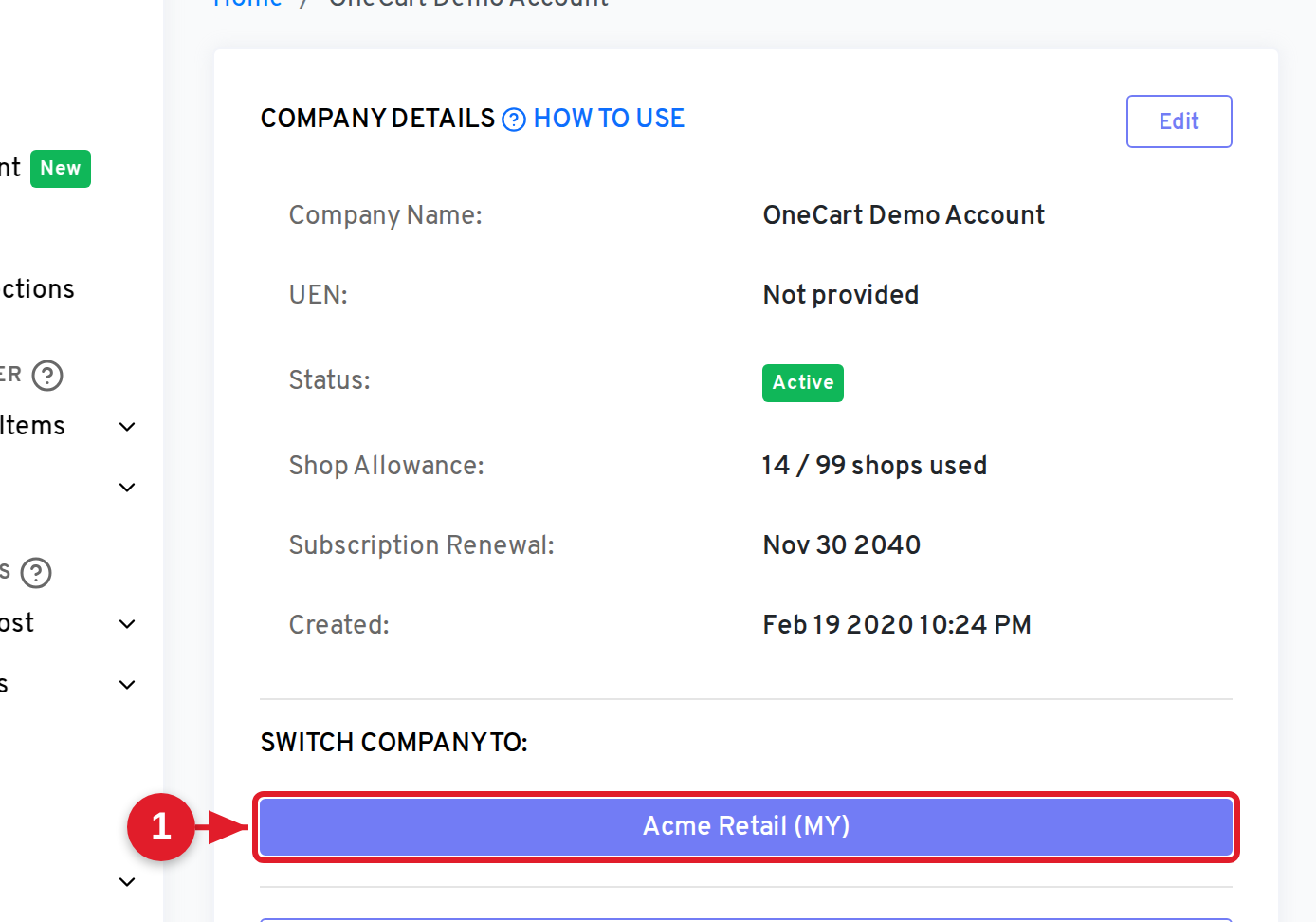
OneCart switches you into that company. Everything you see afterwards, including inventory, listings, orders, and reports, belongs to the company you switched into, until you switch again.
Only users with Multi-Company Access (set when they were invited) see the switcher. A user invited with No - Only this company stays in their single company.
Does each company keep its own inventory and orders? Yes. Each company is fully separate, with its own Item Master, platform connections, listings, orders, and reports. Switching companies changes the entire view to that company’s data.
Can I move a user’s access from one company to another later? Access is set when you invite the user. To change which companies a user can reach, manage them from the user management tools, or re-invite them with the access you need.
Will a new company affect my existing subscription? Adding companies is part of running your account. For how plans and billing work across your account, see your plan and billing details or contact OneCart support.