How to Update Listings in OneCart After Making Changes in Seller Centre
You made a change in SKU, added or removed product in a listing. OneCart will not be able to update the changes you made in the seller centre. Read on to know what you should do next to minimize any
Help Article
Last updated Nov 28, 2024
2 min read
If you’ve made updates to your listings in your seller centre, you can ensure these changes are reflected in OneCart through two methods:
- Single Listing Update
- Bulk Listings Update (Learn more about setting up automated updates)
Below, we’ll walk you through the steps for both approaches.
- Updating Single Listing in OneCart
Follow these steps to manually update listings in OneCart after changes are made in the seller centre.
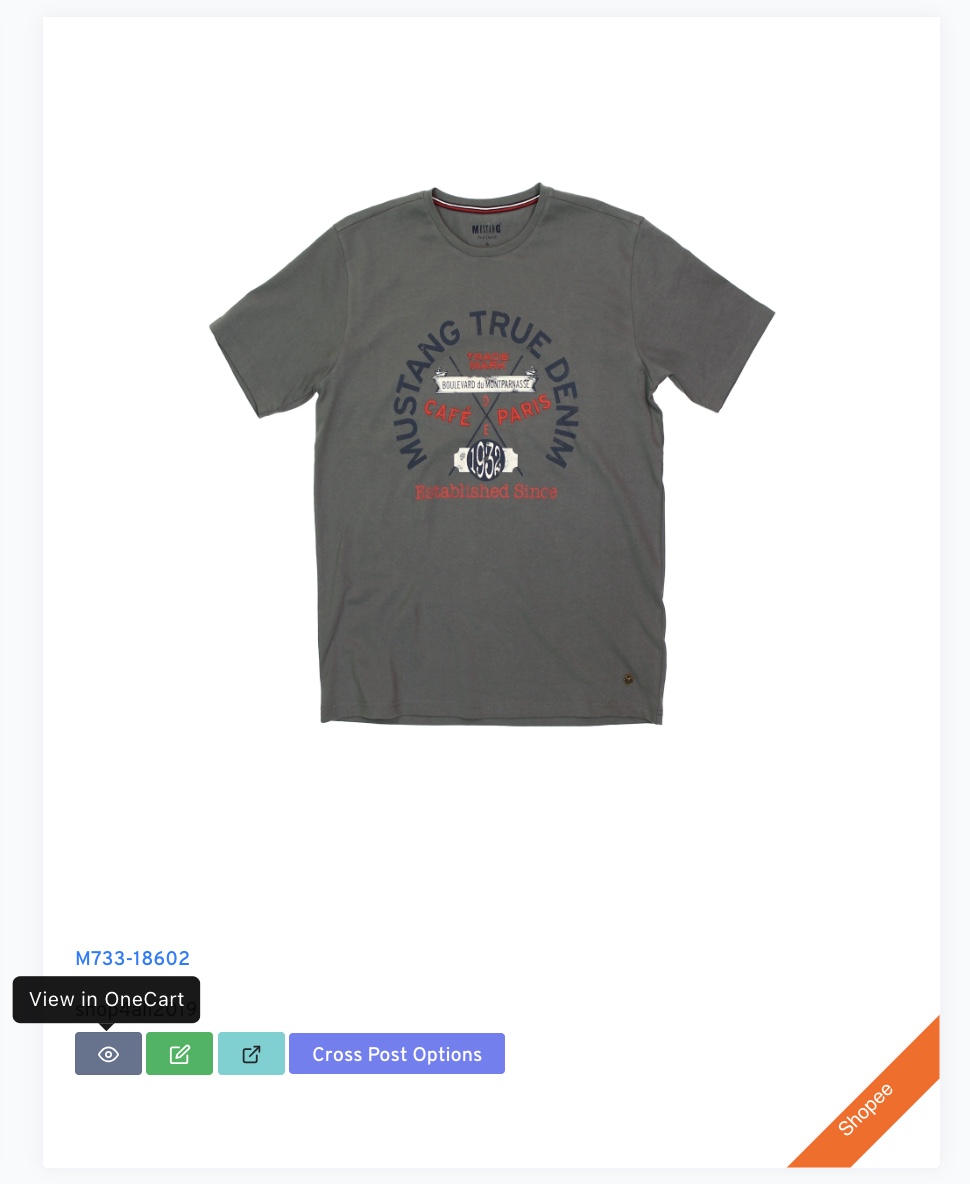
Step 1: Access the Affected Listing
- Navigate to E-Commerce Listings > Manage Listings in OneCart.
- Locate the affected listing by searching for it.
- Click View in OneCart to open the listing details.
Step 2: Refresh and Match Again
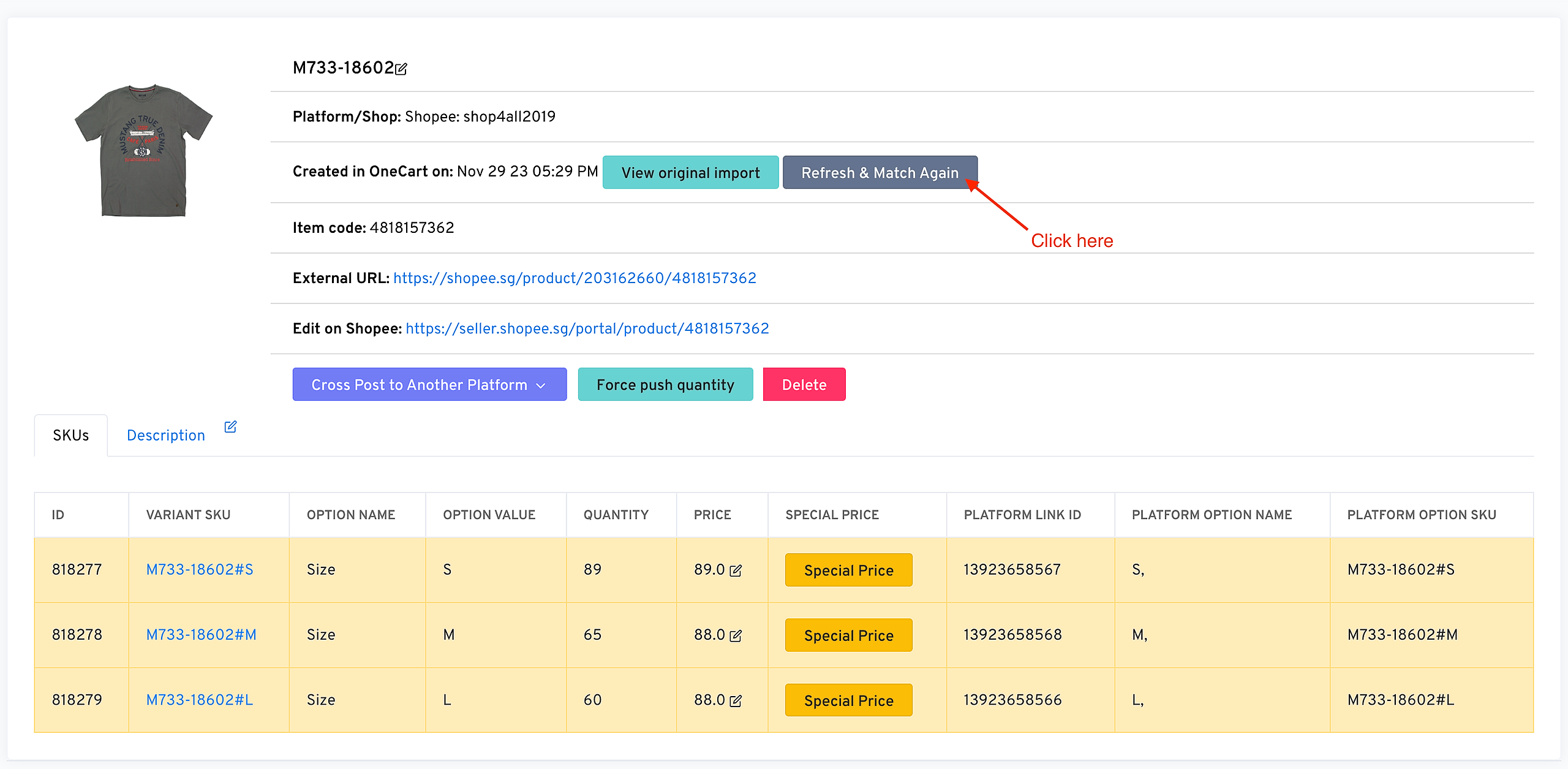
- In the listing details, click Refresh & Match Again.
- This action will:
- Refresh the listing to reflect the latest updates from the seller centre.
- Attempt to match the listing again to ensure accuracy.
Step 3: Verify Updates
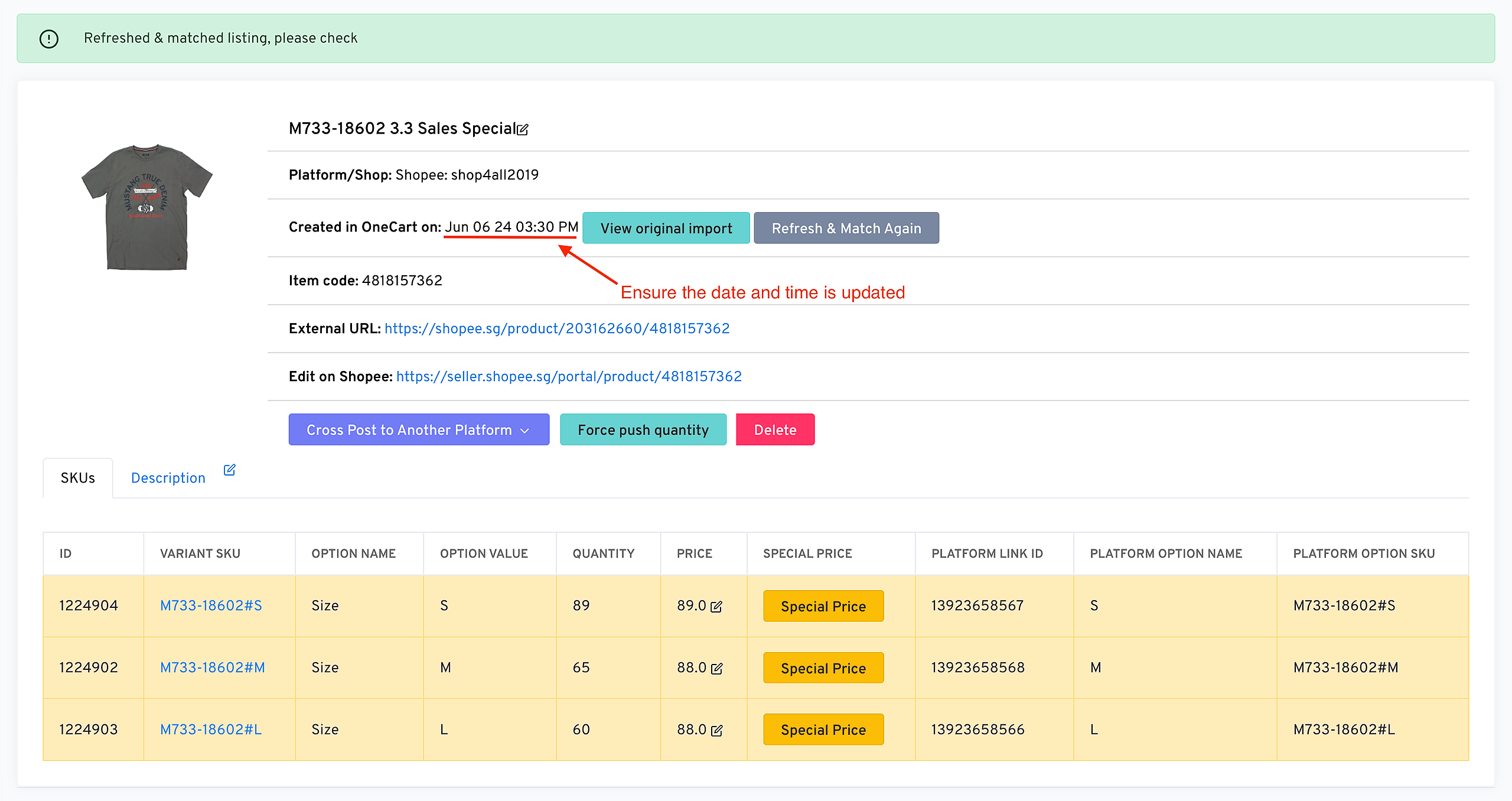
- Confirm the timestamp on the listing reflects the latest changes.
- Check that all variants in the listing are updated correctly.
Step 4: Sync Quantity (Optional)
If required, click Force Push Quantity to synchronize the quantity in OneCart with your e-commerce platforms.
2. Bulk Update Listings in OneCart
Bulk updates ensure your listings are refreshed and synced with minimal effort.
- Configure your platform settings to enable automated syncing.
- Once configured, listings in OneCart will automatically reflect updates made in the seller centre.
By using either the manual or automated approach, you can ensure your listings in OneCart are always up-to-date and synced with your seller centre changes. For detailed guidance on enabling automated updates, check out our Bulk Refresh and Match Listings in OneCart article.