How to Update Listing Images on Platforms from OneCart
Push product images from OneCart to your connected marketplace listings on Shopee, TikTok, Lazada, and Shopify — all from one place.
Push product images from OneCart to your connected marketplace listings on Shopee, TikTok, Lazada, and Shopify — all from one place.
OneCart lets you update listing images on your connected marketplace platforms directly from the product page. Instead of logging into each Seller Centre individually, you can push your product images to Shopee, TikTok Shop, Lazada, and Shopify in just a few clicks.
This is useful when you:
Before you can push images to platforms:
Go to Inventory > View Inventory > View/Edit Parent Products.
Find the product you want to update and click on it to open the product detail page.
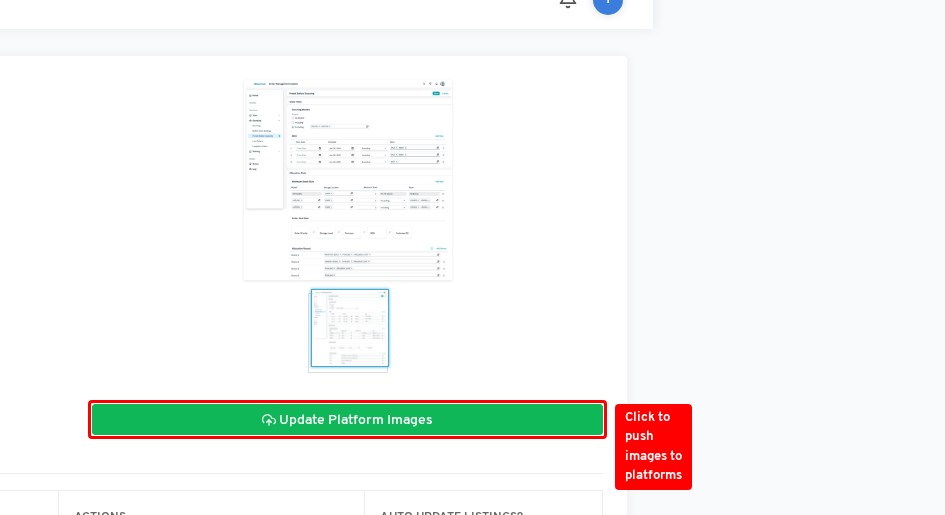
On the product page, you will see a green Update Platform Images button below the product images. Click it to open the platform selection modal.
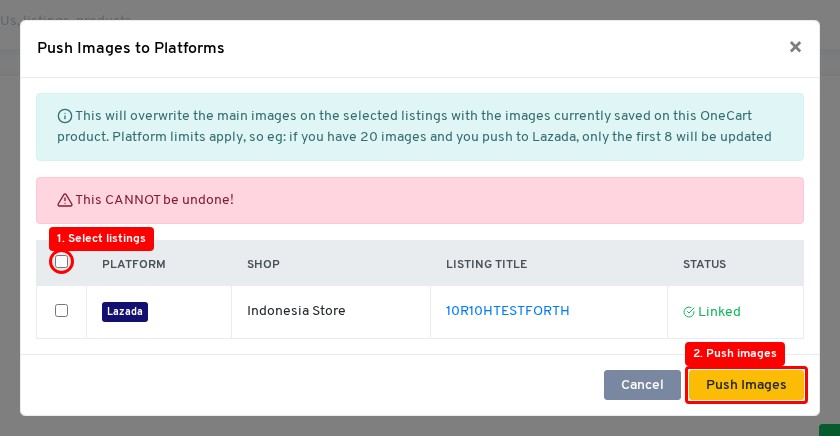
The modal displays a table of all your linked listings for this product. For each listing you can see:
Use the checkboxes to select which listings you want to update. You can use the Select All checkbox at the top to select all listings at once.
Click the Push Images button to push your OneCart product images to the selected listings. OneCart will queue the image update for each selected listing.
You will receive a notification once each update completes, confirming whether the images were successfully updated on each platform.
| Platform | Image Push Supported | Notes |
|---|---|---|
| Shopee | Yes | Images are uploaded to Shopee’s servers and linked to the listing |
| TikTok Shop | Yes | Images are uploaded and set as main product images |
| Lazada | Yes | Images are migrated to Lazada’s CDN and linked to the product/SKU |
| Shopify | Yes | Existing product media is replaced with the new images |
| WooCommerce | No | Image push not currently supported — upload via WooCommerce directly |
| Zalora | No | Image push not currently supported — upload via Zalora directly |
When you push images from OneCart:
Important: Pushing images replaces all existing images on the listing with your OneCart images. Make sure your OneCart product has the complete set of images you want before pushing.
No — image updates are not automatic. You need to manually click Update Platform Images and select which listings to update. This gives you control over when and where image changes are applied.
Yes. In the platform selection modal, simply check only the listings you want to update. You can push to Shopee without affecting your Lazada or TikTok listings.
Currently, the image push sends all images from your OneCart product to the selected platform. It replaces the full image set on the listing. If you only want to change one image on a specific platform, you may need to update it directly in that platform’s Seller Centre.
Image updates are processed as a background job. It may take a few minutes for the changes to appear. Check your notifications in OneCart for the update status. If it shows an error, verify that: