How to Update Lazada API Token Expiry Date in OneCart
If your Lazada shop integration is showing connection issues, or you've recently refreshed your Lazada API credentials, you may need to manually update the API token expiry date in OneCart to keep the connection active. This article guides you through the steps to do that.
Help Article
Last updated Jul 8, 2026
2 min read
⚠️ Note:
The yellow “Update Lazada Expiry Date” button only applies to Lazada shop settings.
How to Check the Expiry Date in Lazada Seller Centre
Go to Lazada Seller Centre (login required)
Navigate to:
Settings > Third Party Apps
Look for OneCart in the connected apps list
Check the Authorization Expiry Date
If the expiry date shown there is different from what’s shown in OneCart , proceed to update it manually.
Steps to Update Lazada API Token Expiry Date
Go to Settings in OneCart
Navigate to My Platforms > Manage Connections
Under Shop Name , select your desired shop
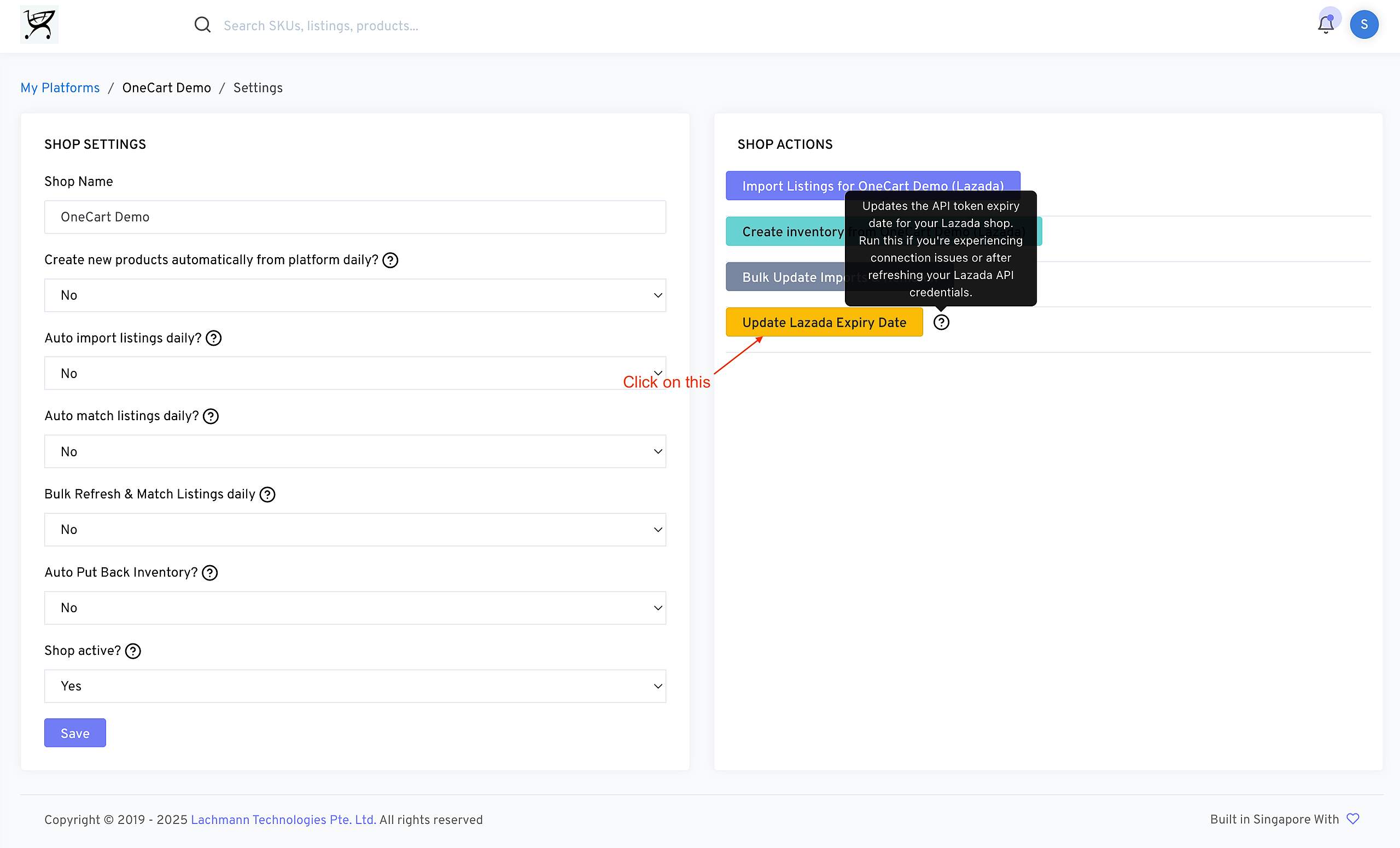
Scroll to the SHOP ACTIONS section
Click on the yellow button labeled:
Hovering over the ❓ icon will show a tooltip:
Click the button once. The system will update the expiry token in the background.
How to Know It Worked
Troubleshooting: “The cumulative order period cannot exceed 18 months”
When re-authorising OneCart through the Lazada Service Marketplace, you may see the following error while confirming the order:
❌ The cumulative order period cannot exceed 18 months

What it means: This error appears because OneCart is holding the wrong Lazada expiry date for your shop. Your Lazada authorisation is already active — OneCart’s stored expiry date is simply out of sync, so there is nothing new to authorise on the Lazada Service Marketplace.
How to resolve it: You don’t need to purchase or wait for anything. Just refresh the expiry date in OneCart so it matches Lazada:
In OneCart, follow the Steps to Update Lazada API Token Expiry Date above and click the yellow Update Lazada Expiry Date button.
This re-syncs OneCart’s stored expiry date with your actual Lazada authorisation, and the error will no longer appear.