How to Update Lazada API Token Expiry Date in OneCart
If your Lazada shop integration is showing connection issues, or you've recently refreshed your Lazada API credentials, you may need to manually update the API token expiry date in OneCart to keep the connection active. This article guides you through the steps to do that.
Help Article
Last updated Nov 10, 2025
1 min read
⚠️ Note:
The yellow “Update Lazada Expiry Date” button only applies to Lazada shop settings.
How to Check the Expiry Date in Lazada Seller Centre
Go to Lazada Seller Centre (login required)
Navigate to:
Settings > Third Party Apps
Look for OneCart in the connected apps list
Check the Authorization Expiry Date
If the expiry date shown there is different from what’s shown in OneCart , proceed to update it manually.
Steps to Update Lazada API Token Expiry Date
Go to Settings in OneCart
Navigate to My Platforms > Manage Connections
Under Shop Name , select your desired shop
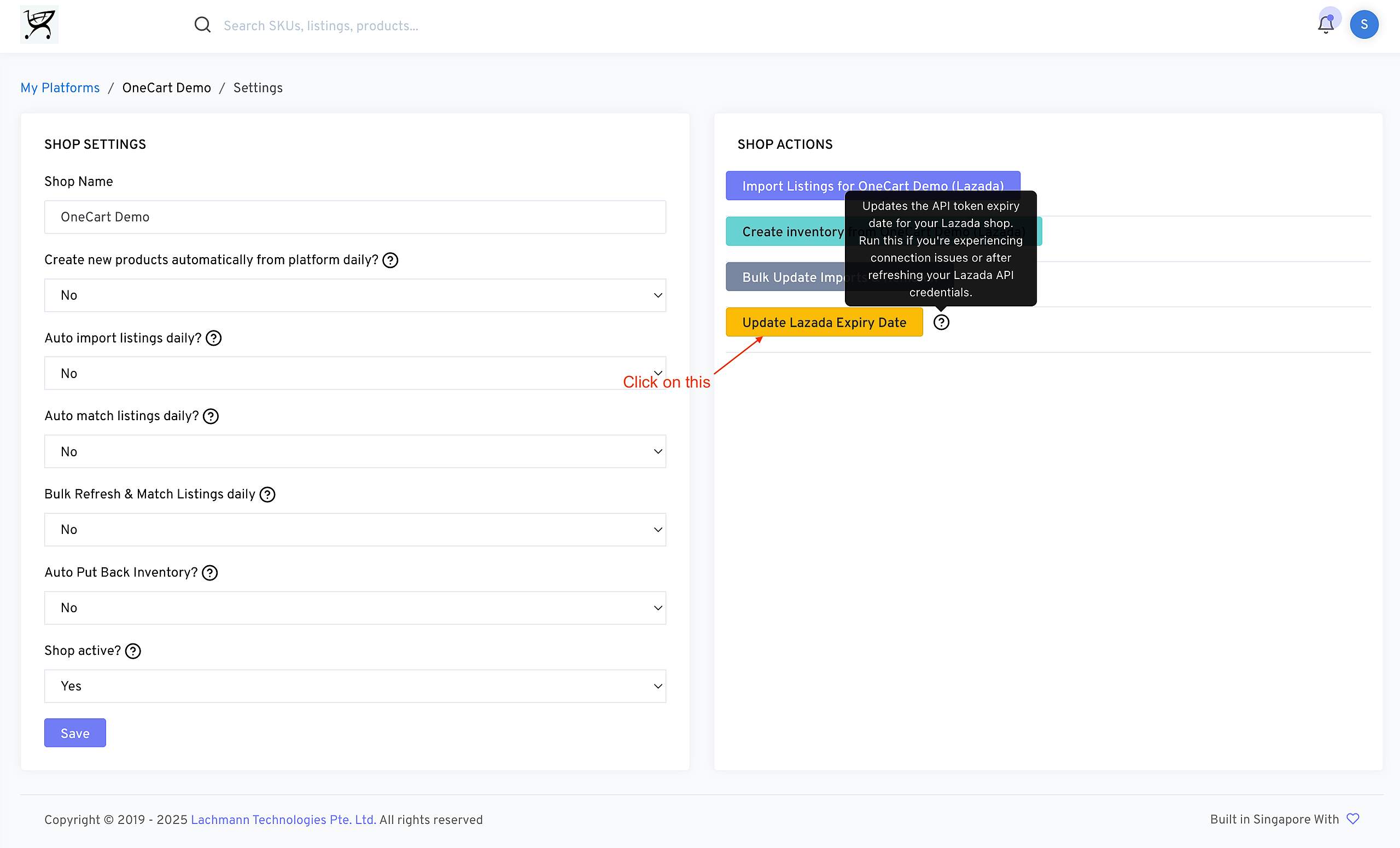
Scroll to the SHOP ACTIONS section
Click on the yellow button labeled:
Hovering over the ❓ icon will show a tooltip:
Click the button once. The system will update the expiry token in the background.
How to Know It Worked