How to Update Inventory Manually in OneCart
Learn how to update inventory quantities for individual SKUs manually in OneCart for quick corrections and small adjustments.
Help Article
Last updated Dec 6, 2025
4 min read
How to Update Inventory Manually in OneCart
Manual inventory updates allow you to modify stock quantities for individual SKUs one at a time. This method is perfect for quick corrections, small adjustments, or when you need to update just a few products.
When to Use Manual Updates
Manual inventory updates are ideal for:
- Quick corrections - Fix incorrect quantities for specific SKUs
- Small inventory adjustments - Handle one-off changes
- Urgent updates - Make immediate changes that can’t wait for bulk uploads
- Single product management - When you only need to update 1-5 SKUs
- Testing inventory sync - Verify that changes propagate to your platforms
Prerequisites
Before updating inventory manually, ensure you have:
Manual Update Methods
OneCart provides three ways to update inventory quantities manually:
Method 1: Via Variants List
Direct Link: https://app.getonecart.com/variants
In the variants list, you can directly edit the Option Name, Option Value and Quantity for each variant.

To update quantity:
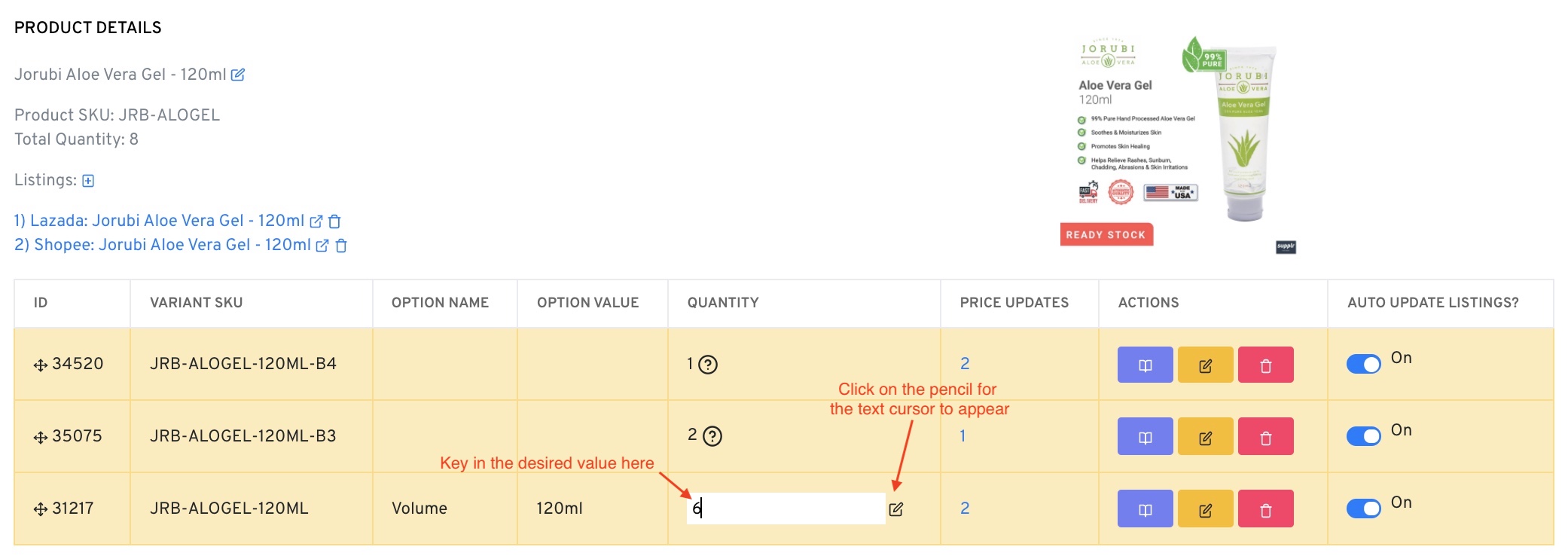
- Click on the pencil icon next to the quantity field
- Enter the new quantity when the text cursor appears
- Press Enter to save the change
OneCart will immediately push out the new quantity and update it on all connected platforms.

Method 2: Via Products List
Direct Link: https://app.getonecart.com/products
- Search for the Product SKU you want to edit
- Click on the product from the search results

- In the Product Details page, choose the variant SKU you want to edit
- Click on the pencil icon next to the quantity field
- Enter the new quantity and press Enter
Method 3: Bundle Quantities
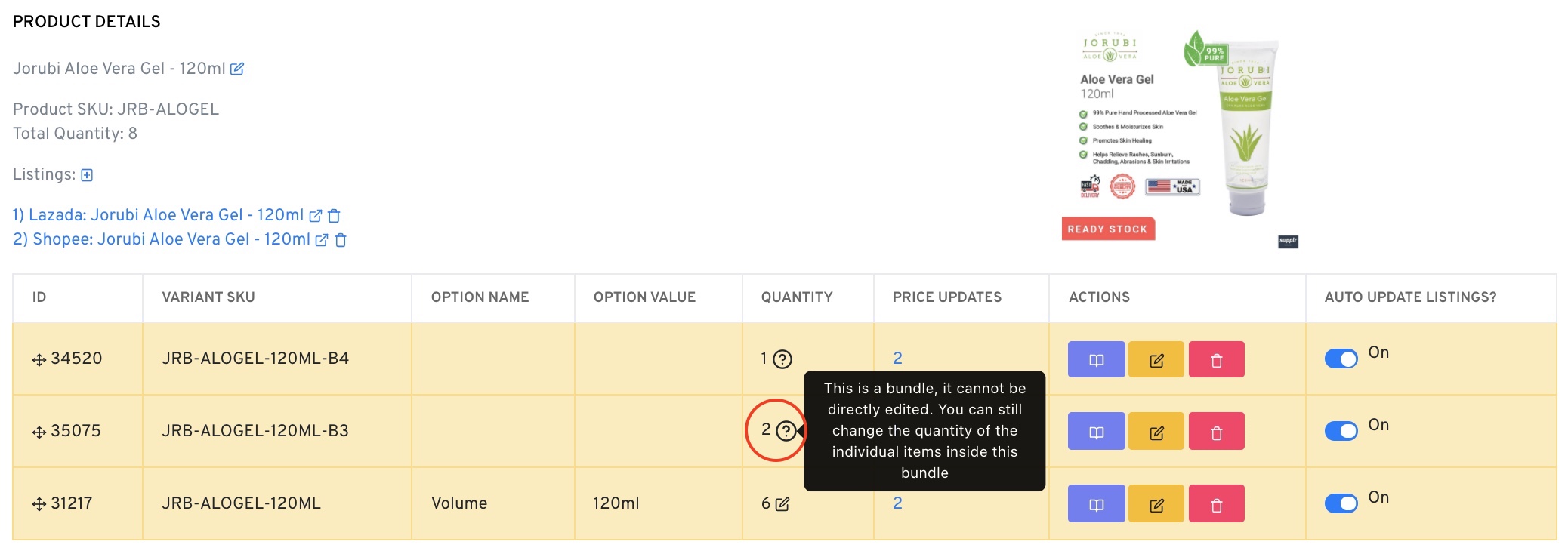
Important note: Bundles cannot be directly edited. You can only change the quantity of the individual items inside the bundle, and the bundle quantity will automatically adjust based on the available components.
Important Notes
- Manual updates take effect immediately
- Changes are pushed to all connected platforms right away
- No waiting time or batch processing needed
Quantity Overwrite
- Manual updates overwrite the existing quantity completely
- If you have 50 pieces and enter 75, the final quantity will be 75 pieces
- This is not an addition - it’s a replacement
SKU Matching Requirements
- The SKU you’re updating must be properly matched to platform listings
- Ensure your OneCart SKU matches the seller SKU on your platforms
- Unmatched SKUs won’t sync to platforms
Tips for Efficient Manual Updates
Use Filters and Search
- Use filters to narrow down products by category or brand
- Search using partial SKU codes if you remember part of the code
- Sort by last modified to find recently changed items
Keep Track of Changes
- After making changes, check 1-2 platforms to ensure sync is working
- If quantities don’t update on platforms, check your sync settings
- → Troubleshoot sync issues
When Manual Updates Aren’t Ideal
Consider using bulk methods instead when:
- Updating more than 10-15 SKUs - Use bulk upload methods
- Regular scheduled updates - Set up automated processes
- Large inventory corrections - Use bulk upload for efficiency
- Complex calculations needed - Use Excel formulas with bulk methods
Alternative Methods
If manual updates aren’t suitable for your needs:
Troubleshooting Manual Updates
Quantity Not Updating
- Check that inventory sync is enabled
- Verify SKU matching is correct
- Ensure you have proper permissions to edit inventory
- Allow 5-10 minutes for sync to complete
- Check platform-specific sync settings
- Verify platform connections are active
Cannot Find SKU
- Check spelling of SKU code
- Use partial search terms
- Verify the SKU exists in your Item Master
Need to update many SKUs at once? Consider using bulk upload methods for better efficiency.