How to edit quantity via Bulk Upload?
Provides a guide for updating inventory quantities in OneCart through a bulk upload process. This article explains how to prepare your inventory file, including required formats and fields, and how to upload it to update multiple SKUs at once.
Help Article
Last updated Nov 7, 2024
1 min read
Download the template from OneCart
Go to OneCart Inventory > Add Inventory > Bulk Upload
Click on the “Download template” button
Use the template to update quantity. Essentially, when you do a bulk upload you only need 3 columns
Product Code
Variant SKU
Field you want to update (in this case qty)
It should look something like the image here;
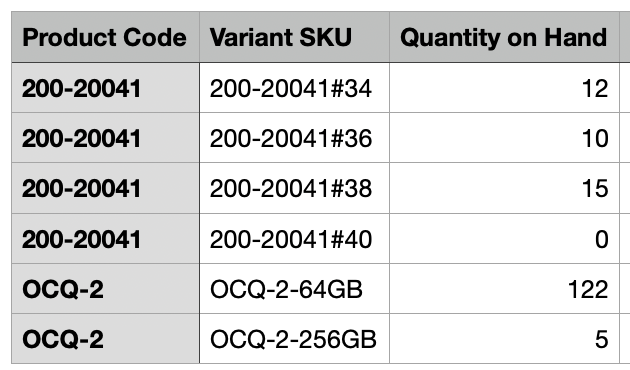
Do a “Bulk Upload” with the file that you have just edited and saved. Save it as .csv!
Repeat the steps as per in the article here with the file you have saved - https://www.getonecart.com/help/bulk-upload-excel-create-edit-inventory
Points to note;
Batch edit only make updates to the Quantity and Price.
OneCart will use the SKU to match and update changes therefore it will show changes in qty and price.
New SKU or a change in SKU will create new SKUs with the new Product Name etc.
However,
Special price will never be affected by bulk upload
Listing price will never be affected by bulk upload
Only internal OneCart price will be changed by bulk upload
To learn more, you can go here.