
How to cross-post to platforms?
Cross-post takes a listing you already have and republishes it on another connected marketplace, so you don't retype the same product into every seller centre.

Cross-post takes a listing you already have and republishes it on another connected marketplace, so you don't retype the same product into every seller centre.
Cross-posting takes a listing you already have on one platform and republishes it on another connected shop. Instead of retyping the same product into every seller centre, OneCart carries the title, description, images, price and variants across for you.
| Use this when | |
|---|---|
| Bulk cross-post | You’re moving more than a handful of listings. OneCart AI can fill in the category and required attributes for each listing, and you review everything before it publishes. |
| Single listing (below) | You want full manual control over one specific product. |
Most sellers should start with the bulk cross-post — it handles one listing just as well as a hundred, and the AI step saves you filling in category attributes by hand.
From the OneCart left-hand menu, go to E-commerce Listings → Manage Listings → View Matched Listings (app.getonecart.com/listings).
Search for the listing you want to cross-post.
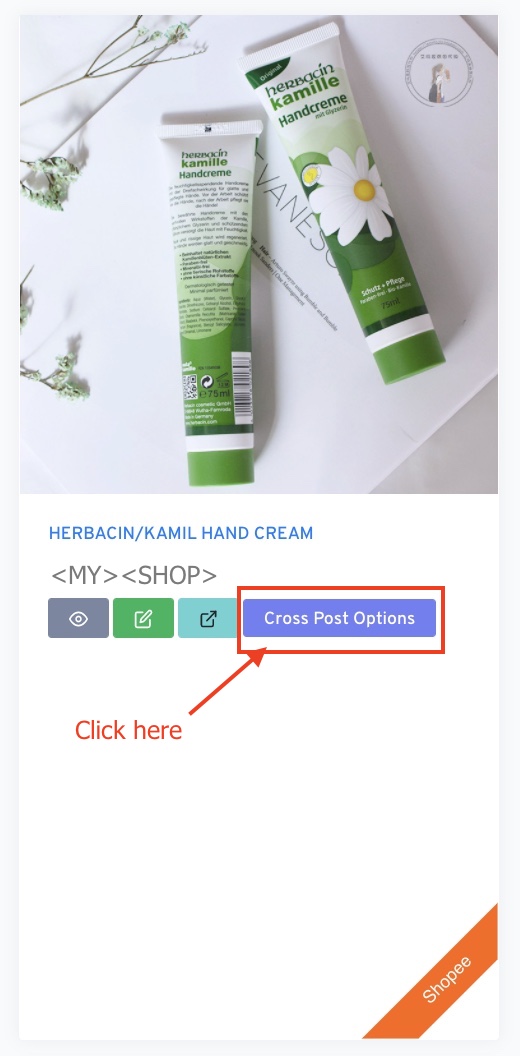
Open the listing and click Cross Post Options.
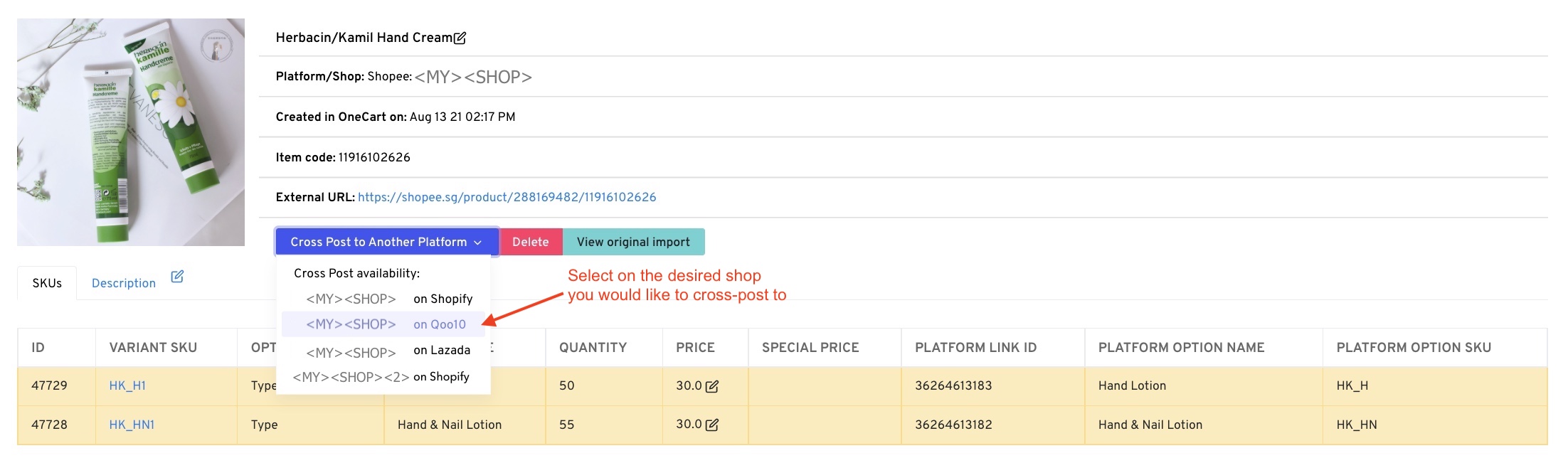
Pick the shop you want to cross-post to. If you have a lot of shops connected, use the search box at the top of the dropdown to filter them. Only shops that can receive this listing are shown — if the list is empty, you have no other connected shop that accepts it.
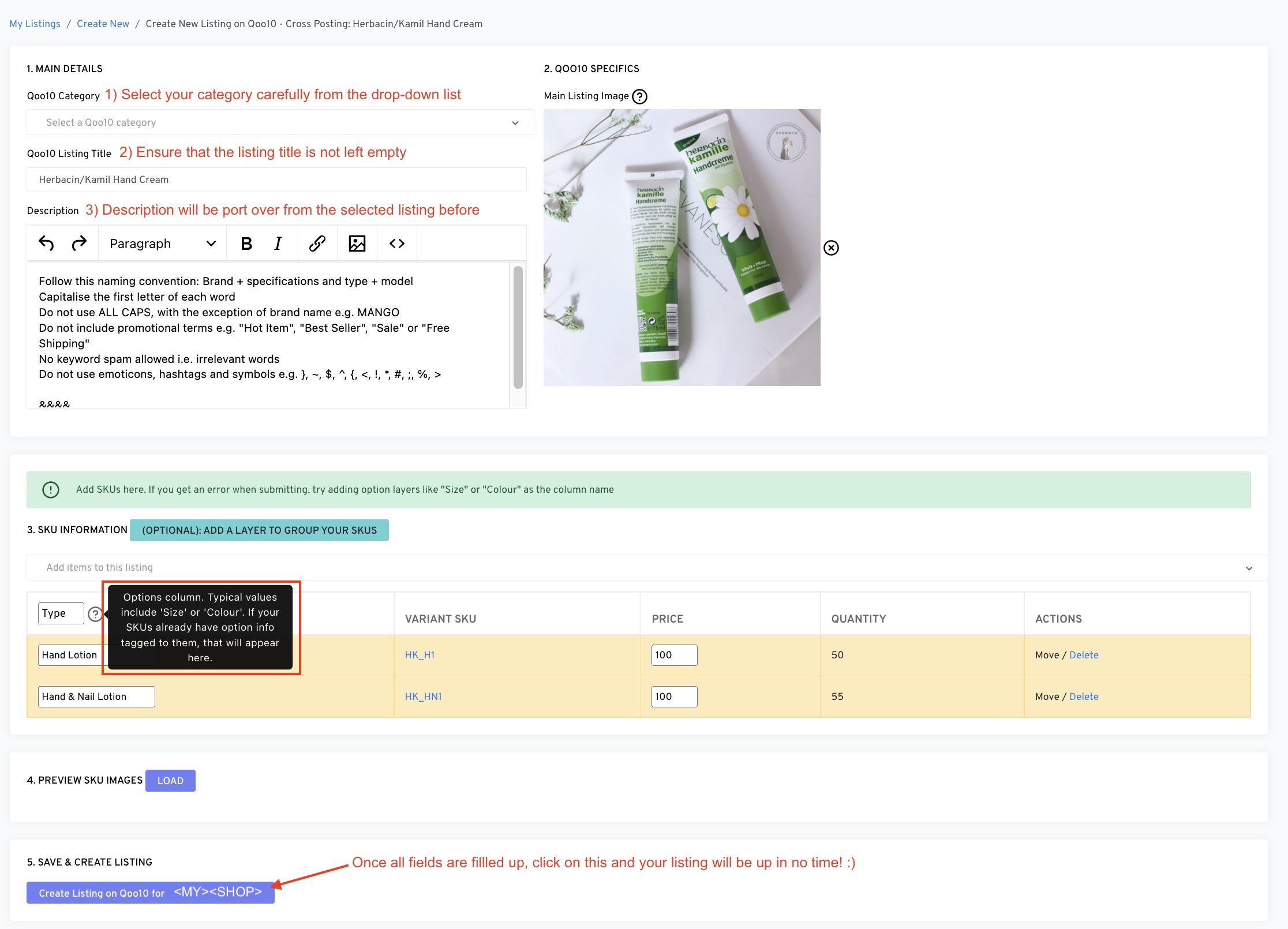
The listing form opens pre-filled from your source listing. Fill in anything the destination platform requires — category, brand and any mandatory attributes.
Look for the ⚡ icons on the form: these are the AI helpers. They can enhance the title and description, or autofill blank fields for you. Click any ⚡ to try it.
Check everything, then click Create Listing.
Once published, the new listing appears in your destination seller centre and gets imported back into OneCart, where it’s matched to the same SKU as the source. That’s what keeps stock in sync across both platforms afterwards.