How to Connect Your Amazon Store to OneCart
Connecting your Amazon store to OneCart allows you to manage listings, inventory, and orders all in one place. Follow the steps below to link your Amazon account to OneCart securely and seamlessly.
Connecting your Amazon store to OneCart allows you to manage listings, inventory, and orders all in one place. Follow the steps below to link your Amazon account to OneCart securely and seamlessly.
**Note: OneCart integrates only with Amazon Seller Central accounts. It does not support Amazon Vendor Central accounts at this time. Amazon Vendor Central is a B2B platform used by manufacturers and distributors who sell directly to Amazon. In this model, Amazon owns the inventory and manages order picking, packing, and shipping internally. Therefore, it does not support external integrations like OneCart for listing or inventory management.
🔗 Step 1: Go to Manage Connections
🛍️ Step 2: Choose Amazon
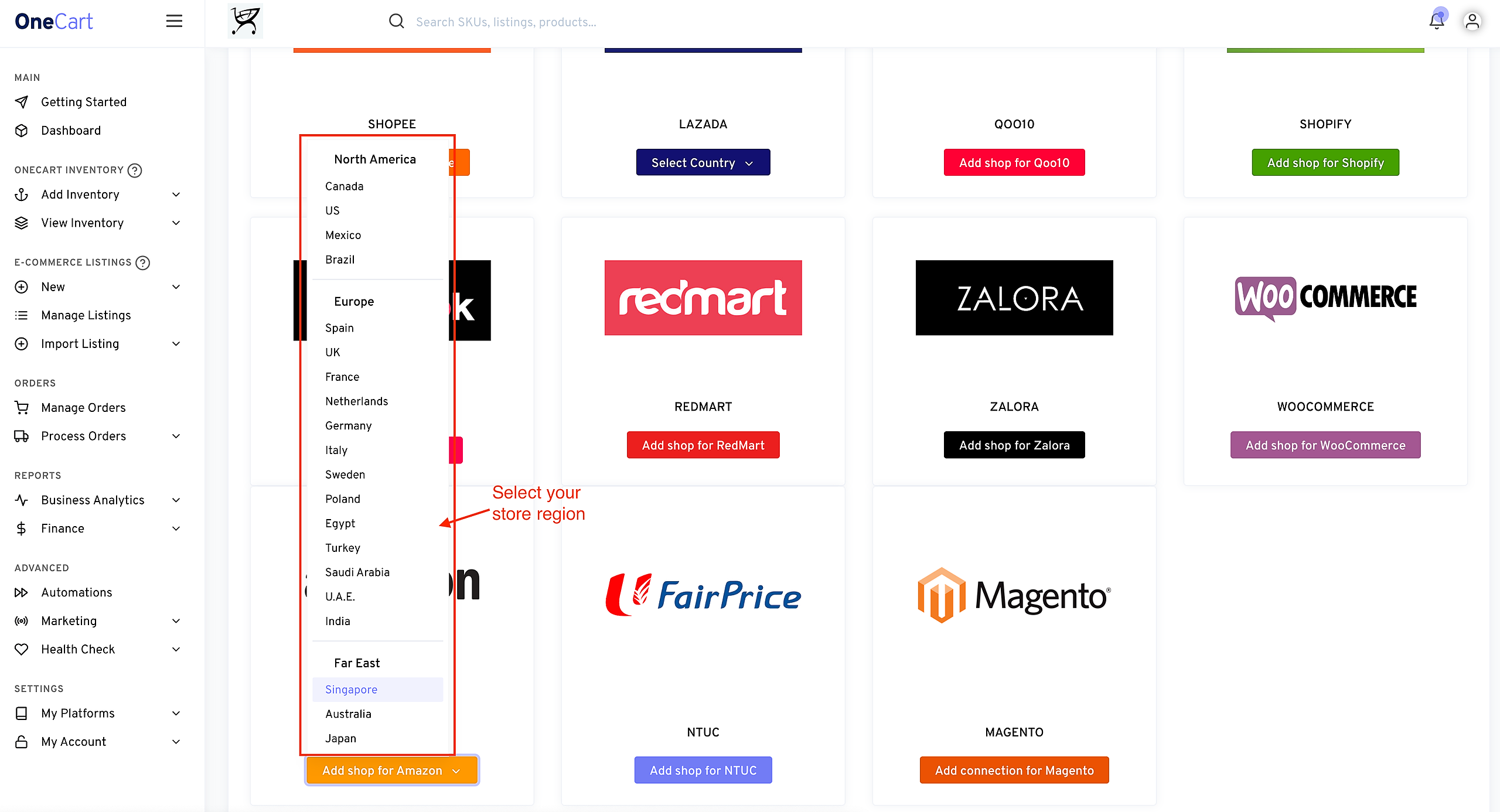
From the list of available marketplaces, select Amazon
Choose the country of your store region
🔐 Step 3: Authorize OneCart via Amazon
You’ll be redirected to the Amazon Seller Central login page
Sign in with the Amazon seller account you want to connect
Grant permission to OneCart by checking the box and clicking “Confirm”
You’ll be redirected back to OneCart once authorization is successful
⚠️ Note : Make sure you’re connecting the correct regional Amazon account (e.g., Amazon.sg, Amazon.com, Amazon.my, etc.)
✅ You’re Connected!
Your Amazon store is now successfully connected to OneCart. Your Amazon orders will start flowing into OneCart!
🧩 Troubleshooting Tips
Ensure you’re using the correct Amazon Seller Central credentials
If connection fails, clear your browser cache or try incognito mode
💬 Need Help?
If you encounter any issues or have questions about the setup, feel free to reach out to our support team via chat or email at hello@lachmann-tech.com