How to connect WooCommerce to OneCart?
Learn how to connect your WooCommerce store to OneCart using REST API keys for seamless order and inventory management.
Learn how to connect your WooCommerce store to OneCart using REST API keys for seamless order and inventory management.
**Note: Please make sure you whitelist OneCart app if you are using any firewall applications such as Cloudfare or others on your WooCommerce website.
Step 1:
Login to your WooCommerce backend, and go to
WooCommerce > Settings > Advanced from the left side bar:
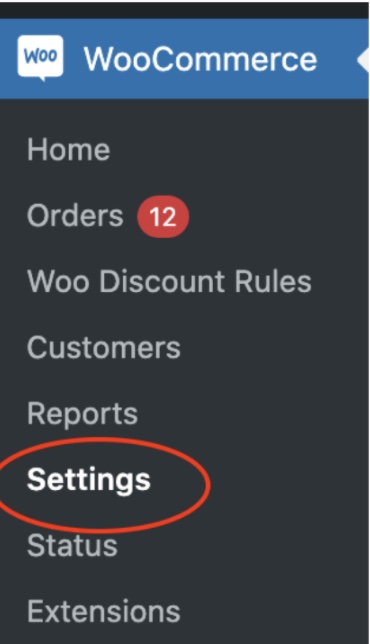

Step 2: Click " REST API “, and then click " Add Key "

Step 3:
Fill out the following fields - Description : OneCart
User : Select the admin user
Permissions : Read/Write
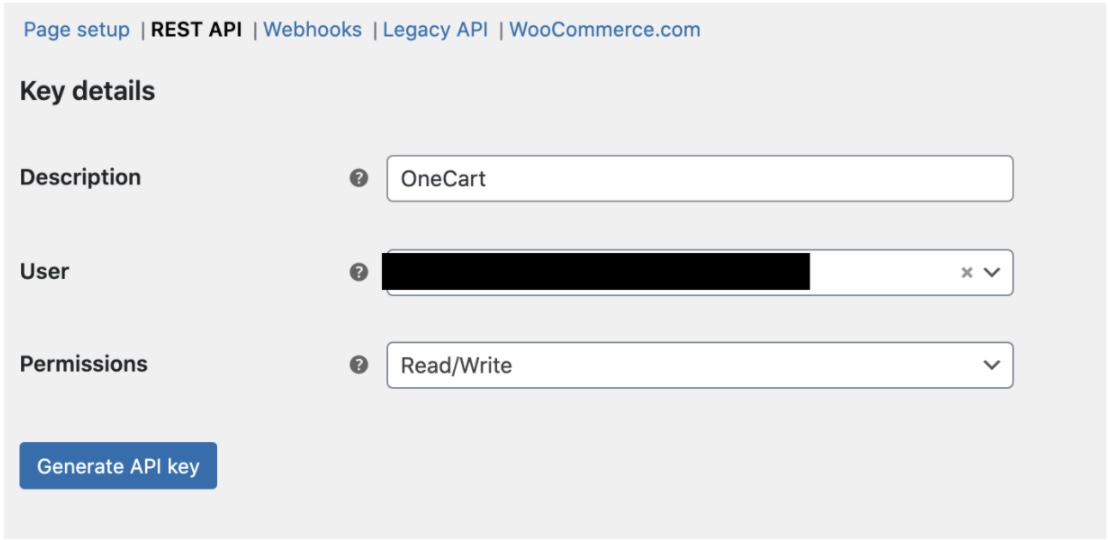 Then click “Generate API key”
Step 4:
You must save both the API Key and API Secret.
1. WooCommerce website URL
2. API Key
3. API Secret
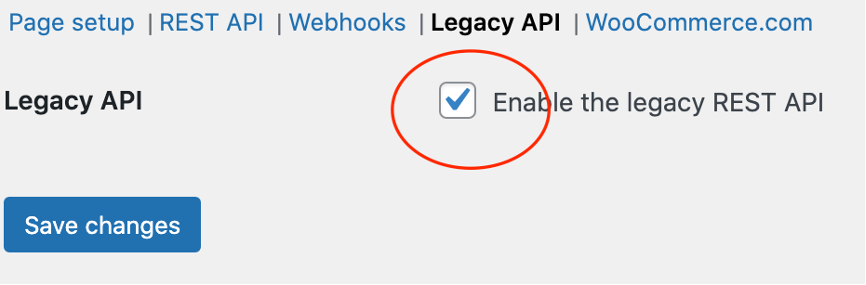
Step 5:
Click " Legacy API " and make sure “Legacy API” is checked on :
Step 6:
Use the information you retrieved earlier to complete the connection by following either of these two methods:
Option 1: Go directly to this link: 👉 https://app.getonecart.com/shops/new?platform=WooCommerce
Option 2:
Go to Settings
Select My Platforms
Click Manage Connections
Choose Add New
Select WooCommerce
Important:
When entering your store URL, make sure it follows this format:
✅ https://yourdomain.com
❌ Do not enter just yourdomain.com without the https://
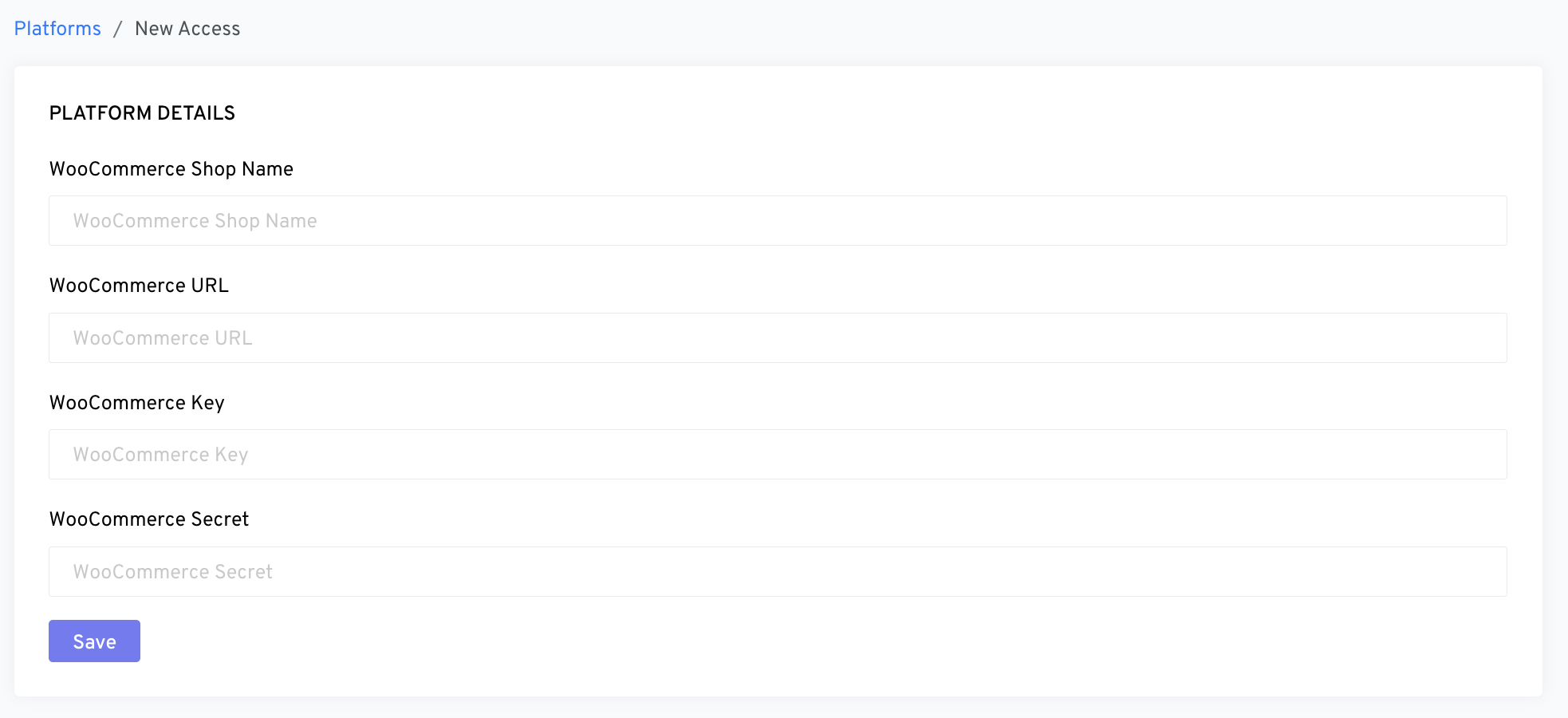
Click ‘Save’ and you are all done! :)
What happens next?
Once connected, OneCart will automatically:
No manual webhook setup is required - everything is configured automatically!