Generating a Missing SKU List in OneCart
Download a list of the SKUs your platform listings use that are not yet in your OneCart inventory, from Manage Listings > View All Imported Listings > Reports > Missing SKUs, then add them manually or by bulk upload.
Help Article
Last updated Oct 9, 2026
3 min read
The Missing SKUs report lists every SKU that appears on your imported platform listings but does not yet exist in your OneCart inventory. Until those SKUs exist in OneCart, the listings that use them cannot be matched, so their stock and orders are not synced.
Use this report after importing listings from a new shop, or whenever the Imports page shows listings waiting to be matched.
What counts as a missing SKU
A SKU is on the list when both of these are true:
- it is used by an imported listing that has not been matched yet (the listing still sits on the Imports page without a OneCart product behind it), and
- no variant in your OneCart inventory has that SKU.
SKUs that already exist in OneCart are left out, even if the listing is still unmatched. Each SKU appears once, even if several listings use it.
How to download the Missing SKUs report
- Log in to OneCart.
- In the left menu, open Manage Listings and click View All Imported Listings. This opens the Imports page at app.getonecart.com/imports.
- Click the Reports button above the listings table.
- Choose Missing SKUs (CSV) or Missing SKUs (Excel).
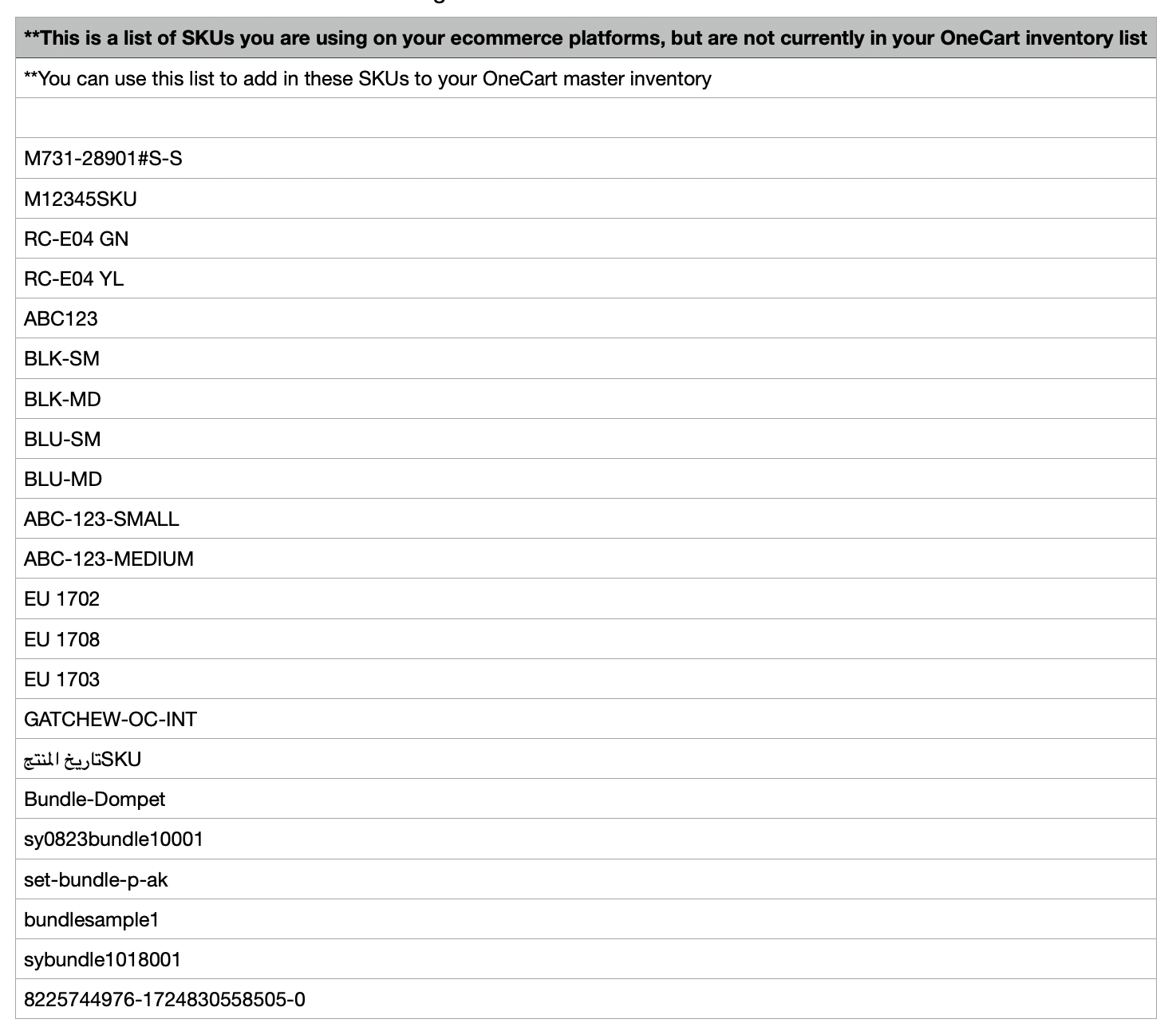
The file downloads straight away, named OneCart-MissingSKUs-<your company>-<date>. The first two rows are notes explaining the list; the SKUs follow, one per row.
Tip: pick the Excel version if any of your SKUs start with zeros. The Excel file stores SKUs as text, so 00123 stays 00123. Opening the CSV in a spreadsheet can strip the leading zeros.
The same Reports menu also offers the Jumbolist (CSV) and Jumbolist (Excel) exports, which list all your imported listings. Those are different reports; for missing SKUs use the two Missing SKUs options.
Adding the missing SKUs to OneCart
Once you have the list, create the SKUs in your inventory so the listings can be matched:
After the SKUs exist, return to the Imports page and match the listings. See Matching your platform listings in OneCart.
Best practices
- Run the report after every import. New shops and new listings bring new SKUs.
- Keep SKUs consistent across shops. When every platform uses the same SKU for the same product, listings match automatically and the report stays short.
- Download it again after adding SKUs. The report is generated live, so SKUs you have just added disappear from it.
Frequently asked questions
What happens if I leave SKUs missing?
The listings that use them stay unmatched, so OneCart cannot update their stock or pull their orders into your inventory counts.
Can I regenerate the list after updating?
Yes. Open Reports and download it again. It always reflects your current inventory.
The report is empty. Is that right?
It means every SKU on your unmatched imports already exists in OneCart. If listings are still unmatched, match them from the Imports page.
Related articles