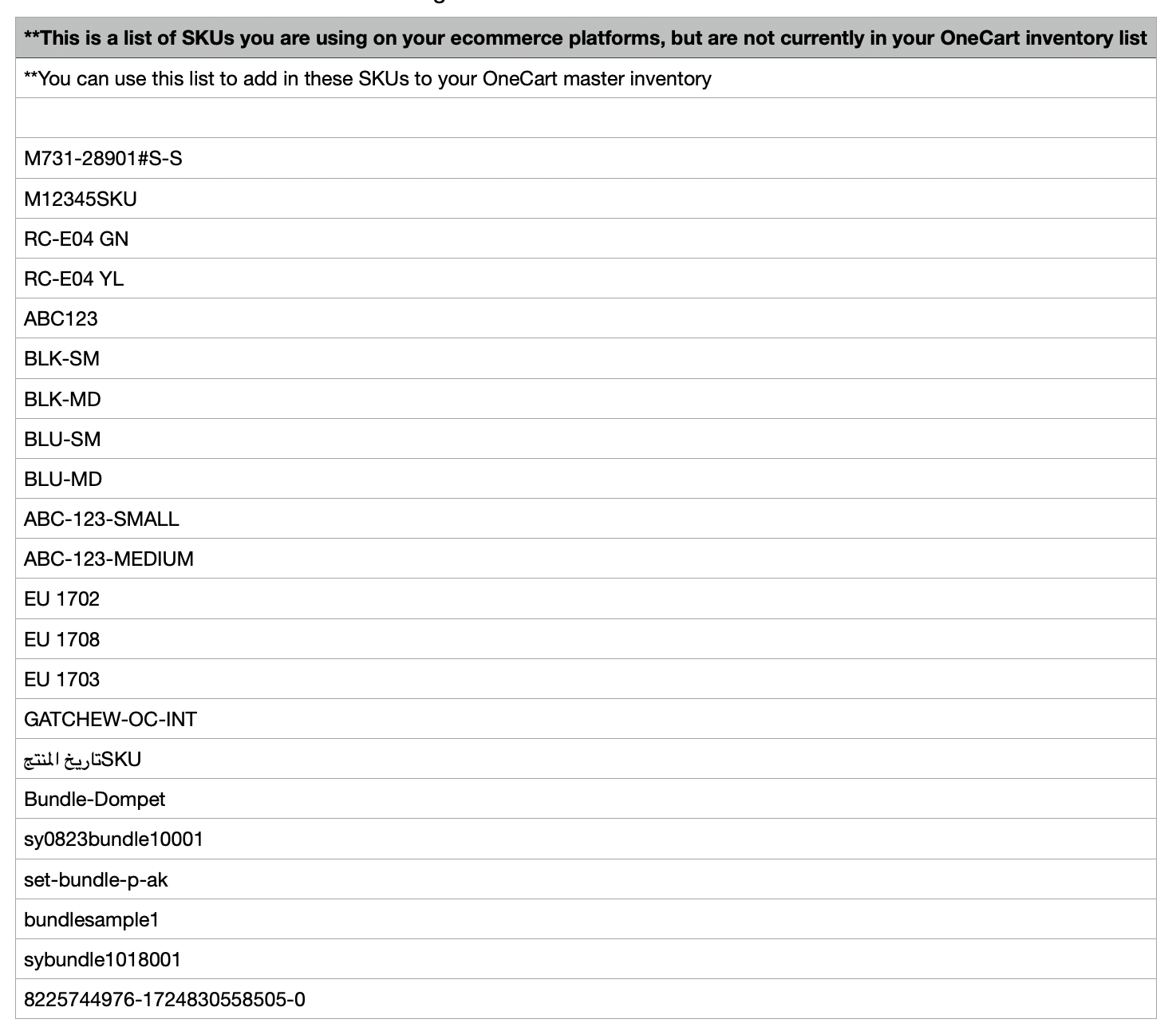
Generating a Missing SKU List in OneCart
The Missing SKU List in OneCart helps you identify products that lack SKU assignments from your connected e-commerce platforms. Missing SKUs can cause inventory mismatches and operational inefficiencies. This guide walks you through generating and utilizing the Missing SKU List to streamline your inventory management.
Help Article
Last updated Nov 20, 2024
2 min read
How to Generate a Missing SKU List
1. Navigate to the Imports Section
- Log in to your OneCart account.
- Go to Imports and select View Imports.
- Here, you will see a list of imports pulled from your connected e-commerce platforms.
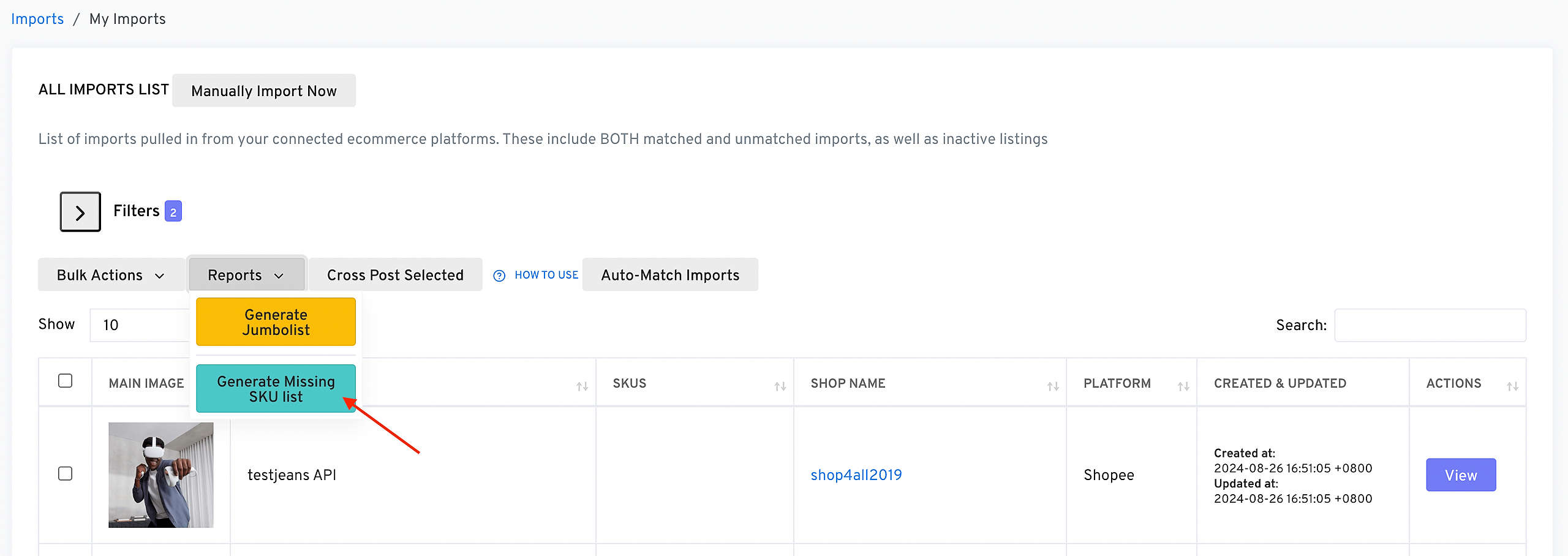
2. Generate the Missing SKU List
- Click on Reports and select Generate Missing SKU List from the dropdown menu as per image below
3. Export or Take Action
Best Practices
- Regularly Review Imports : Check for missing SKUs after each import to ensure data accuracy.
- Utilize Bulk Uploads : Save time by using bulk uploads for multiple SKU updates.
- Coordinate with Shops : Ensure your connected shops consistently use SKUs for all products to avoid mismatches.
Frequently Asked Questions
Q: What happens if I leave SKUs missing?
A: Missing SKUs can result in inventory discrepancies, making it difficult to track stock levels and fulfill orders accurately.
Q: Can I regenerate the Missing SKU List after updates?
A: Yes, once you update the SKUs, you can refresh the Imports section to view the updated data.
Q: How do I assign SKUs for inactive listings?
A: Inactive listings can be reactivated and edited to include the missing SKUs.