Filter Order Processing by a Pasted List of Order Numbers
Paste a list of order numbers copied from your ERP or spreadsheet into Order Processing and get back exactly those orders, in exactly the order you pasted them — ready to check, print or tally line by line.
Help Article
Last updated Sep 13, 2026
3 min read
If you run your fulfillment from an ERP or a spreadsheet, you often need to look at a specific set of orders in OneCart — the ones your finance team flagged, the ones on a packing manifest, or a batch you want to print together. Searching for them one by one is slow, and the default list is sorted by date, so it never lines up with the list you are holding.
Filter by order numbers fixes both problems. Paste your list, and Order Processing shows only those orders, in the same sequence you pasted them, so you can tally the two lists like for like.
Where to find it
- Open Order Processing and pick the platform tab and stage you want (for example Lazada → Step 1: Check & Confirm).
- Next to the Search box, click Filter by order numbers.

Pasting your list
The modal accepts order numbers separated by spaces, commas, semicolons or new lines — whatever your export produced. You can paste a whole column from a spreadsheet, or type numbers one at a time.
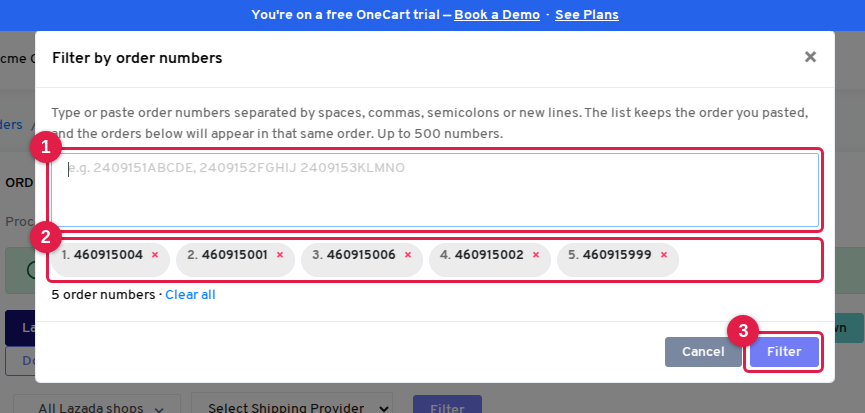
- Type or paste into the box. As soon as a separator is detected, each order number becomes a pill.
- Pills are numbered in the order you pasted them. Duplicates are dropped automatically (the first occurrence wins). Remove a single number with its ×, or use Clear all to start over.
- Click Filter.
You can paste up to 500 order numbers at once.
Reading the filtered list
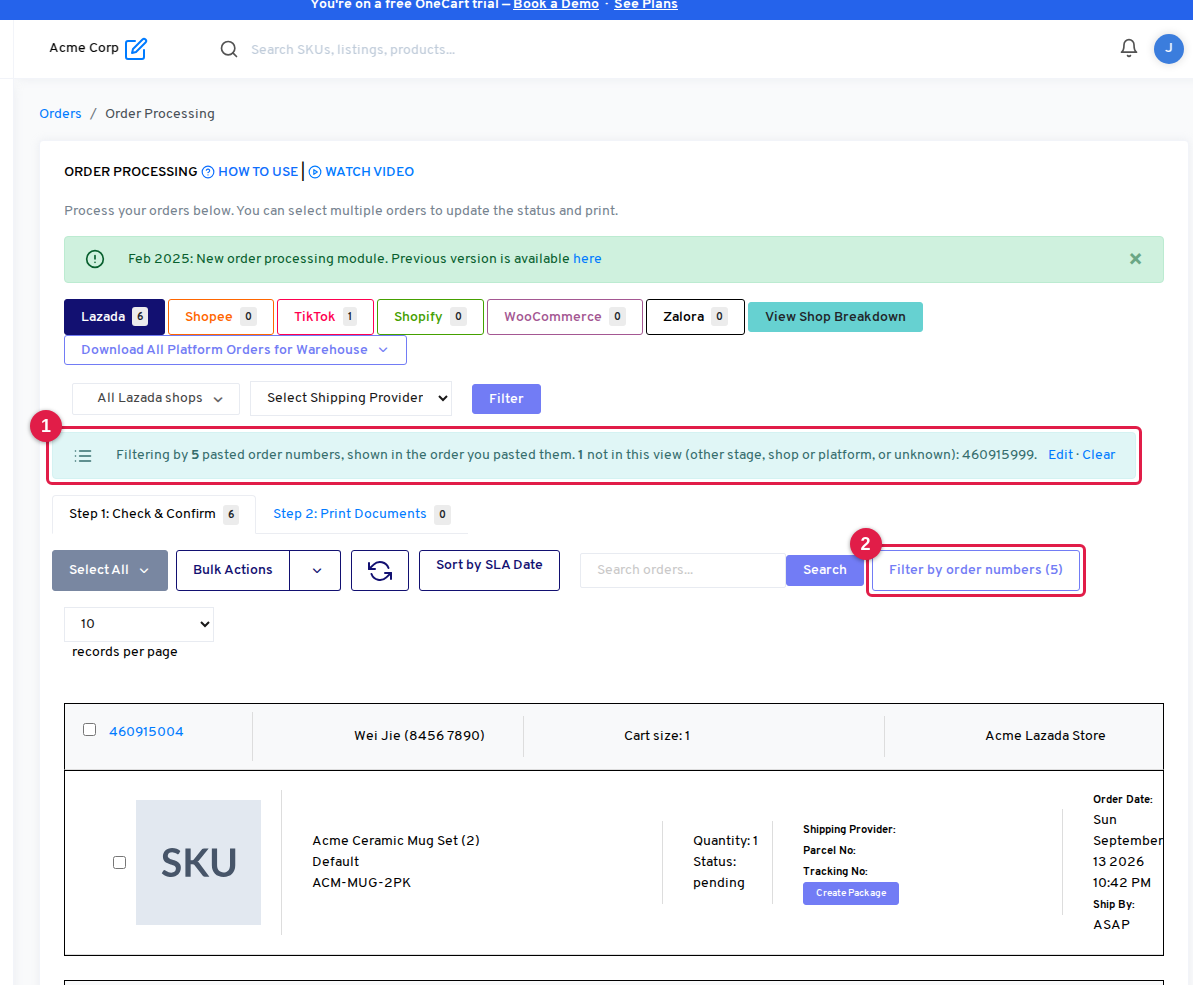
- The banner confirms how many order numbers you pasted and, importantly, lists any that are not in this view. An order number can be missing because it belongs to a different stage (for example it is already in Step 2: Print Documents), a different platform or shop, or because it is not in OneCart at all. Nothing is silently dropped, so your tally never drifts.
- The Filter by order numbers button shows how many numbers are active. Click it (or Edit in the banner) to reopen the modal with your list pre-filled; Clear removes the filter.
The orders themselves appear in the order you pasted them, not by date. The page automatically shows the whole list on one page, so you can select all and print or process them as one batch.
Tips
- Combine with other filters. The shop, shipping-provider and search filters still apply on top of your list, and switching the sort or the shop keeps your pasted numbers active.
- Working across stages? Paste the same list on the Check & Confirm tab and again on the Print Documents tab. The banner on each tab tells you which numbers live on the other one.
- Order numbers must match the platform’s order number exactly as shown in OneCart (for example the Lazada order number, not your internal reference). Leading or trailing spaces are ignored.
Related articles