Creating Bulk Discounts in OneCart
OneCart allows you to create Bulk Discounts to offer special or discounted prices on platforms like Shopee and Lazada. This feature is designed to simplify the creation and management of promotional pricing campaigns, ensuring seamless coordination across platforms.
Help Article
Last updated Nov 20, 2024
2 min read
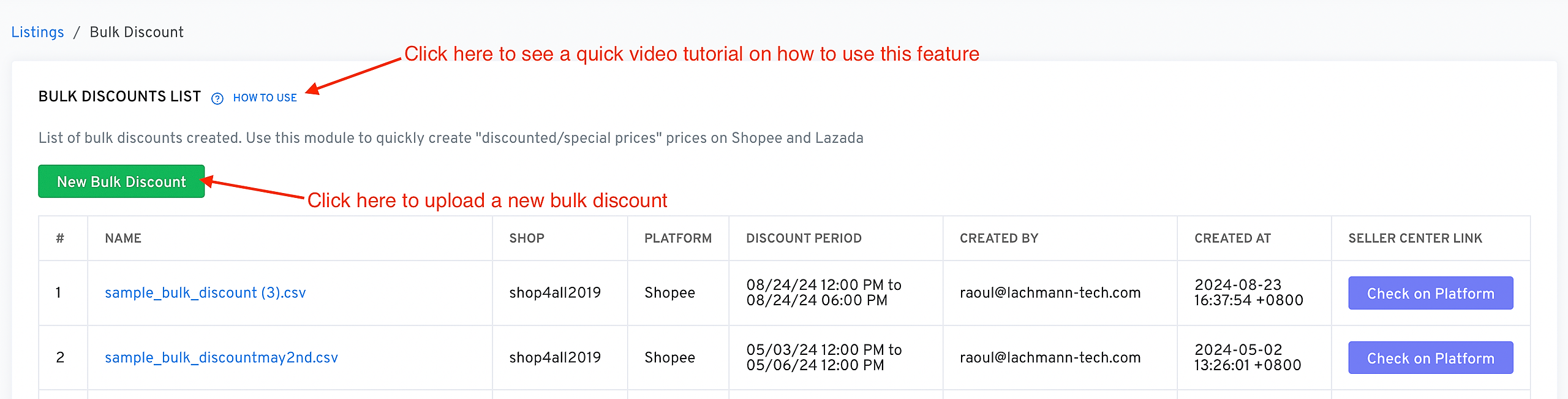
You can create your bulk discounts by going here https://app.getonecart.com/bulk_discountsor **Ecommerce Listings > New > Bulk Update Discount
 **
**
Steps to Create Bulk Discounts
Follow these steps to create and manage bulk discounts in OneCart:
1. Prepare Your Bulk Discount File
Your bulk discount file must follow these guidelines:
You can download a Sample File from the Bulk Discounts module to ensure your format is correct.
2. Create a New Bulk Discount
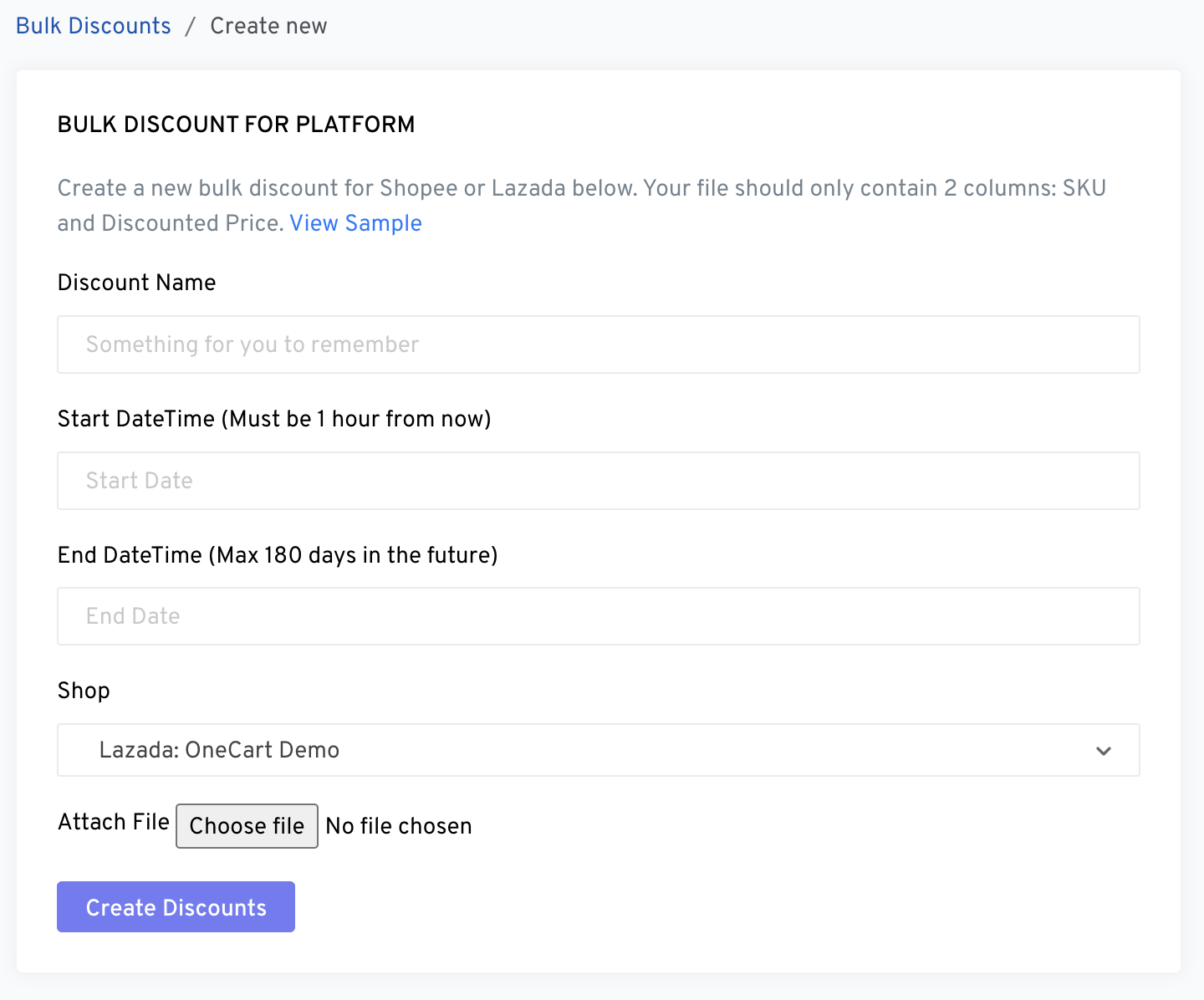
Navigate to the Bulk Discounts Module
Fill in Discount Details
Attach Your Discount File
Submit
Viewing and Managing Bulk Discounts
Bulk Discounts List
The Bulk Discounts List provides an overview of all previously created discounts. For each discount, you can view:
- Name : The campaign’s identifier.
- Shop : The store where the discount applies.
- Platform : Shopee or Lazada.
- Discount Period : The start and end times for the campaign.
- Created By : The email of the creator.
- Created At : The date and time when the discount was created.
- Seller Center Link : A direct link to manage the discount in the platform’s Seller Center.
Best Practices
- Plan Ahead : Ensure your start time allows for at least one hour for the system to process your bulk discount.
- Review Your File : Double-check the SKUs and discounted prices in your CSV file before uploading.
- Monitor Campaigns : Use the Bulk Discounts List to track active and past campaigns, ensuring proper execution.
Frequently Asked Questions
Q: Can I create bulk discounts for multiple shops at once?
A: Currently, bulk discounts are created per shop. You’ll need to set up separate campaigns for each shop.
Q: Why is my discount not visible on the platform?
A: Ensure the start time is at least one hour from the current time and that your file is correctly formatted.
Q: Can I edit a discount after creating it?
A: Edits cannot be made to an active campaign. If changes are needed, cancel the campaign and create a new one.