Create Your Item Master from Your Shops

Create from Shops reads your connected shops' listings and creates each SKU once: products, options, stock, prices and bundles. You review the draft before anything is created.

Help Article Last updated Oct 20, 2026 3 min read

Create from Shops reads your shops’ listings and creates each SKU once: products, options and bundles. You review before anything is created.

Open it from Bulk Uploads → Create from Shops, or go straight to Create from Shops.

The Bulk Uploads page: Upload an Excel File, then Create from Shops

It reads every platform OneCart imports listings from. Shopee, Lazada, Shopify and TikTok Shop listings bring their option names and values (for example Colour: Sage). Amazon, WooCommerce, Magento, Qoo10, Zalora, RedMart, NTUC FairPrice, Decathlon, Temu and iShopChangi listings bring SKU, stock and price, without options.

The rules

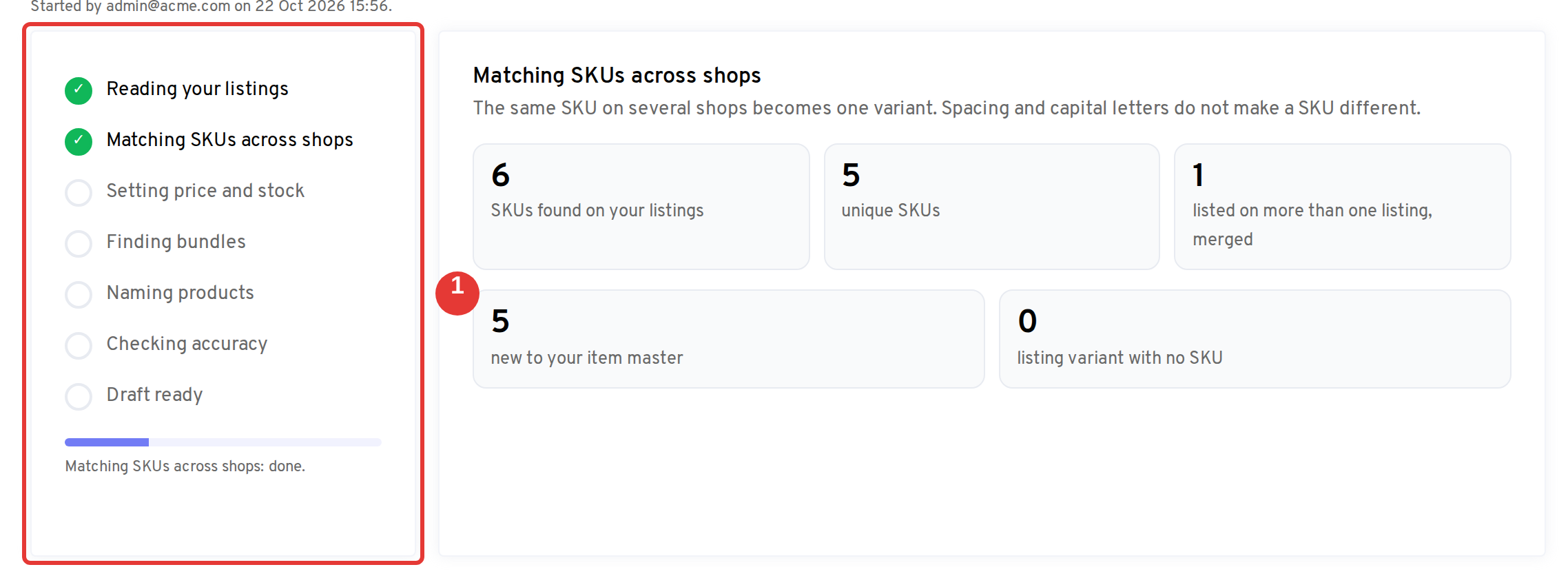
  • One SKU, once. The same SKU on several shops becomes one variant. MUG-WHI and mug-whi count as the same SKU.
  • Lowest stock, highest price. When your shops disagree, the row says what we chose and why.
  • Bundles. A SKU such as MUG-WHI+TOWEL-NAT becomes a bundle when every component exists.
  • Existing SKUs are never changed. SKUs already in your item master stay as they are.
  • No SKU, no row. Listings without a SKU are skipped and counted per platform. Add the SKU on the platform and run it again.
  • Your shops don’t change. Nothing is pushed to your listings.

Step by step

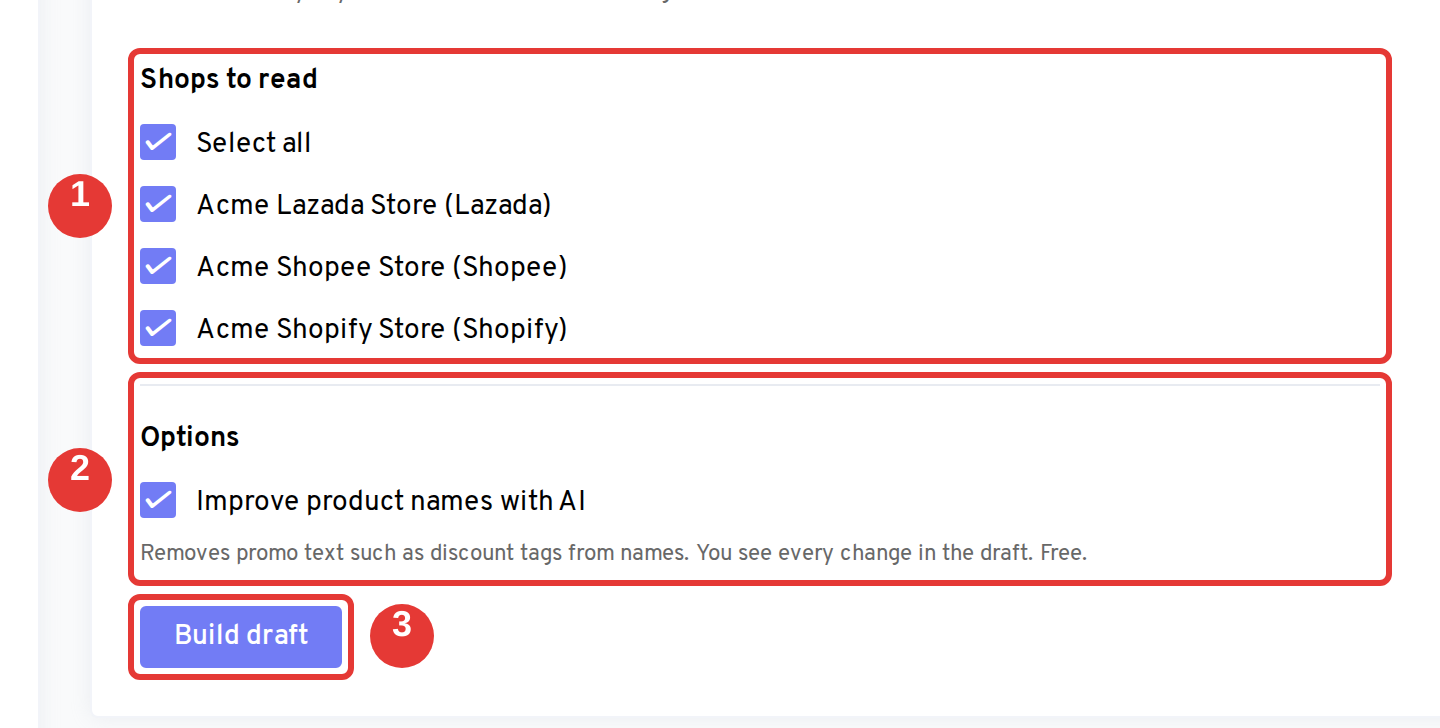
  1. Under Shops to read, keep the shops you want (all are ticked). Under Options, keep Improve product names with AI on to remove promo text such as “Buy 2 Free Gift” from names. It is free, and you see every change.
  2. Click Build draft.

Shops to read, then a separate Options section with the AI name option

  1. Follow the draft as it builds: reading listings, matching SKUs, price and stock, bundles, names, accuracy check.

The draft being built, step by step

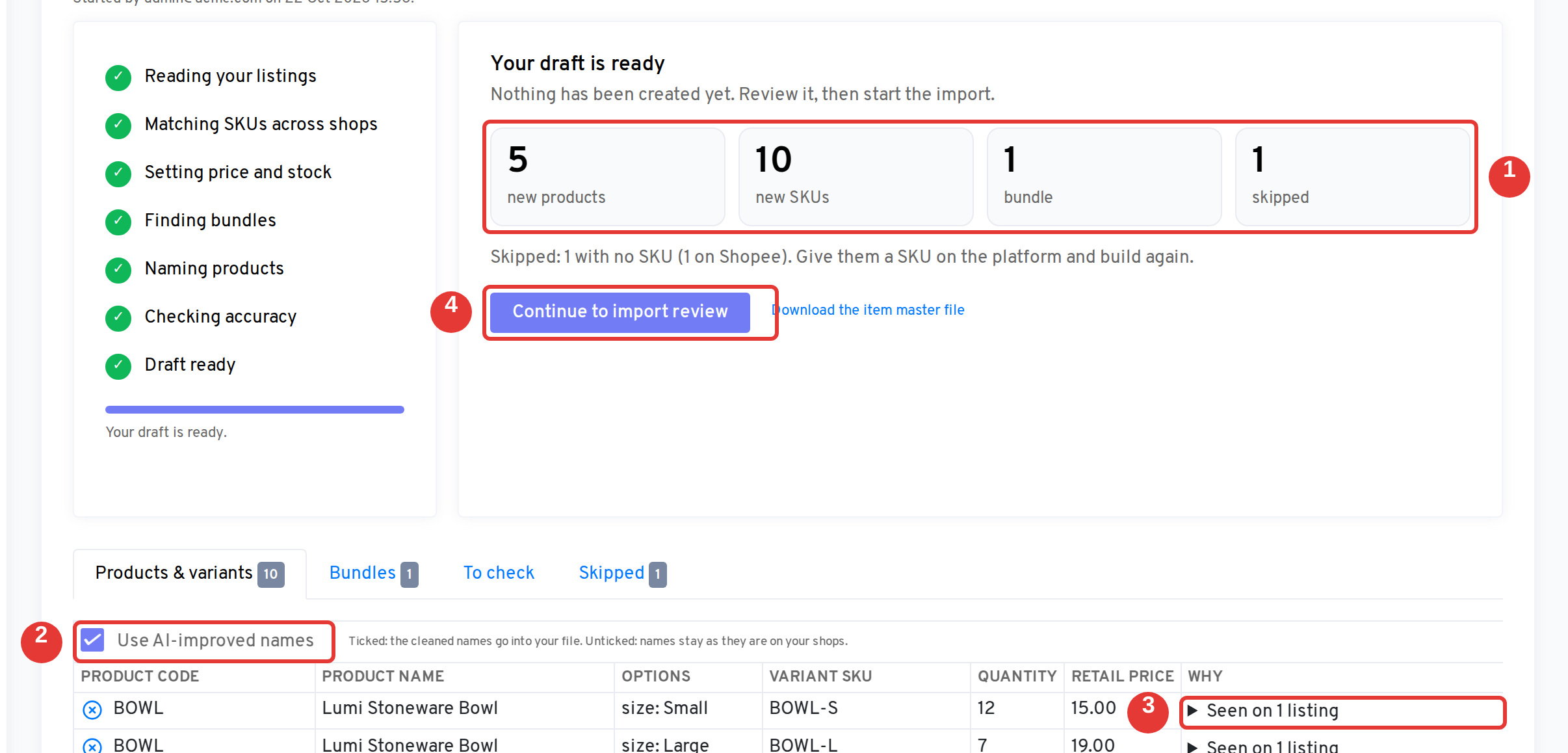
  1. When it is ready, check the summary: new products, SKUs, bundles, and what was skipped.
  2. Look through the draft below it. Each row says why it is there. Seen on N listings shows every shop’s SKU, stock and price. Exclude any row you don’t want. Use AI-improved names at the top of the table switches between the cleaned names and your original ones.

The draft summary and its tabs

  1. Click Continue to import review. It opens the normal bulk upload review, where you can still edit any cell. Click Start my import.
  2. If bundles were found, open the Bundles tab after the import finishes and click Create bundles.

New to OneCart?

If you connect your first shop and have no products yet, we create your item master for you with the same rules. Inventory sync stays off on every SKU it creates until you turn it on. We tell you in the app and by email, for example “We built your item master from your shops: 120 products, 340 SKUs, 6 bundles.”, and your Getting Started page shows the same summary.

To undo it, open Products, tick the products it created, then choose Bulk Actions → Delete → Delete on OneCart. This removes them from OneCart only.

Every night

Turn on Auto-create products from shops for a shop in Daily Automations, and every night at 5:00 AM (Singapore time) we add that shop’s new SKUs to your item master with the same rules:

  • New SKUs only. Existing products and variants are never changed.
  • Inventory sync is off on the new SKUs until you turn it on.
  • When something was added, you get a notice in OneCart with a link to it. A night with nothing new leaves nothing behind.