Connecting Zalora to OneCart
Here's how you connect your Zalora stores to OneCart
Here's how you connect your Zalora stores to OneCart
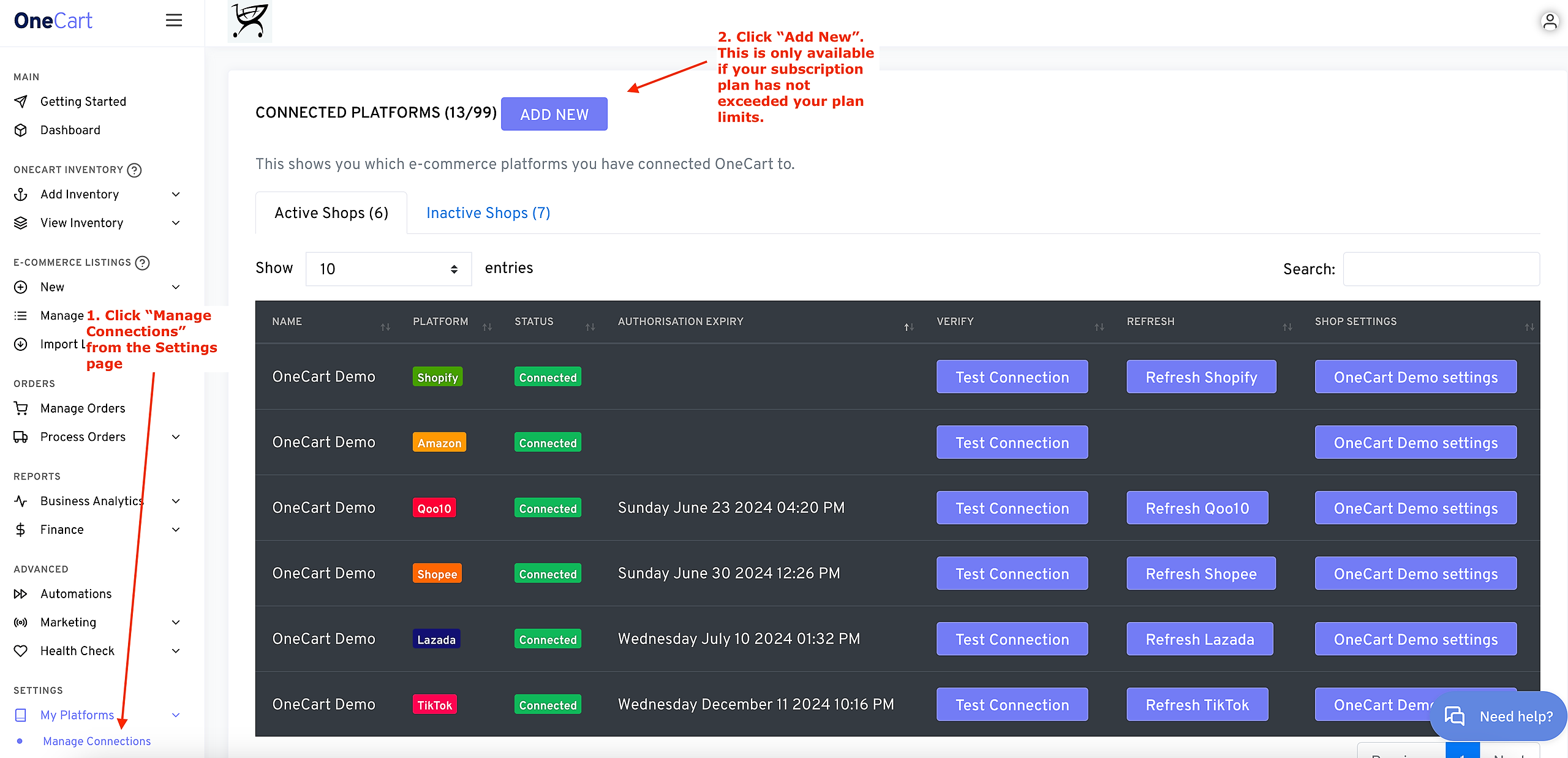
Go to Settings > My Platforms > Manage Connections. Here’s a convenient link: https://app.getonecart.com/my_platforms
Click “Add New”. If you don’t see this button, it means you’ve reached the limit of shop connections for your subscription. [Contact Support on how to upgrade.](mailto:hello@lachmann-tech.com?subject=“Need%20more shop connections”)
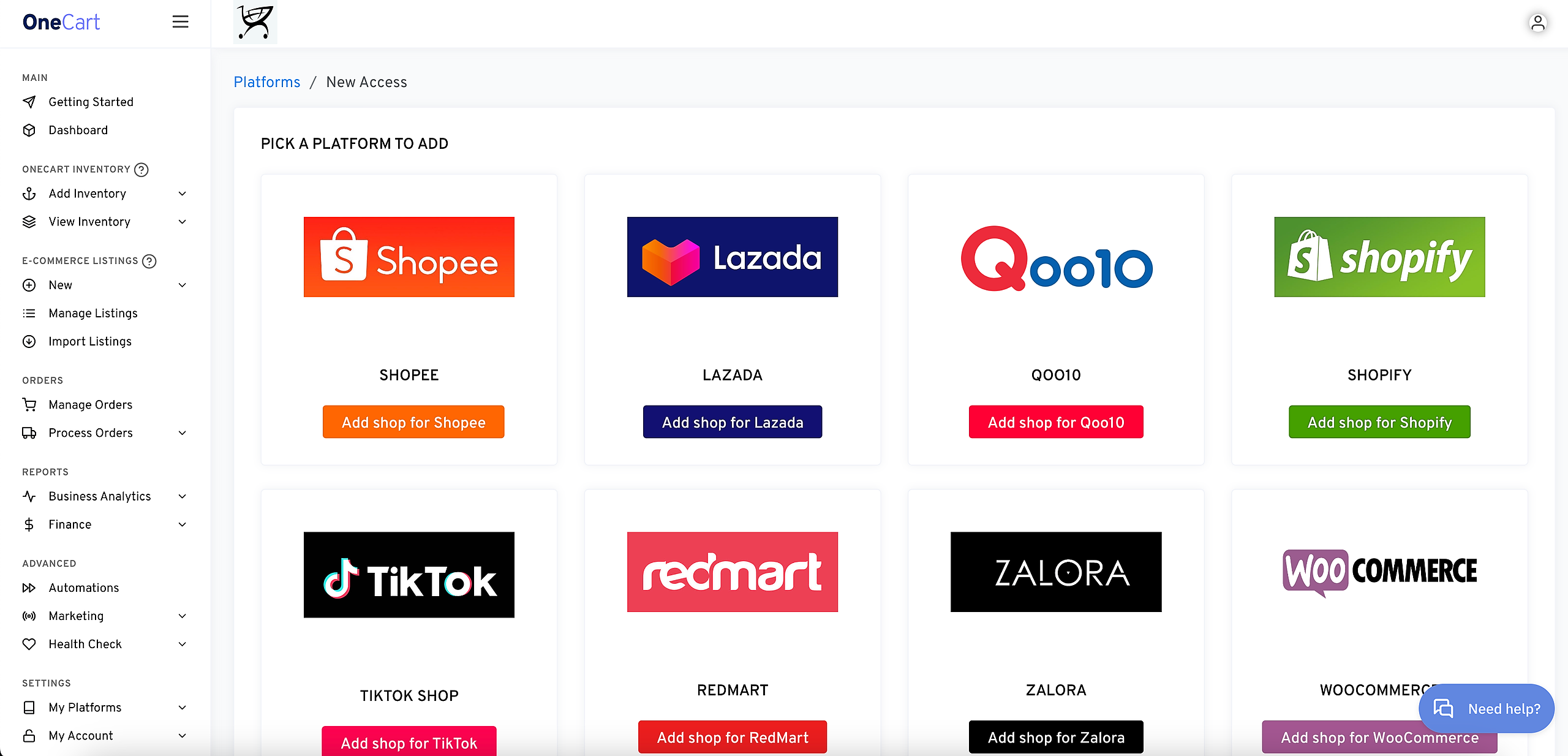
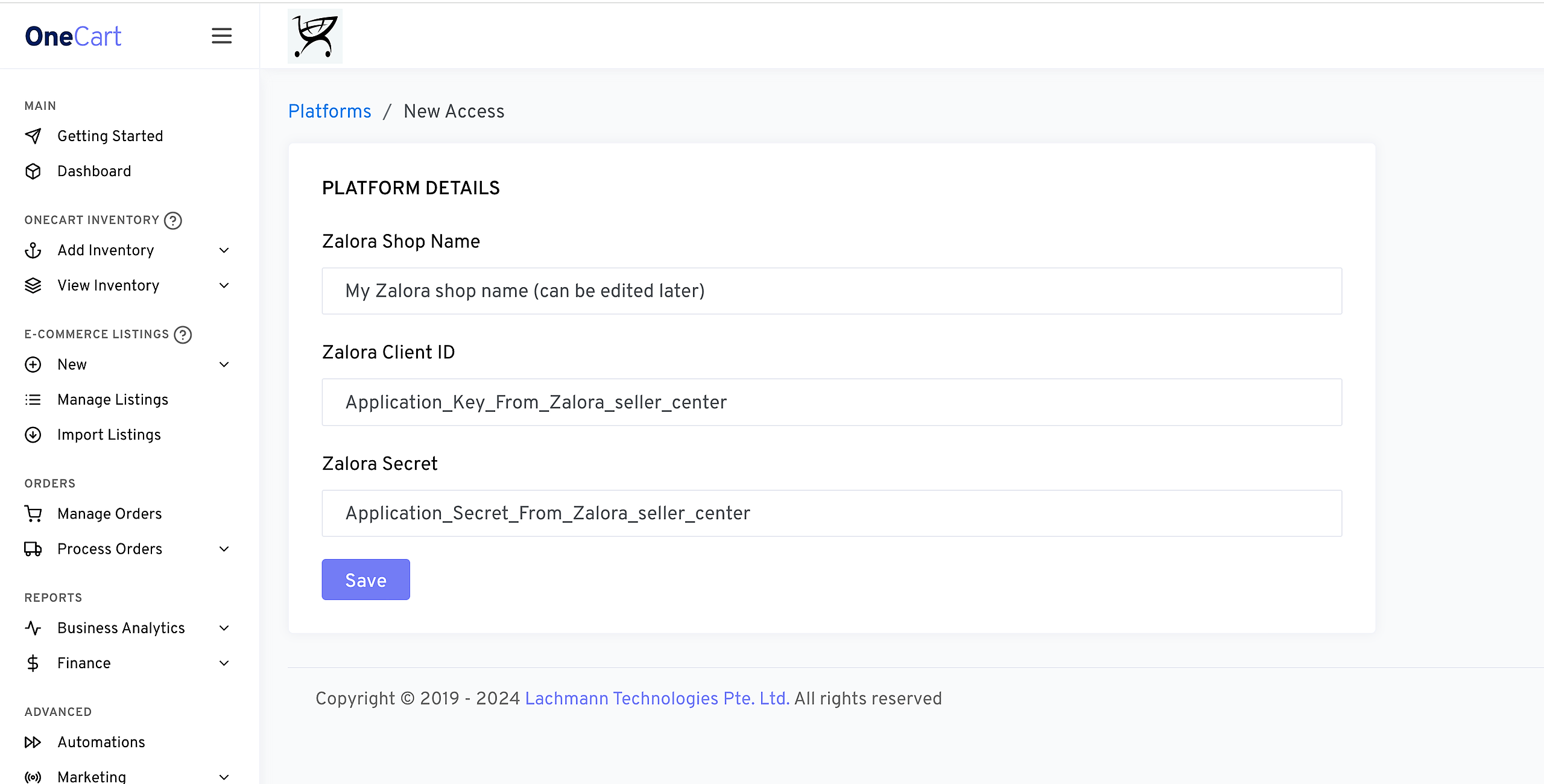
Fill out the name of your Zalora store. This is just for you to identify the shop, and it can be changed later.
You will now need to fill out the Client Key & Client Secret. This will need to be generated within Zalora Seller Center.
To generate the Client Key & Secret, login to Zalora Seller Center, and go to Settings > Integration Management > OAuth Apps > Add Application from the left sidebar. Here’s a convenient link: https://sellercenter.zalora.sg/oauth/apps

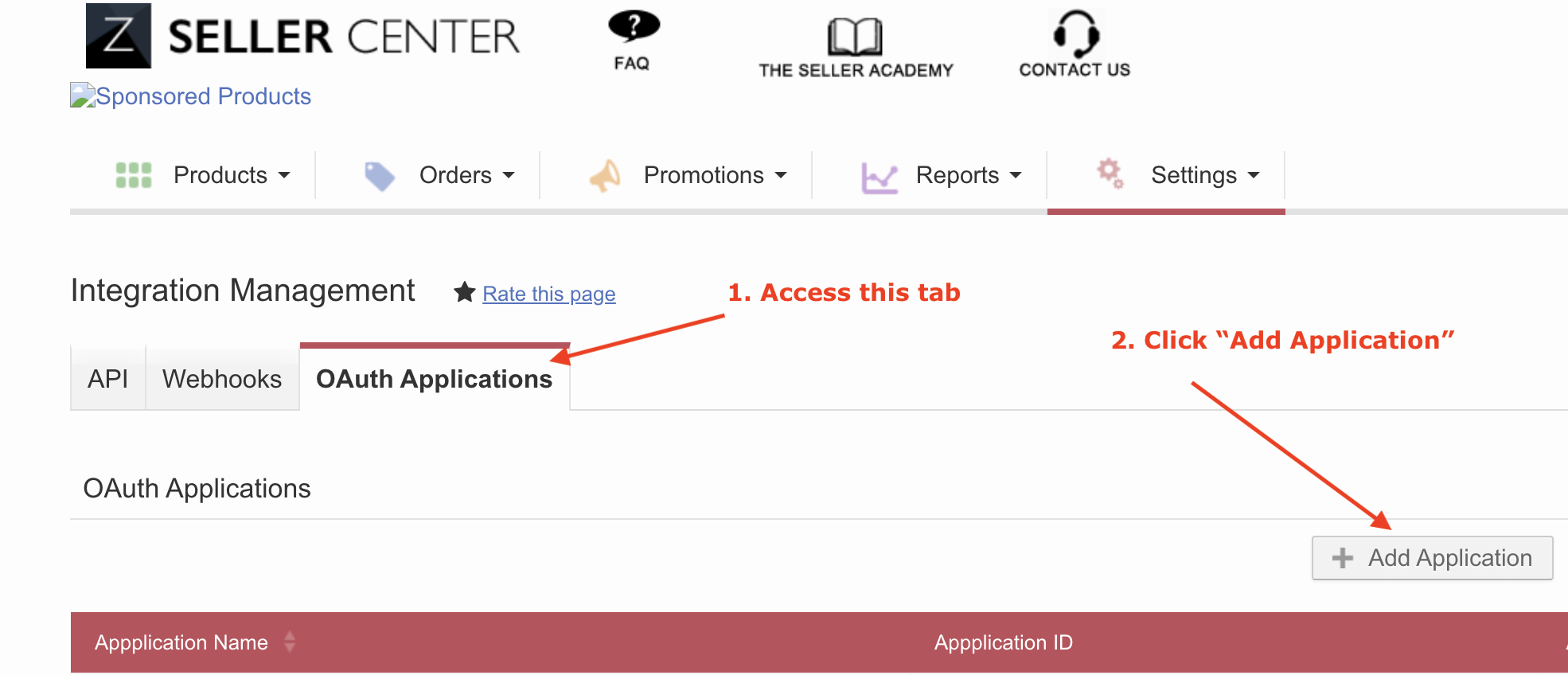
Under Application Name, call it “OneCart”, and add the callback URL as: https://app.getonecart.com
Click “Save”. This will bring you back to the main OAuth page.
Now click “Edit” on the OneCart app you just created: