Connecting Your Platforms
Use OneCart to simplify your workflow and manage all your platforms from one place! Learn how to connect new shops and manage your existing platform connections.
Use OneCart to simplify your workflow and manage all your platforms from one place! Learn how to connect new shops and manage your existing platform connections.
OneCart supports multiple e-commerce platforms including Shopee, Qoo10, Lazada, Shopify, WooCommerce, Magento, Amazon, TikTok Shop, and more! This guide will walk you through connecting new platforms and managing your existing shop connections.
1. Access the Shop Management Section
Navigate to Settings > My Platforms > Manage Connections in OneCart. Here, you can view:
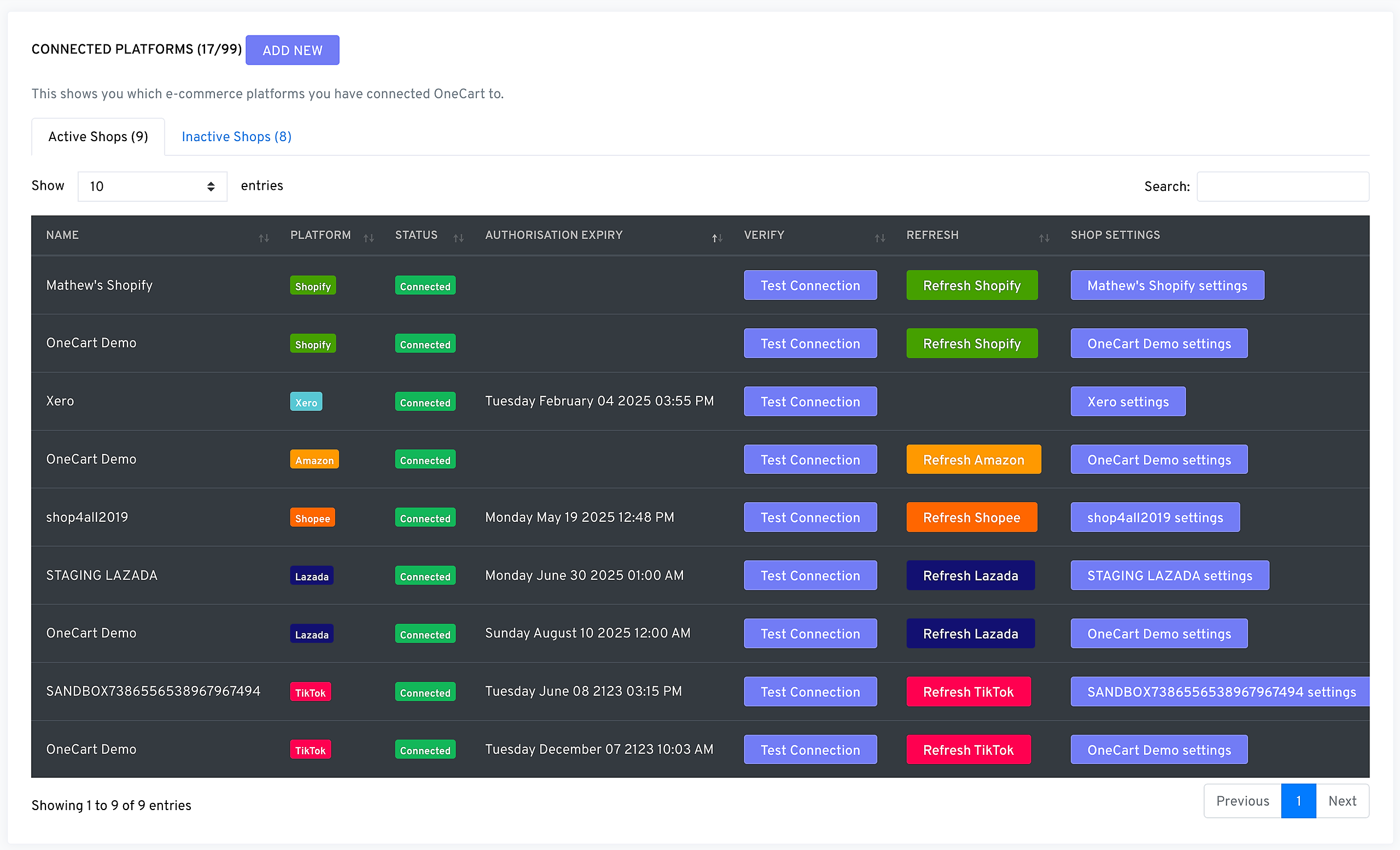
2. Add a New Shop
Click the “Add New” button in the Connected Platforms section, then select your desired platform from the list.
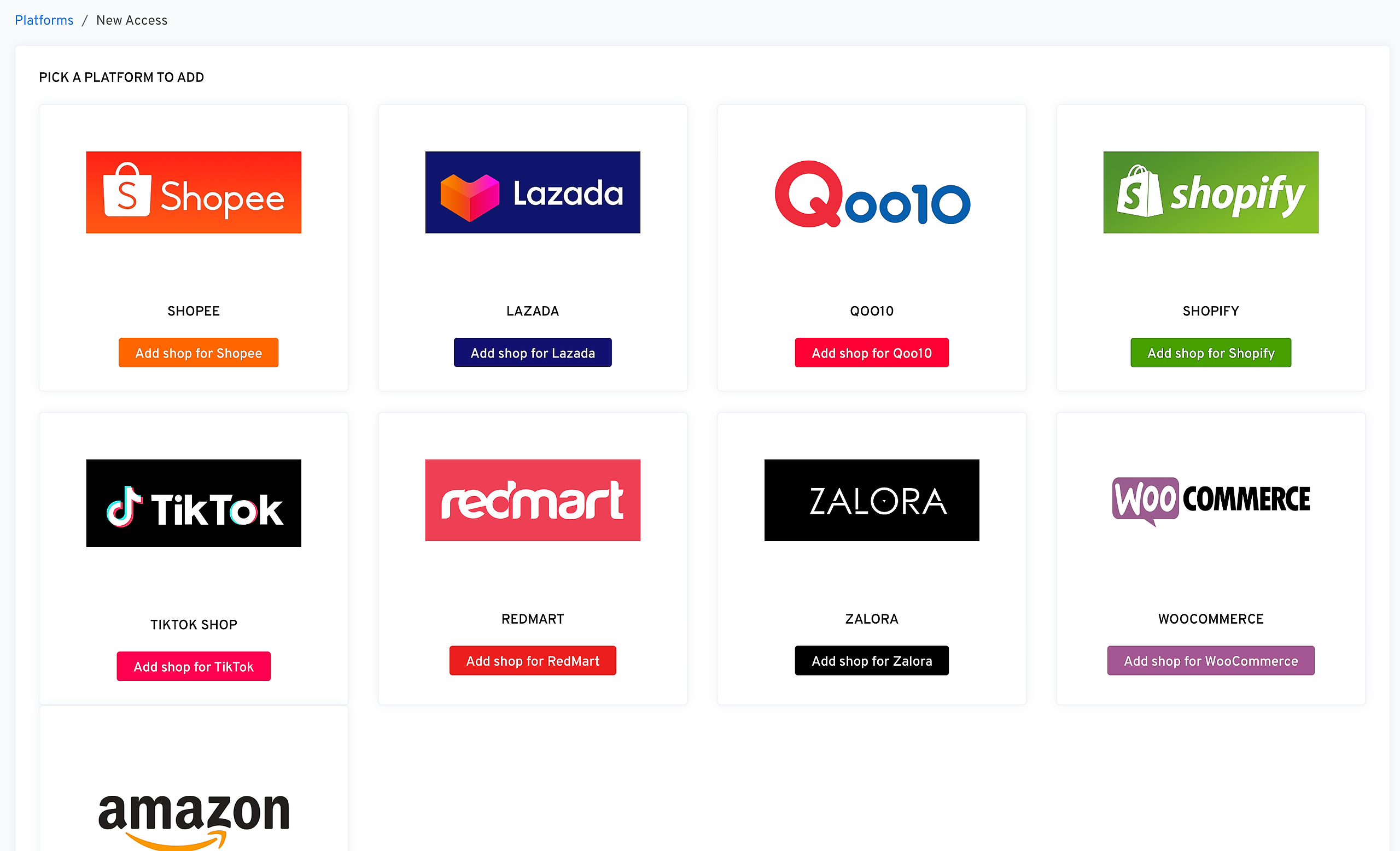
Follow the authorization process for your chosen platform (Shopify, Shopee, Lazada, Amazon, TikTok Shop, etc.) by logging into your seller account when prompted.
3. Verify and Activate the Shop
Once authorization is complete, your shop will appear in the list marked as Connected. Check the platform name and authorization expiry date, then refresh settings if needed using the Refresh button.
For detailed setup instructions for each platform, visit:
Q: What happens if a shop is not authorized?
A: The shop will be listed as inactive. You need to complete the authorization process to make it operational.
Q: Can I connect multiple shops from the same platform?
A: Yes, OneCart supports multiple shops on the same platform. Each shop must be authorized individually.
Q: How do I disconnect a shop?
A: Visit the Platform Integrations section for specific disconnection guides for each platform, or go to Shop Settings and select the option to disconnect.
Do write in to us at hello@lachmann-tech.com should you have any other platforms you’d like to get connected to! Have all your platforms connected with us for Easy E-Commerce!