Connecting NTUC FairPrice to OneCart
To integrate your NTUC FairPrice account with OneCart, you can now add your shop directly through the OneCart platform. Follow the steps below to complete the integration.
Help Article
Last updated Aug 20, 2026
4 min read
**Steps to Retrieve and Share Your NTUC API Key
 **
**
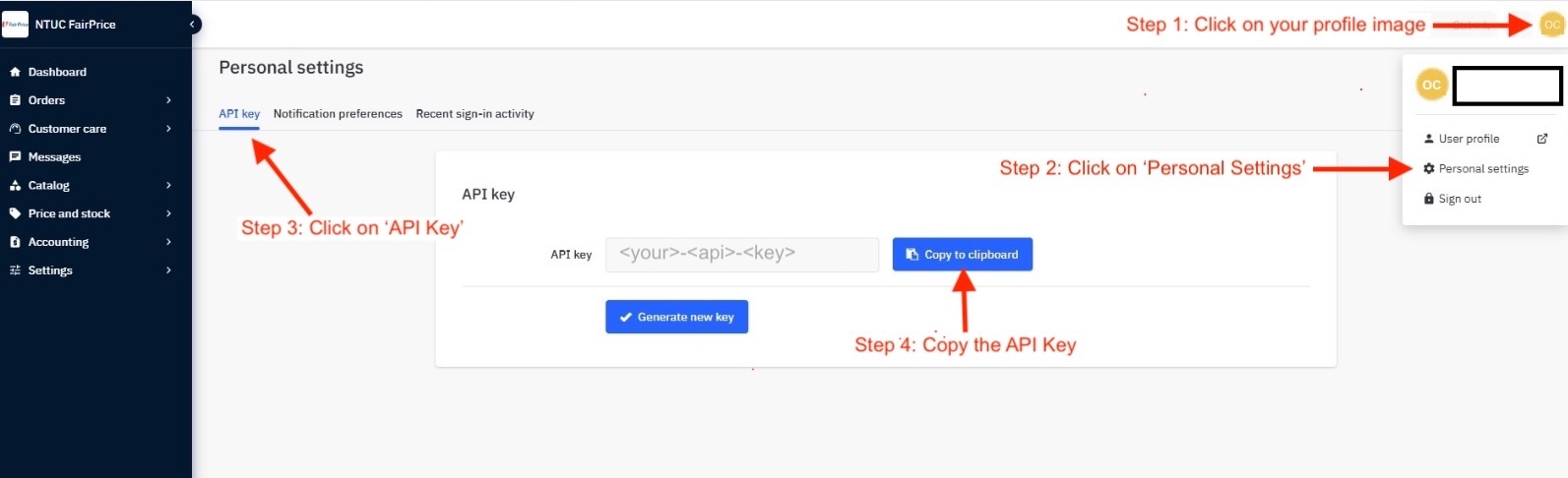
Step 1: Access Personal Settings
- Click on your profile image in the top-right corner of the NTUC FairPrice dashboard.
- Select “Personal Settings” from the dropdown menu.
Step 2: Navigate to API Key Section
- Click on the “API Key” tab under Personal Settings.
Step 3: Copy Your API Key
- Click on the “Copy to clipboard” button next to the displayed API key.
Step 4: Add Your NTUC Shop on OneCart
Go to Settings > My Platforms > Manage Connections
Click on the ‘Add New’ button
Then Pick a Platform To Add - choose ‘Add Shop for NTUC’
Fill in the required fields:
- NTUC Shop Name
- NTUC API Key
- NTUC Store ID — tells OneCart which store your API key should sync. See Finding Your Store ID below.
Click “Save” to complete the integration
Finding Your Store ID (multi-store accounts)
Your FairPrice API key belongs to your seller user account, not to a single store. If that user has access to more than one FairPrice store, API calls without a Store ID are served by the first store that was created — so OneCart can end up looking at an old or suspended store even when your API key is perfectly valid. The Store ID removes that ambiguity, which is why OneCart asks for it on every new FairPrice connection and whenever you update your API key.
If you connected FairPrice before this field existed, your store keeps syncing as before — nothing breaks. But do add your Store ID right away if either of these applies:
- FairPrice moved your business to a new store, for example a Resale store with an “-RR” suffix, so your account now has more than one store.
- OneCart says your store is suspended, or shows no listings, even though your API key is valid.
To find your Store ID, log in to the FairPrice seller centre and follow the steps marked in the screenshot below.
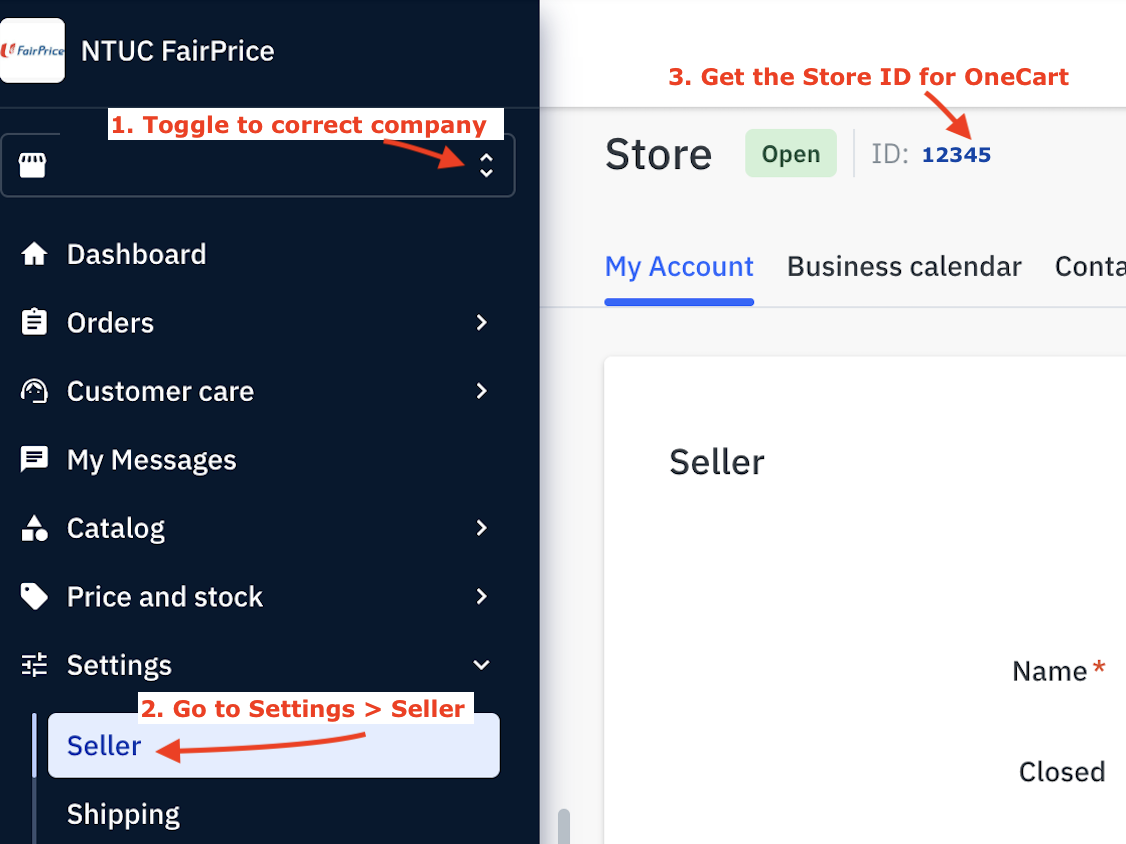
- Use the company switcher at the top of the left sidebar to toggle to the correct company.
- In the left sidebar, open Settings > Seller (the page at
https://fairpricesg-prod.mirakl.net/mmp/shop/account/shop). - Your Store ID is shown at the top, next to the store name, for example
ID: 12345. Copy it down.
Where to enter your Store ID in OneCart
The Store ID field lives on the Refresh NTUC form. It is not on the shop settings page, so use these steps:
- Go to My Platforms in OneCart (Settings > My Platforms > Manage Connections).
- Find your NTUC FairPrice shop in the list of connected platforms.
- On that shop’s row, click the Refresh NTUC button.
- The Platform Details form opens with your NTUC Shop Name and NTUC API Key already filled in. Leave the API key exactly as it is.
- Paste your Store ID into the NTUC Store ID field.
- Click Save.
A few things worth knowing about this screen:
- The button says “Refresh” because it is the same form used to re-enter your API key. Clicking it does not disconnect your shop and does not lose any of your data.
- Do not use the other button on that row, the one labelled with your shop name followed by “settings”. That page holds currency and sync preferences only, and it has no Store ID field.
- The Store ID is required on this form. Once you have entered it, any future save on this screen keeps it.
When you click Save, OneCart checks that your API key can actually reach the store you named. If it can, you get a confirmation naming the store it connected to. If that store is suspended, OneCart tells you, which is your signal that you have entered the Store ID of your old store and should use your current one instead. If the key cannot reach the store at all, OneCart shows an error and saves nothing, so your existing connection is left untouched.
Important Notes
- If you do not see an API key, click “Generate New Key” and then copy it.
- If your account has access to more than one FairPrice store (for example after FairPrice moved you to a new Resale “-RR” store), also enter your Store ID so OneCart syncs the correct store — see Finding Your Store ID above.
- Keep your API key confidential and only share it with trusted parties like OneCart.
- If you experience issues, reach out to NTUC FairPrice support for assistance.
Following these steps will ensure a smooth integration process between NTUC FairPrice and OneCart. 🚀