Connecting Decathlon to OneCart
To integrate your Decathlon Seller Account with OneCart, you can now add your shop directly through the OneCart platform. Follow the steps below to complete the integration.
To integrate your Decathlon Seller Account with OneCart, you can now add your shop directly through the OneCart platform. Follow the steps below to complete the integration.
Log in to your Decathlon Seller Portal.
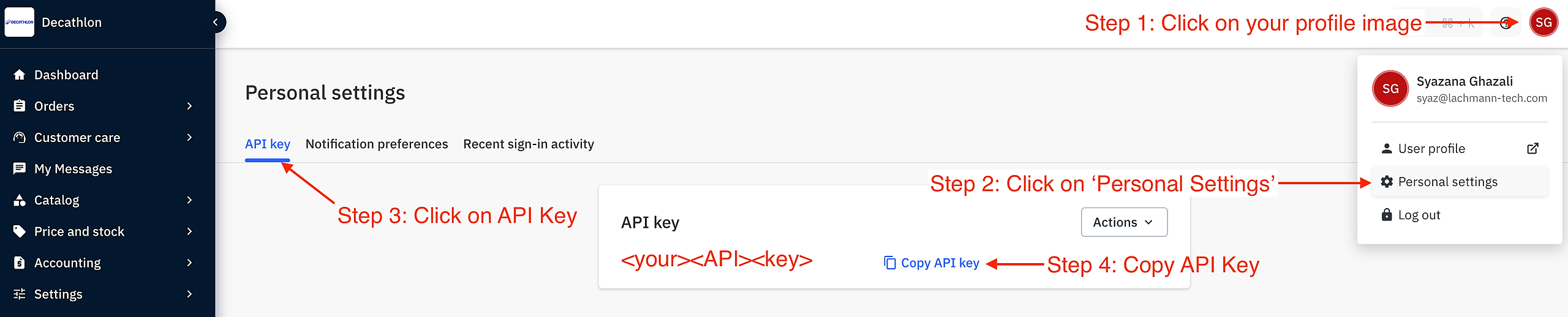
Click on your profile image or name at the top-right corner of the page.
Select “Personal Settings” from the dropdown menu.
In your account settings, click on the “API Key” tab.
Locate your API Key — these are required to link your Decathlon shop with OneCart.
Click “Copy”
Keep these details secure — you’ll need them in the next step to connect your shop.
Log in to your OneCart dashboard.
Go to Settings → My Platforms → Manage Connections.
Click on “Add New.”
When prompted to Pick a Platform to Add, choose “Add Shop for Decathlon.”
Fill in the required details:
Key in your Decathlon Shop Name and Paste the API Key that you copied earlier.

Keep your API credentials confidential and only share them with trusted partners.
If you encounter issues during setup, contact Decathlon Seller Support for assistance.