Checking Prices in OneCart
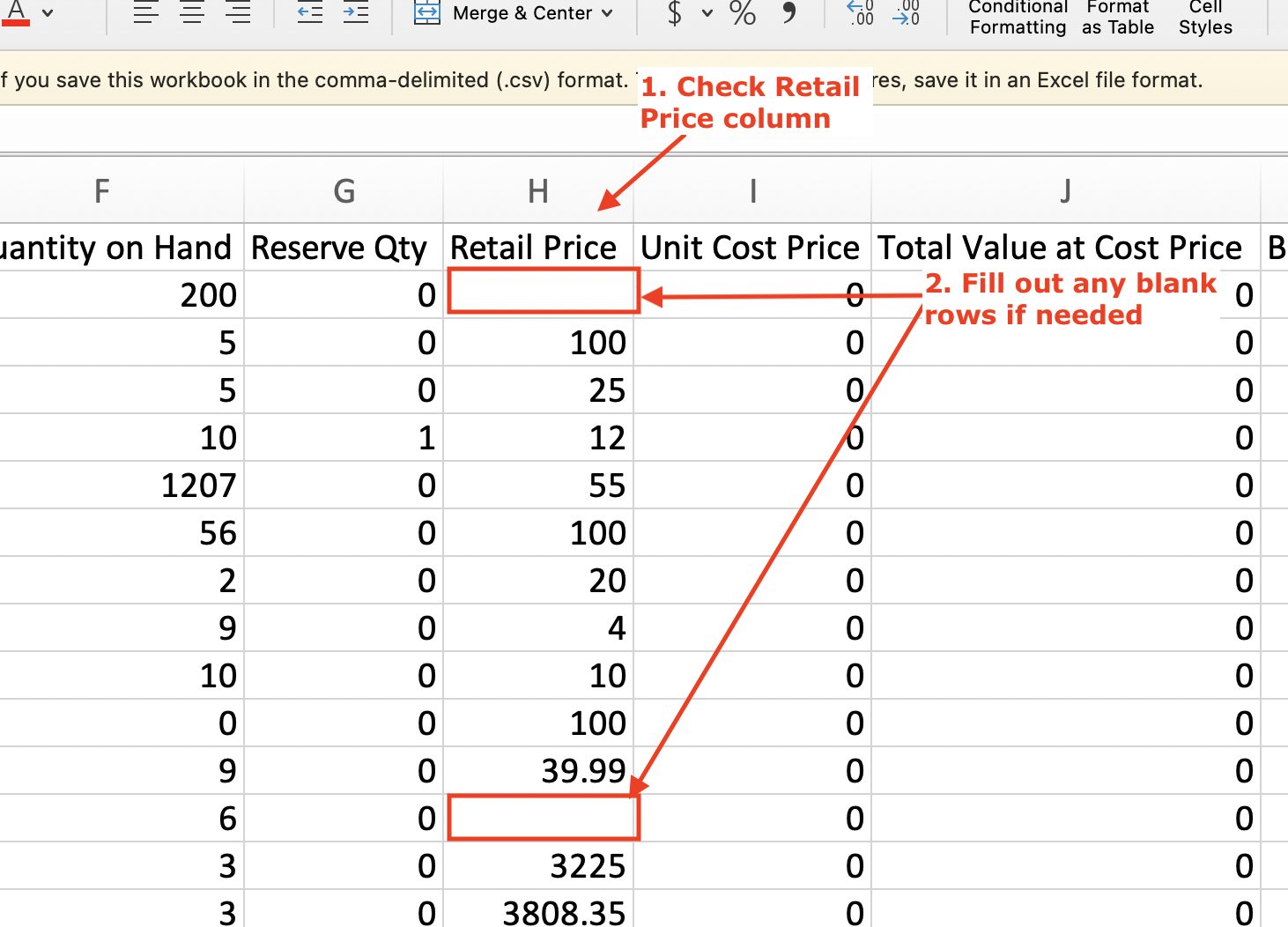
OneCart lets you keep a master list of retail prices for all your items. Here's where you can see what data you have stored.
OneCart lets you keep a master list of retail prices for all your items. Here's where you can see what data you have stored.
**Note: You should check the prices as per this article before you “Bulk Update” prices on your platforms.
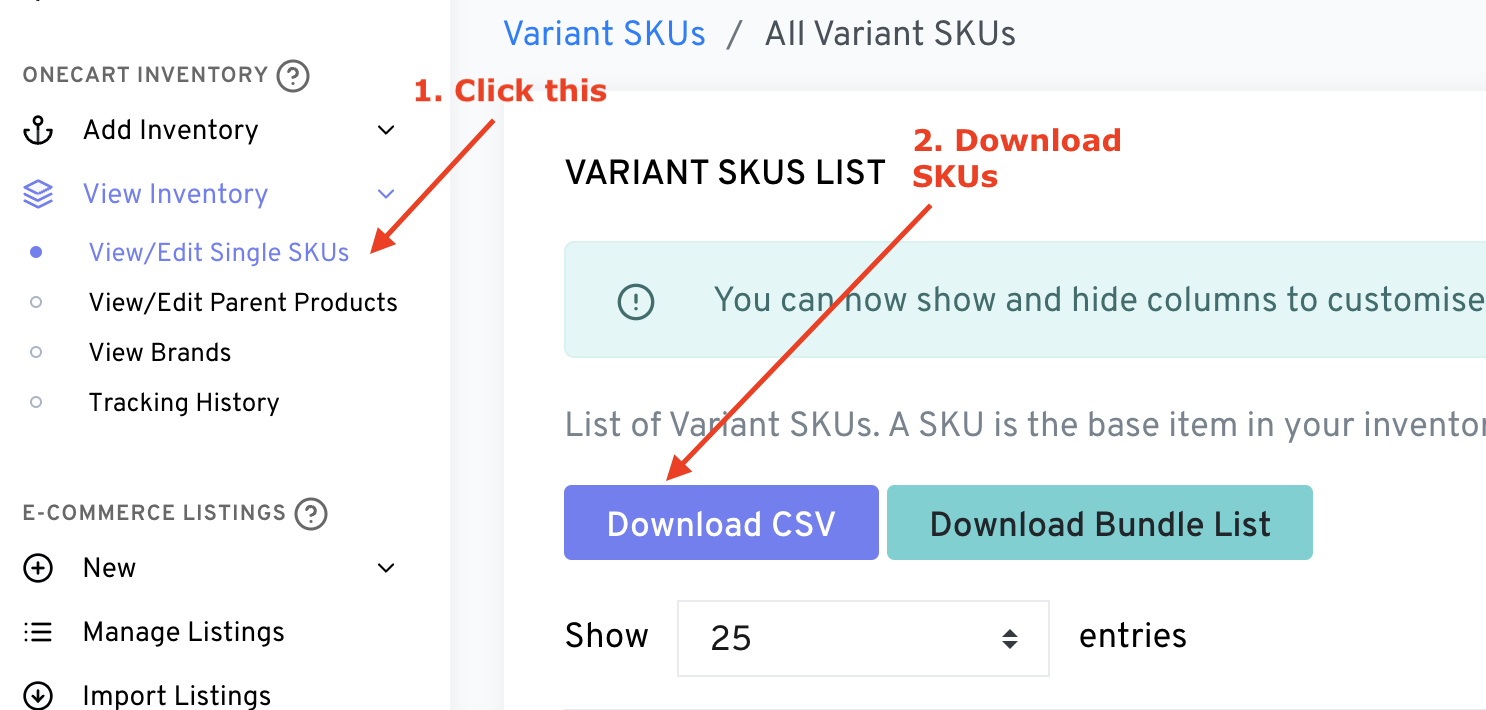
Navigate to OneCart Inventory > View Inventory > View/Edit Single SKUs
Click “Download CSV”