Bulk Updating Order Status (Shipped and Delivered) in OneCart
Move many orders through ready-to-ship, shipped-with-tracking, and delivered in one go by uploading a spreadsheet, including splitting an order into parcels with their own tracking. OneCart pushes each change to Shopee, Lazada, and TikTok and reports anything it can't update. No more clicking order by order.
Help Article
Last updated Aug 23, 2026
6 min read
When you have dozens or hundreds of orders to move along, updating them one at a time is slow. OneCart’s Bulk Update Order Status tool lets you upload a spreadsheet of order numbers and push a status change to the marketplace for all of them at once.
Open it here: Bulk Update Order Status.
OneCart sends each change to the marketplace for Shopee, Lazada, and TikTok seller-fulfilled orders. Anything it can’t update for that stage is reported back to you and left untouched. Nothing is changed silently.
The three stages
An order moves through three stages, left to right. Each stage is a separate tab, and each tab is its own upload. You do one stage at a time.
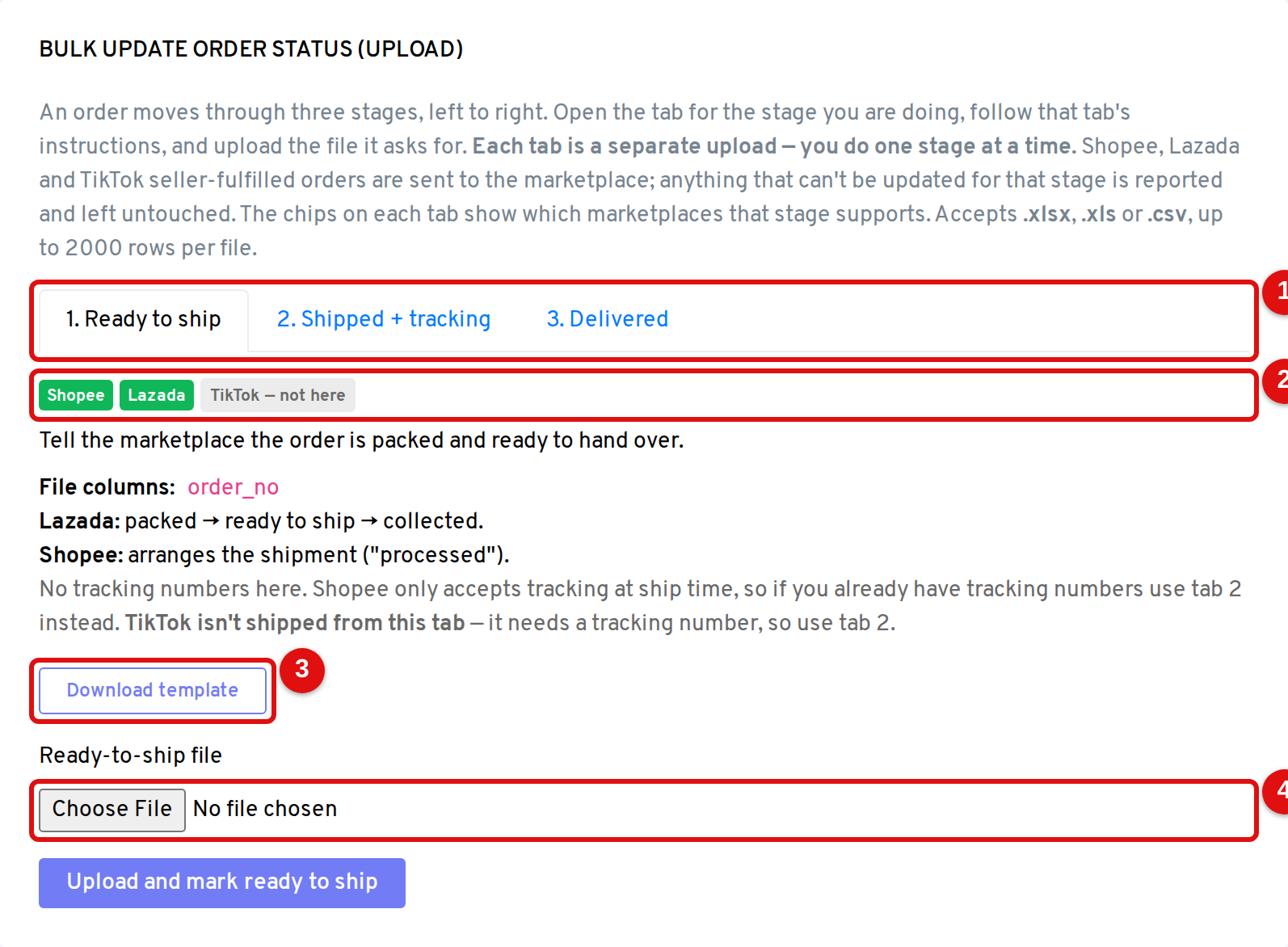
- Stage tabs: Ready to ship, Shipped + tracking, Delivered. Open the tab for the stage you’re doing.
- Platform chips: each tab shows which marketplaces that stage supports. A muted chip (for example “TikTok — not here”) means that platform isn’t handled on this tab.
- Download template: every tab has its own template with the exact columns for that stage.
- File upload: choose your filled-in file, then click the upload button. Accepts .xlsx, .xls, or .csv, up to 2000 rows per file.
Stage 1: Ready to ship
Tell the marketplace the order is packed and ready to hand over.
- File column:
order_no (no tracking numbers at this stage). - Use this when you want to flag orders as packed before you have tracking numbers.
- Shopee only accepts a tracking number at ship time, so if you already have tracking numbers, skip straight to Stage 2.
Stage 2: Shipped + tracking
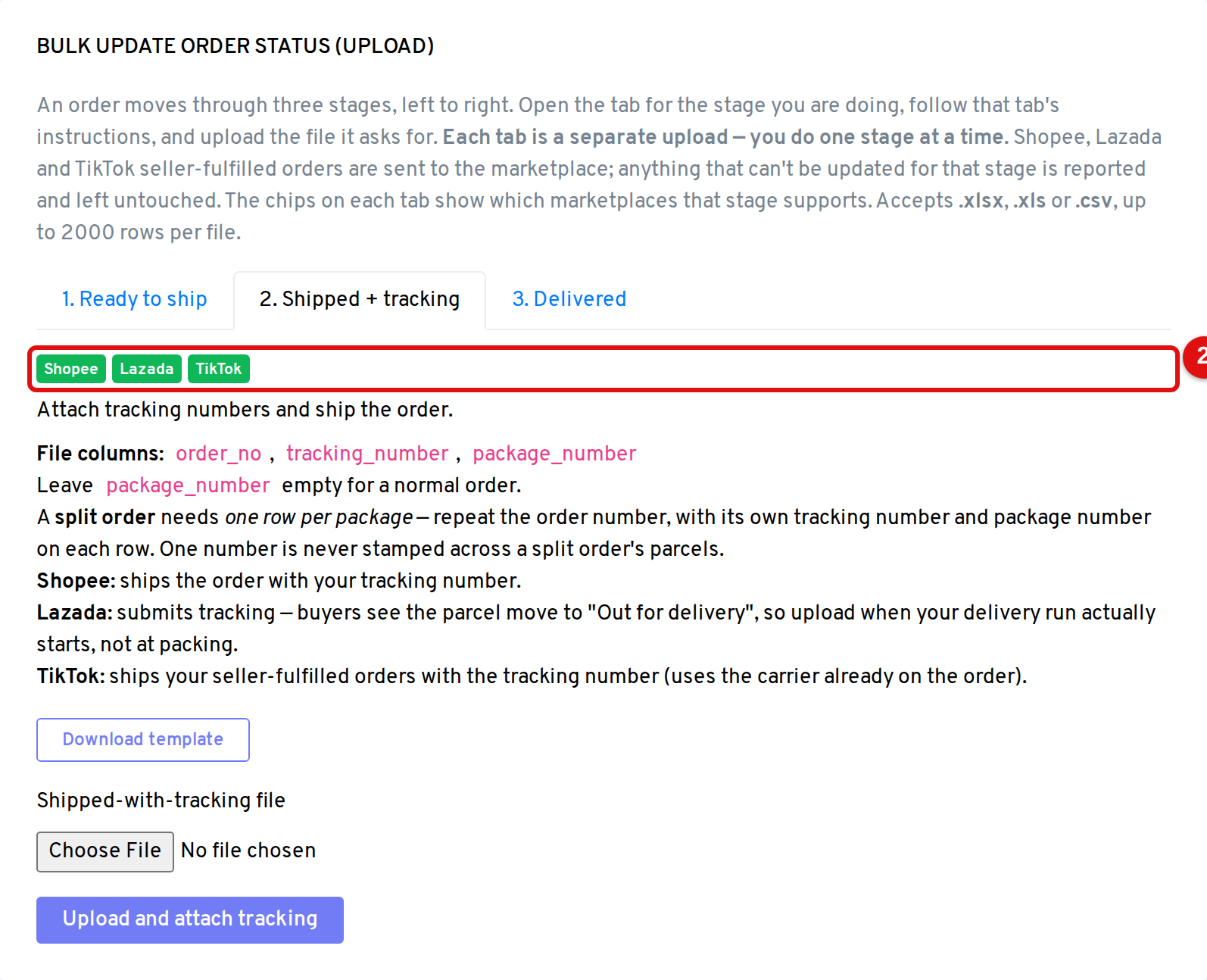
Attach tracking numbers and ship the orders. This is also where you split an order into parcels.
File columns: order_no, tracking_number, package_id, parcel_number, sku, qty.
Which columns you fill in decides what happens, one order at a time. There are three ways to use this tab:
- Tag a whole order. Fill in
order_no and tracking_number only, and leave the rest blank. The whole order ships under that one tracking number. This is the everyday case. - Tag an existing parcel. Add
package_id when the order is already split into parcels on the marketplace and you’re attaching tracking to one specific parcel. Use package_id to point at the parcel that already exists. - Split an order into parcels. Add
parcel_number, sku, and qty to break one order into parcels yourself, each with its own tracking number. This is the new capability, described next.
Splitting an order into parcels
Use this when one order ships in more than one box and each box needs its own tracking number.
parcel_number is your label for a parcel. Most sellers use the Delivery Order (DO) number from their ERP. One sales order can have several DOs, and each unique parcel_number within an order becomes one parcel.- List one row per SKU per parcel: repeat the order number, put the parcel’s DO number in
parcel_number, and the sku and qty going into that parcel. Give each parcel its own tracking_number. - You give the SKUs. OneCart figures out the rest, creates the split at the marketplace, and ships each parcel with its own tracking number.
- Anything that doesn’t add up (a SKU that isn’t on the order, or more quantity than was ordered) is reported back and left untouched, never guessed.
- Splitting works for Shopee, Lazada, and TikTok seller-fulfilled orders, the same seller-fulfilled rule as the rest of Stage 2.
Example. Order 2508230003GHI ships as two parcels. DO-1001 holds two SKU-RED and one SKU-BLUE; DO-1002 holds three SKU-GREEN. Each DO gets its own tracking number, so the file lists one row per SKU per parcel:
| order_no | tracking_number | package_id | parcel_number | sku | qty |
|---|
| 2508230003GHI | SF123456789SG | | DO-1001 | SKU-RED | 2 |
| 2508230003GHI | SF123456789SG | | DO-1001 | SKU-BLUE | 1 |
| 2508230003GHI | SF987654321SG | | DO-1002 | SKU-GREEN | 3 |
The two rows sharing DO-1001 become one parcel under tracking SF123456789SG, and the DO-1002 row becomes a second parcel under SF987654321SG. Leave package_id blank when you’re splitting: that column is only for tagging a parcel that already exists on the marketplace.
Stage 3: Delivered
Confirm the orders were delivered.
- File column:
order_no. - Use this for your own-fleet deliveries once the parcel has reached the buyer.
Which marketplaces work at which stage
This is the part to get right. Each tab’s chips mirror the table below.
| Stage | Shopee | Lazada | TikTok |
|---|
| 1. Ready to ship | Yes | Yes | No. Use Stage 2 (TikTok ships with a tracking number) |
| 2. Shipped + tracking | Yes | Yes | Yes (seller-fulfilled orders only) |
| 3. Delivered | No (Shopee has no delivered API outside Brazil) | Yes | Yes |
Stage 2, where all three platforms are supported:
Stage 3, where Shopee is not supported but Lazada and TikTok are:
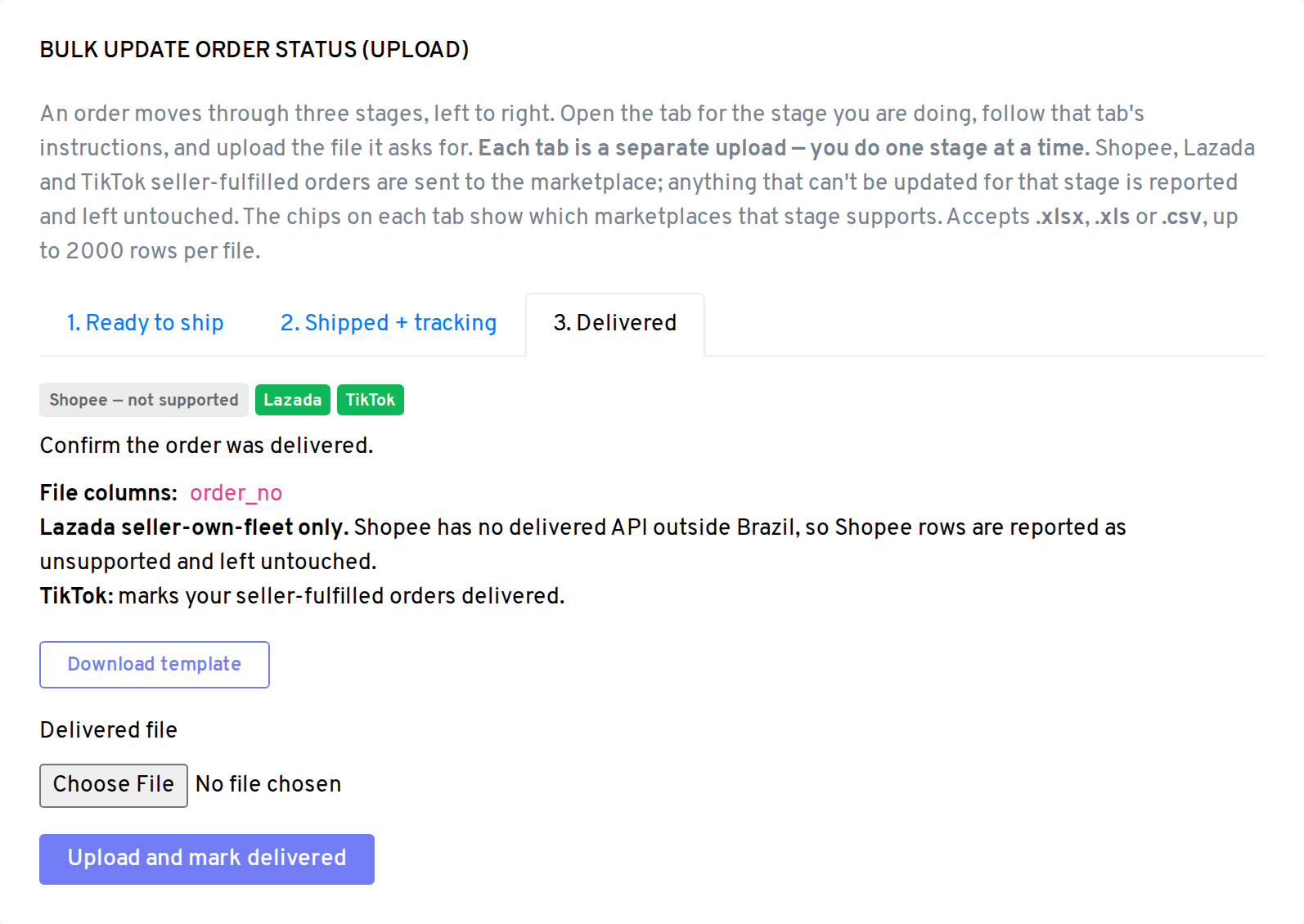
- Shopee: ships with your tracking number at Stage 2. There is no “delivered” step for Shopee. The marketplace completes the order on its side.
- Lazada: Stage 2 submits your tracking number (buyers then see the parcel move to “Out for delivery”), and Stage 3 marks it delivered. This is for your own delivery fleet.
- TikTok: only your seller-fulfilled orders are updated. Orders that TikTok ships for you are handled by TikTok and are reported as such, not changed. TikTok uses the carrier already on the order, so there’s no carrier column in the file.
Reading the results
After you upload, OneCart takes you to a status page. Each row shows:
- Order No: the order from your file.
- Platform: Shopee, Lazada, or TikTok.
- Outcome: for example
shipped, delivered, not seller-shipping, or tracking number required.
When the run finishes, you get a summary email, and the original file is saved to your Upload History on the same page, so you can always go back and check what happened.
A few tips
- Download the template from the tab you’re on. The columns differ between stages.
- Do one stage per file. Don’t mix ready-to-ship and delivered order numbers in the same upload.
- If a row comes back as
tracking number required, add the tracking number and re-upload just that order through Stage 2. - Need to split an order into parcels? Do it right in Stage 2: add
parcel_number, sku, and qty, one row per SKU per parcel. See Splitting an order into parcels above. - Need the air waybill for those parcels? See How to Print an Airway Bill (AWB) in OneCart.
Frequently asked questions
Can I put Shopee, Lazada, and TikTok orders in the same file?
Yes. OneCart routes each order to the right marketplace based on where it came from. Any order that can’t be updated at that stage (for example a Shopee order in a Delivered file) is reported and left untouched.
What happens to orders that can’t be updated?
They’re never changed silently. They appear on the status page with an outcome that explains why (for example “not supported” or “not seller-shipping”), and everything else in the file still goes through.
Why can’t I mark Shopee orders as delivered?
Shopee has no delivered API outside Brazil, so OneCart can’t push a delivered status to Shopee. Shopee completes the order on its own side once the buyer receives it.
My TikTok orders came back as not updated. Why?
Only seller-fulfilled TikTok orders can be updated here. If TikTok is fulfilling the order for you, TikTok controls its status, and OneCart reports those rows rather than changing them.
How many orders can I upload at once?
Up to 2000 rows per file, in .xlsx, .xls, or .csv format.