Bulk Bundle Uploads
The Bulk Bundle Uploads page allows you to create bundle products by uploading a CSV file where each row represents one component of a bundle. This method ensures better structure, fewer errors, and easy troubleshooting for complex bundles.
Help Article
Last updated Nov 14, 2025
2 min read
When to Use This Feature
Use the Bulk Bundle Upload when you need to:
Create multiple bundles in one batch
Standardize large bundle sets for campaigns
Prepare bundles for major sale events (e.g., 11.11, Year-End Deals)
How It Works
Step 1: Go to New Bundle Upload
Navigate to OneCart Inventory > Add Inventory > Bulk Upload Bundles
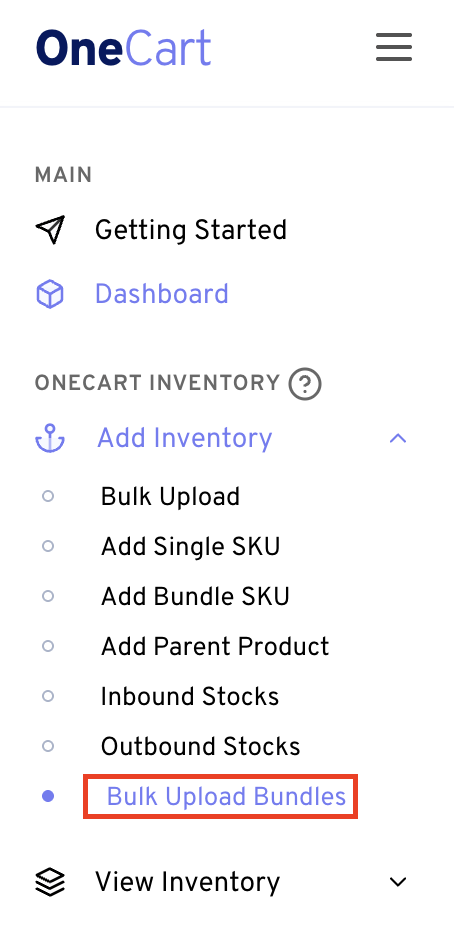
Click New Bundle Upload
You will see:
Step 2: Name Your Upload Batch
In the Name field, enter a clear label.
Example:
Bundle Upload Nov 14th 2025
Naming helps you track and review previous uploads easily.
Step 3: Download & Prepare Your CSV
Click Download Sample to get the correct format.
The file follows a normalized structure , meaning each row represents one component of a bundle.
Your CSV must include (sample as per imagae below):
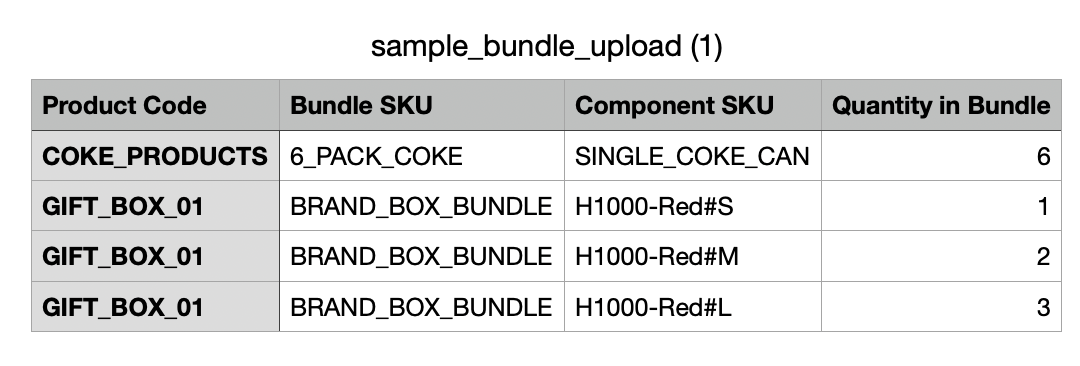
| Column | Description |
|---|
| Bundle SKU | SKU of the final bundle product |
| Component SKU | SKU of the individual item included in the bundle |
| Quantity in Bundle | |
Quantity of the component
|
Important Notes:
All Component SKUs must already exist in your product list.
One bundle with multiple components = multiple rows sharing the same Bundle SKU.
Save your file in CSV (UTF-8).
Step 4: Upload Your File
Click Choose File
Select your prepared CSV
Confirm the file name appears
Click Upload to start processing
Step 5: Review Processing Results
After upload, the system will:
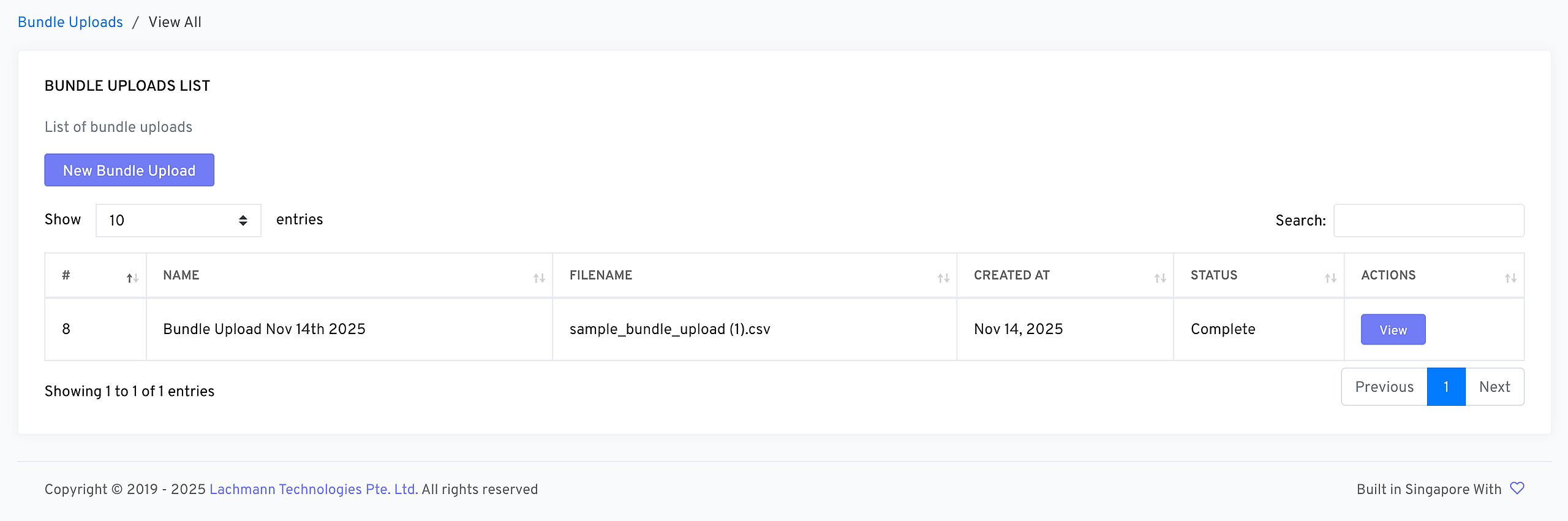
- Click on View to see the Bundle Upload Item status if it has been successfully uploaded
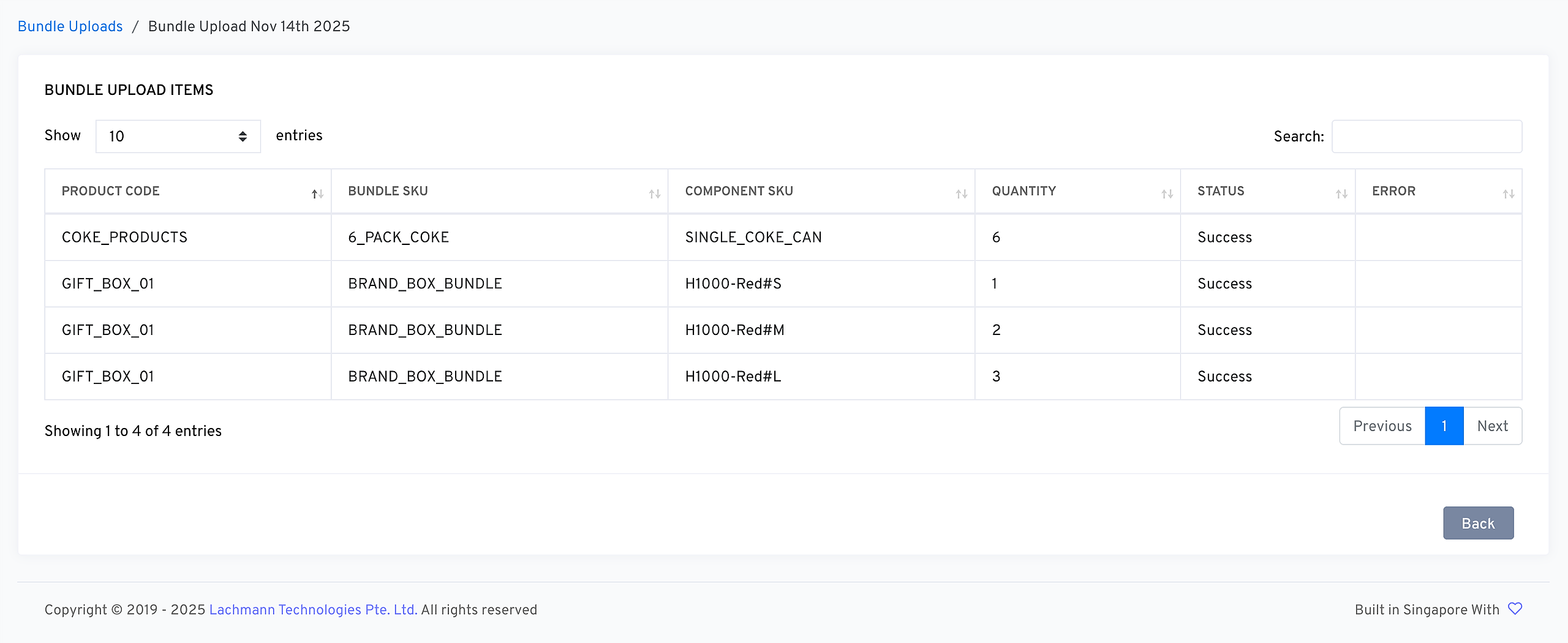
Common error checks include:
Missing component SKUs
Duplicate entries
Invalid quantities
Formatting issues
Fix the highlighted errors and re-upload when necessary.
Common Errors & Fixes
| Error | Meaning | Fix |
|---|
| “Component must exist” | Component SKU not found | Add the product SKU first |
| “Invalid quantity” | Quantity is zero or not a number | Use whole numbers only |
| Duplicate rows | Same Bundle SKU + Component SKU repeated | Remove duplicates |
| Incorrect format | Wrong headers or broken CSV | Re-download sample and follow exactly |
Tips for Best Results
Start with a small test upload
Keep SKU naming consistent
Use exports as a reference for correctly structured bundles.
Organize uploads by campaign, category, or season