How to Add a Logistics Provider and Shipping Address in OneCart
This guide will walk you through setting up a new logistics provider and adding a shipping address in your OneCart dashboard for streamlined order fulfillment.
This guide will walk you through setting up a new logistics provider and adding a shipping address in your OneCart dashboard for streamlined order fulfillment.
Log in to your OneCart admin panel.
Navigate to Settings > My Account > Logistics Providers from the sidebar.
Click on the New Logistics Provider button.
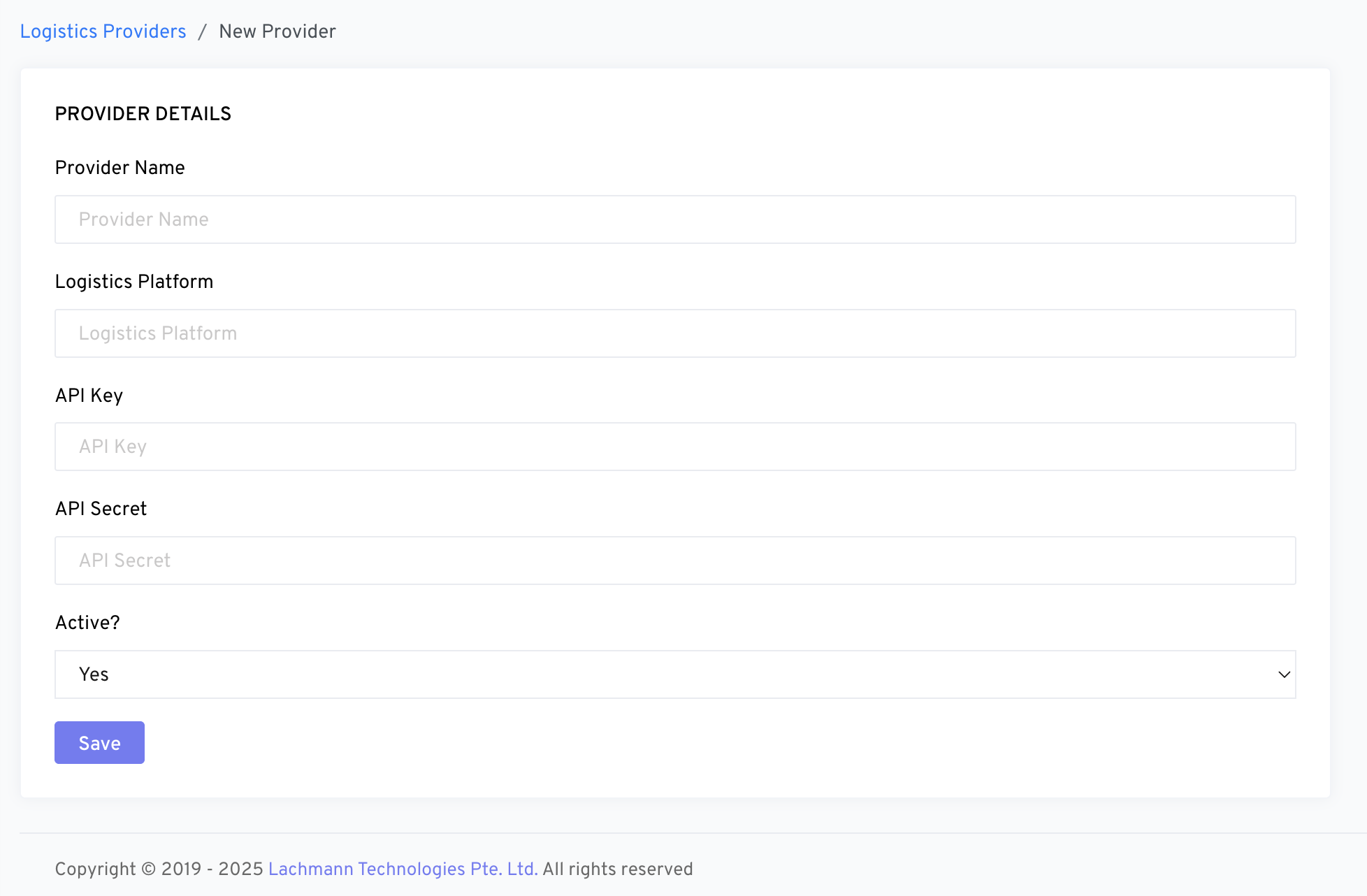
Provider Name : Enter the name of your logistics partner (e.g., Ninja Van, Lalamove, SPX, etc.)
Logistics Platform : Choose the platform or type (e.g., Third Party, Fleet, etc.)
API Key : Enter the API key provided by your logistics provider.
API Secret : Enter the API secret/token.
Active : Set to “Yes” if you want the provider to be immediately available.
Navigate to Settings > My Account > Shipping Addresses from the sidebar.
Click New Shipping Address.
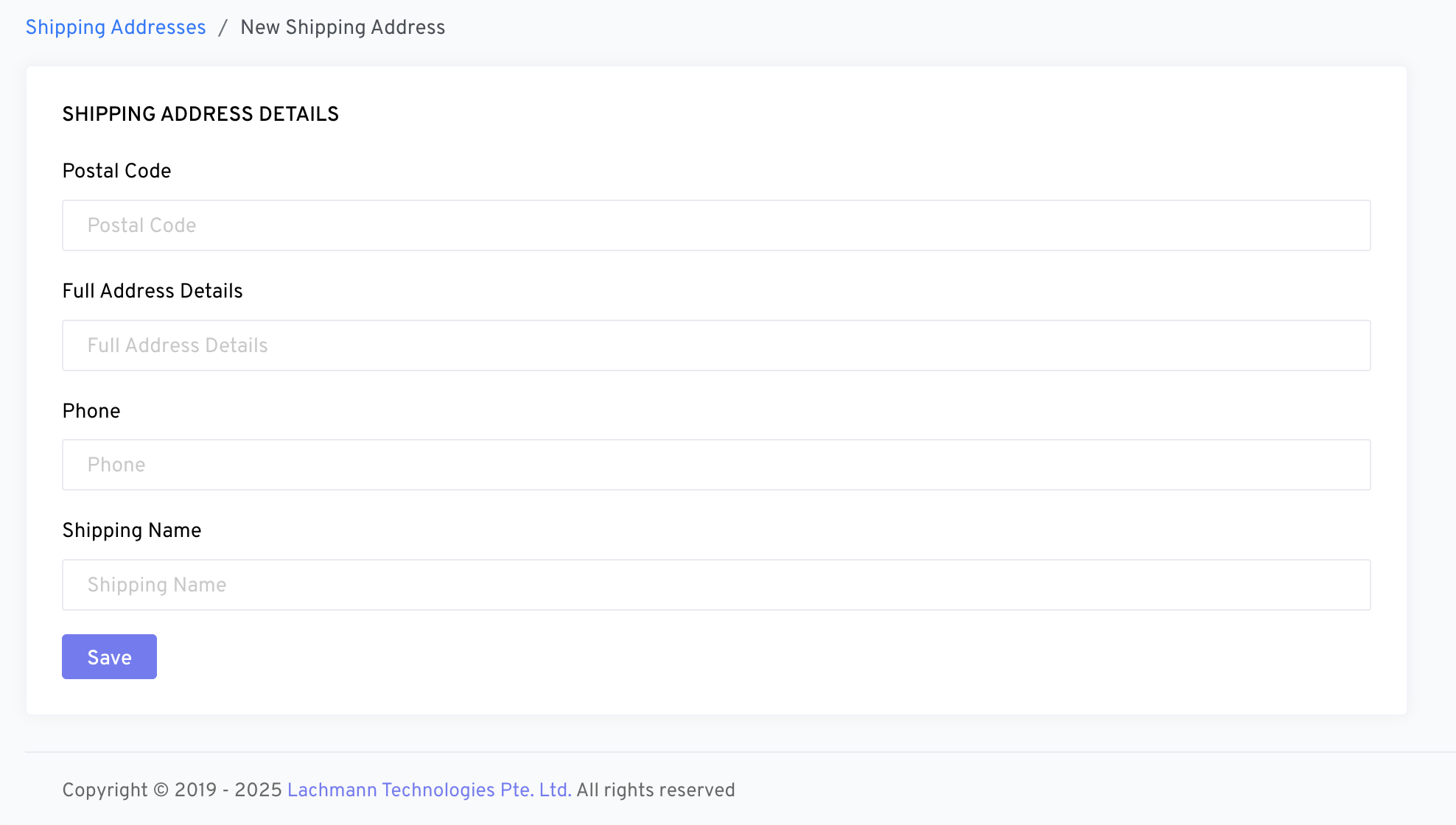
Postal Code : Enter the postal code for the address.
Full Address Details : Provide the complete address (including unit number, street name, etc.)
Phone : Enter a valid contact number for delivery coordination.
Shipping Name : Provide a name or label for the address (e.g., Warehouse, Main Office).
You have now:
Successfully added a logistics provider using API credentials
Registered a shipping address for your order fulfillment workflow
If you need help with credentials or API setup, please contact your logistics provider or reach out to our support team.