Accessing Historical SKU Data
Export a snapshot of your variant SKU data as it was at any past date, including stock levels, retail prices, and cost prices.
Export a snapshot of your variant SKU data as it was at any past date, including stock levels, retail prices, and cost prices.
The Historical Export feature lets you download an Excel file of your variant SKU data as it was at a specific date in the past. OneCart reconstructs the data from your change history (audit trail), giving you a snapshot of:
This is useful for reviewing past inventory levels, comparing month-end stock counts, or preparing internal reports.
Important: OneCart is not an accounting system. This export provides an estimated snapshot reconstructed from change history. It should not be used as an authoritative source for financial or accounting purposes.
Navigate to View Items > View/Edit Single SKUs in the sidebar menu, or go directly to https://app.getonecart.com/variants.
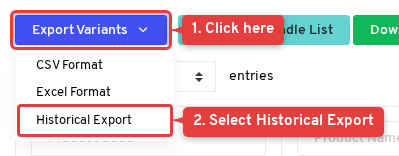
Click the Export Variants button at the top of the page. You will see three options: CSV Format, Excel Format, and Historical Export.
Click Historical Export to open the export modal.
In the Historical Variant Export modal:
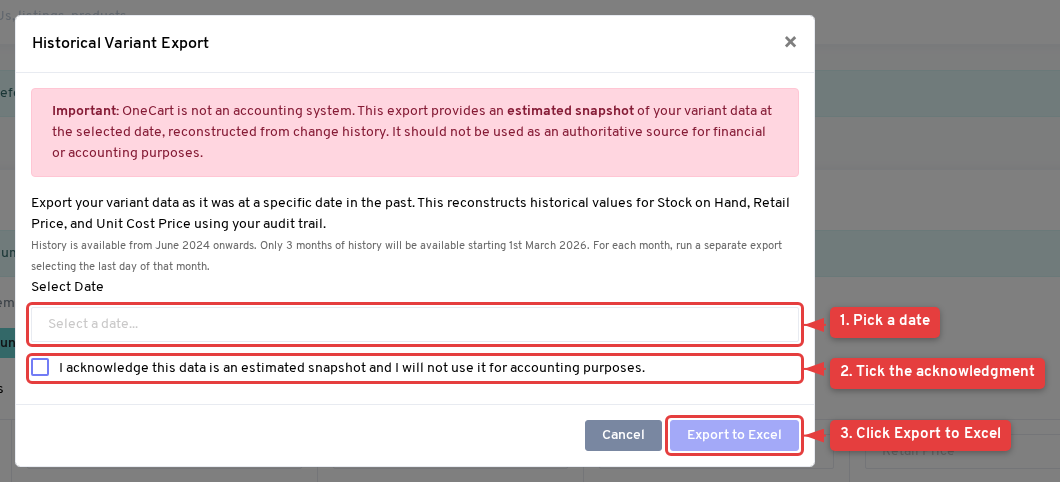
The button will show “Generating…” while the file is being prepared. Once the download starts in your browser, you can close the modal.
If you need month-end data for an entire year, run a separate export for the last day of each month. For example:
Each export generates a separate Excel file that you can compile as needed.
| Column | Description |
|---|---|
| Product Code | The parent product’s SKU code |
| Product Name | The parent product’s name |
| Variant SKU | The individual variant’s SKU |
| Stock on Hand | Quantity available at the selected date |
| Retail Price | Selling price at the selected date |
| Unit Cost Price | Cost price at the selected date |